
heylogin supports two-factor authentication (TOTP). This means that you can log in with one click using both your password and a 6-digit code. Instead of receiving the code via another authenticator app, you can directly use heylogin for a more automated login experience.
Set up TOTP (QR code)
The process to register TOTP in heylogin looks different for each site, we have chosen paypal.com for our example:
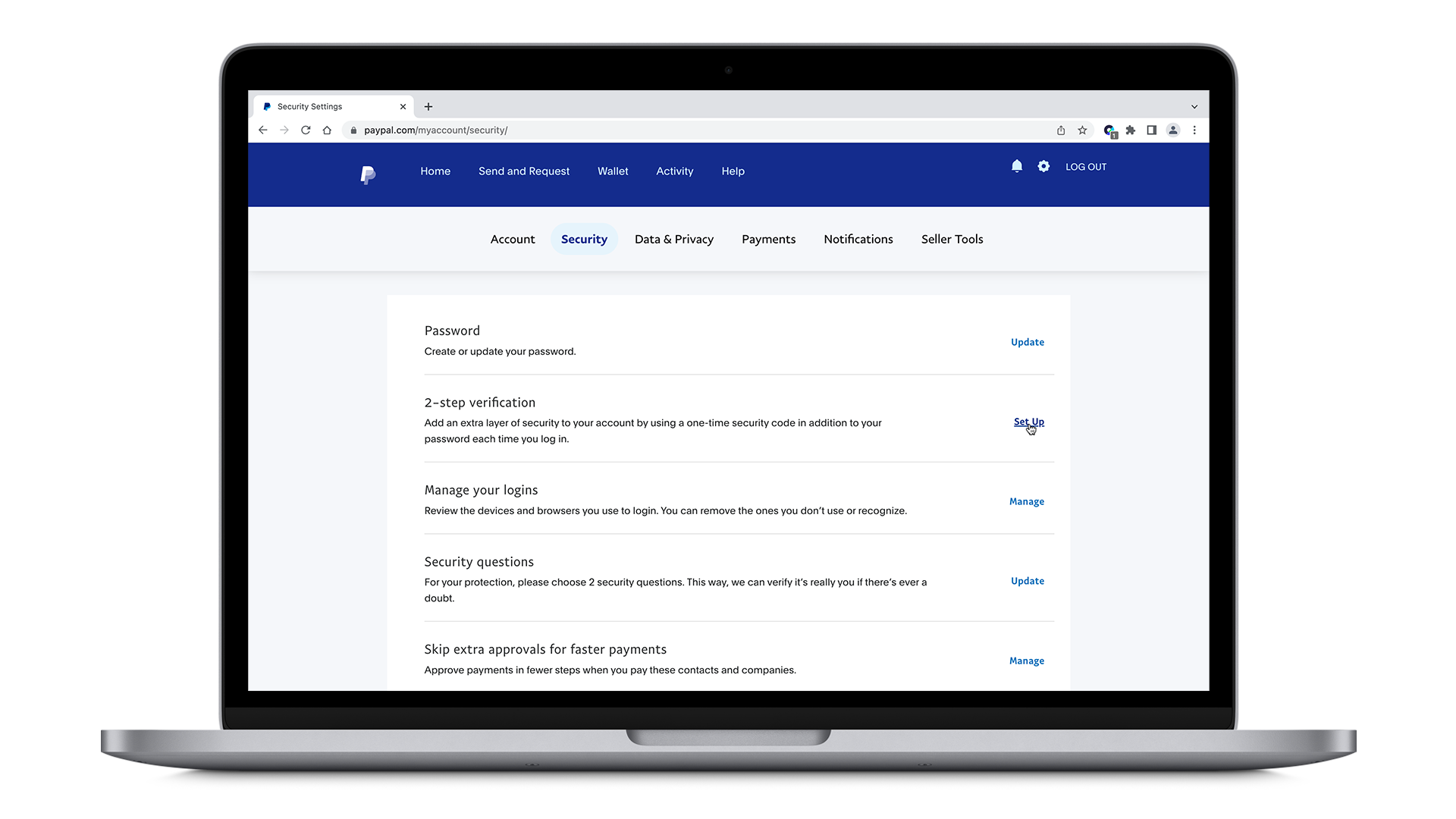
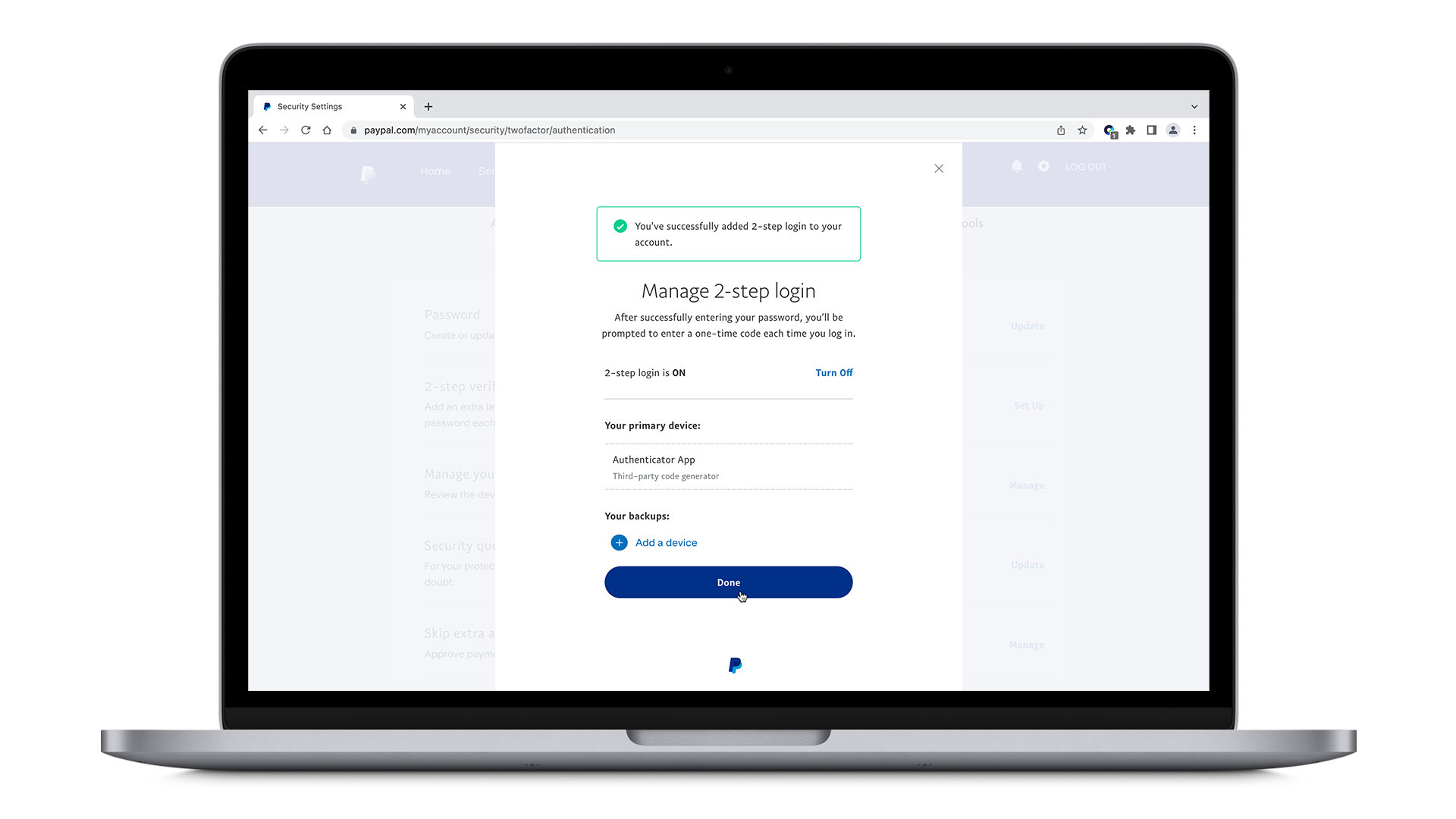
- Go to your profile settings by clicking on the gear icon in the upper right corner. Under Security, click on Set Up under 2-step-verification.
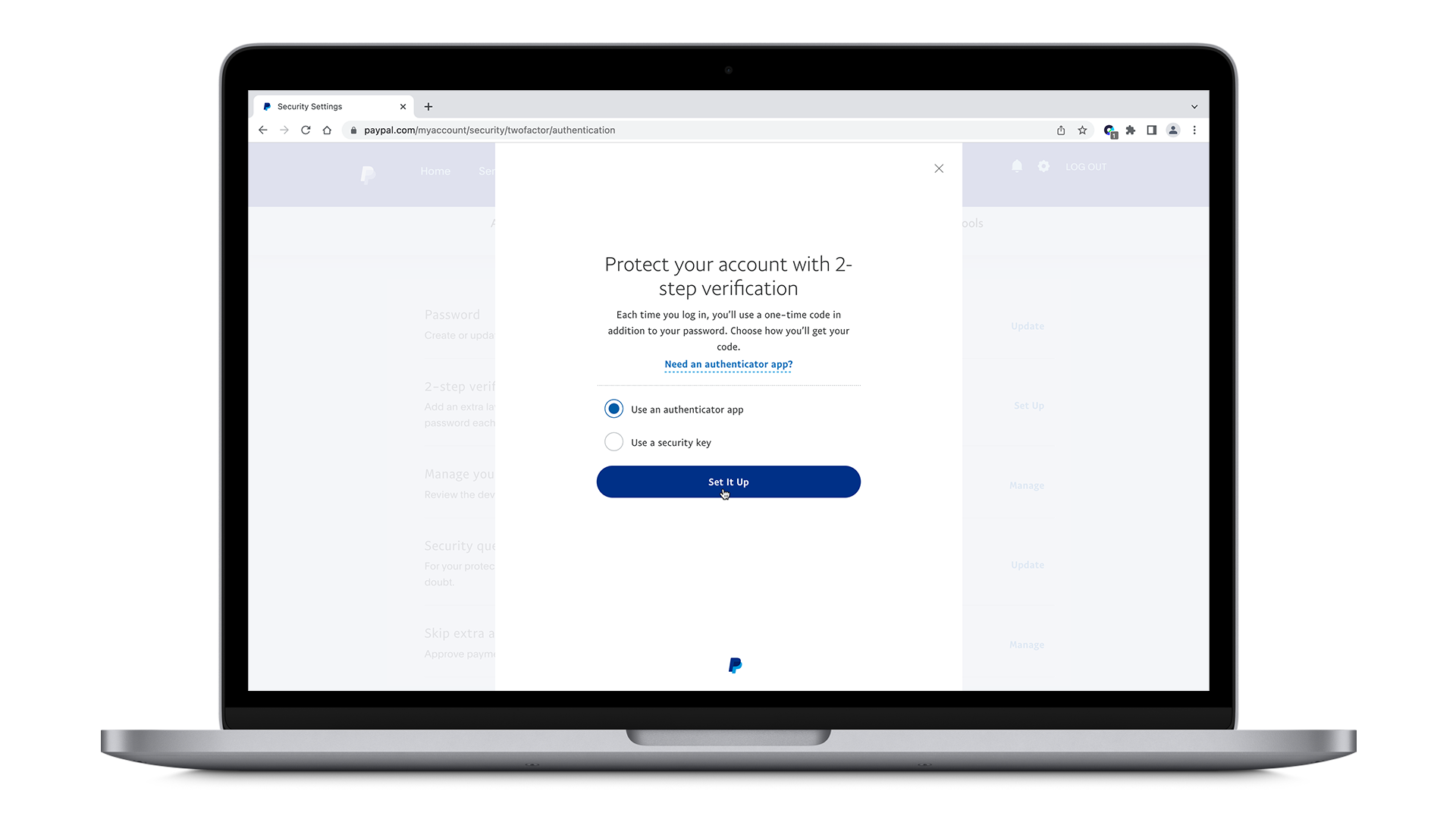
- Having Use an authenticator app selected, click on Set It Up.
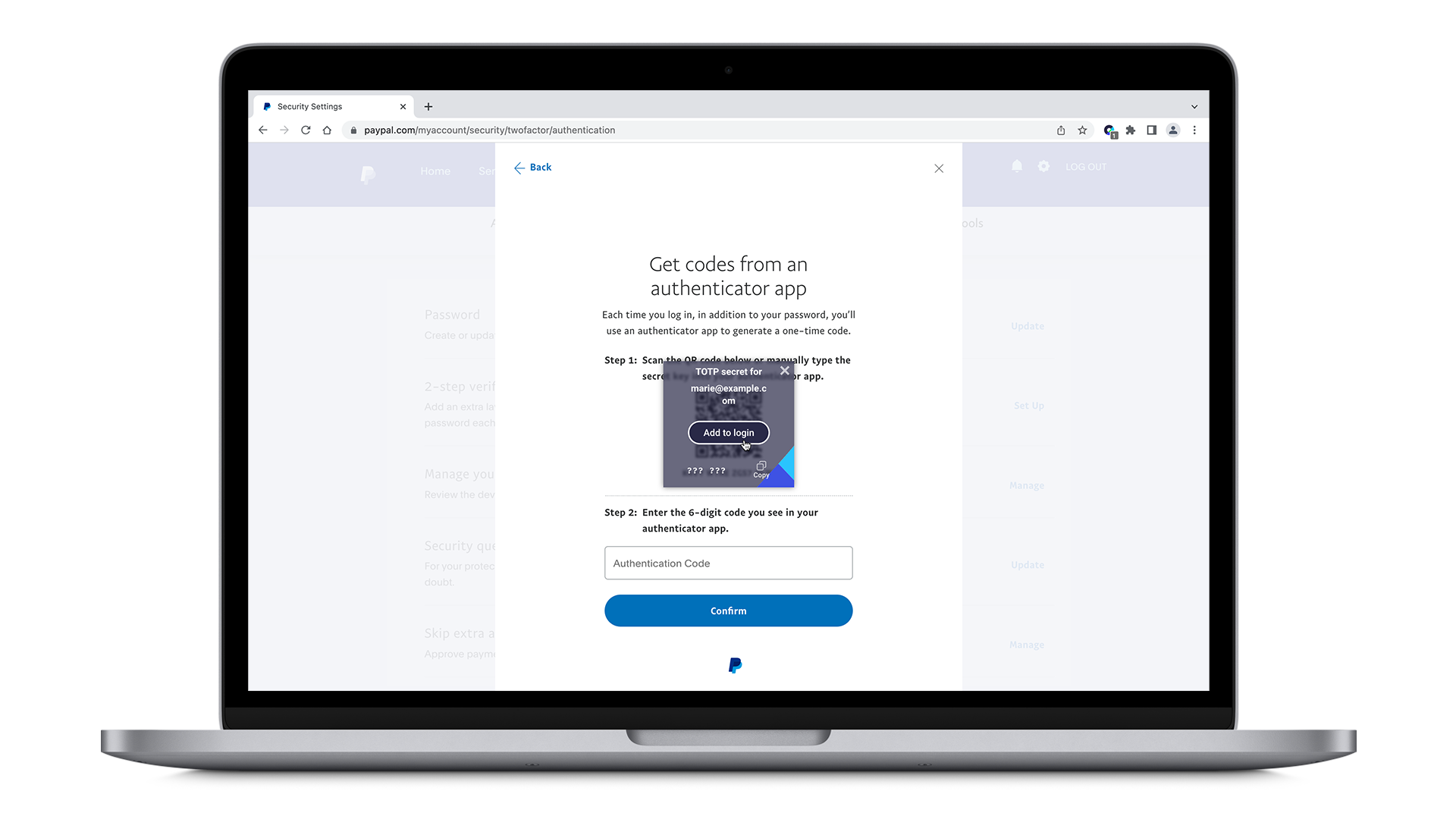
- heylogin automatically detects the QR code. Simply click Add to login on the overlay.
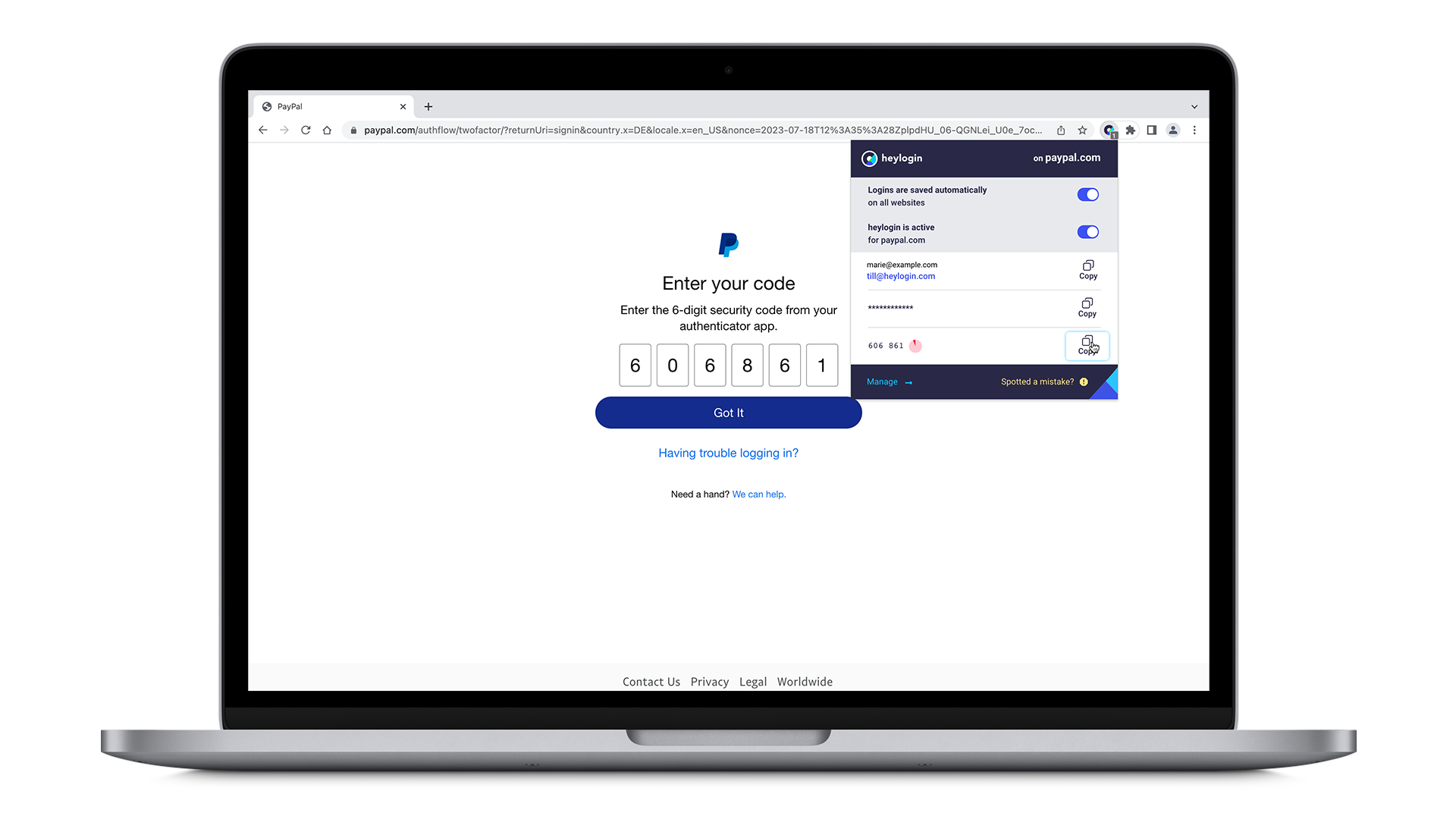
- Your login mask should appear and all you need to do is click on it. Otherwise, copy the 6-digit code shown on the login mask by hitting the Copy button on the right side of the overlay and paste it into the 6-digit code field.
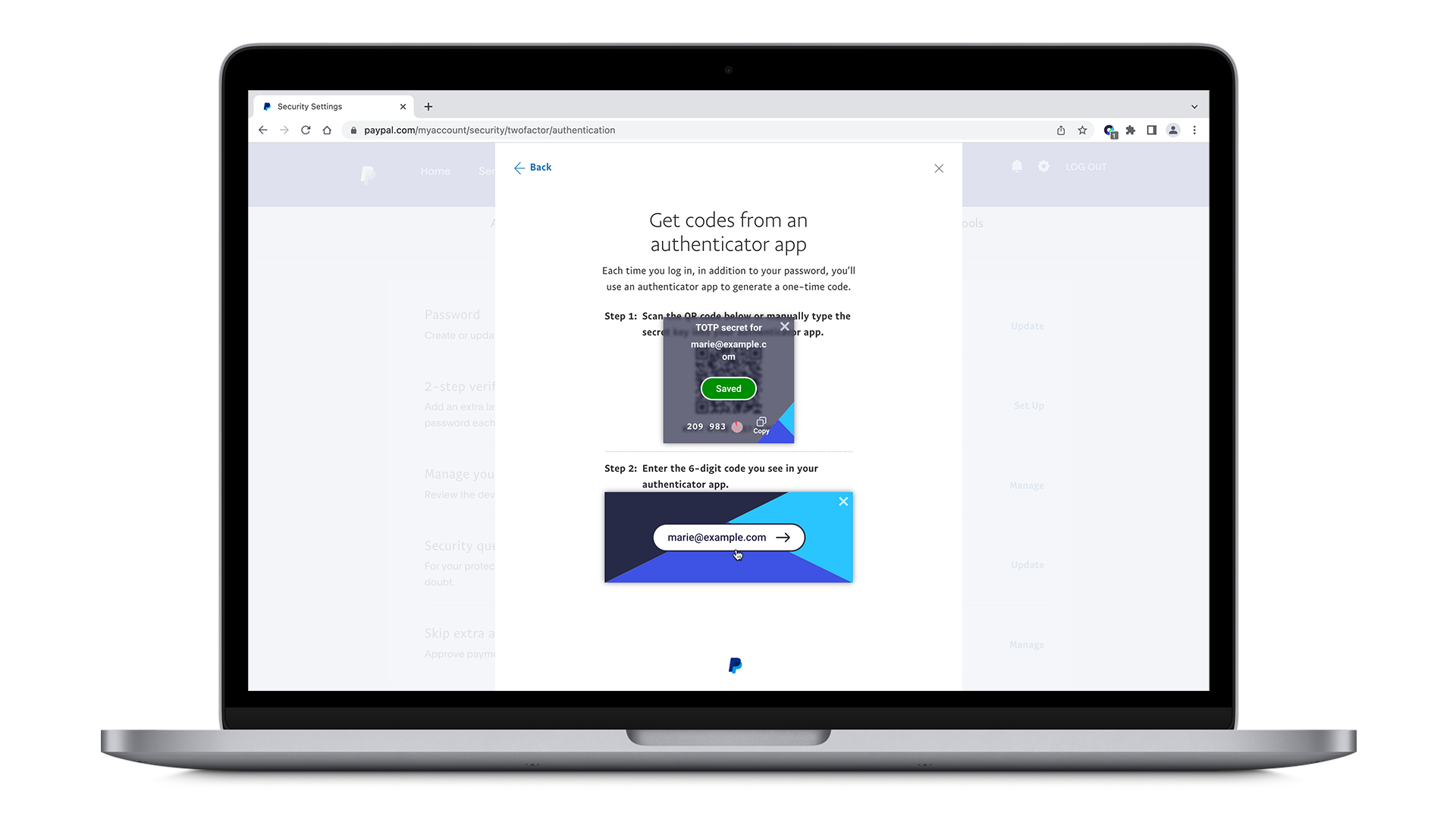
- Your TOTP is now autofilled every time you log into PayPal.
Set up TOTP (manual)
If the QR code is not detected or cannot be used, you can set up TOTP manually. We use paypal.com as an example:
- Go to your profile settings by clicking on the gear icon in the upper right corner. Under Security, click on Set Up under 2-step-verification.
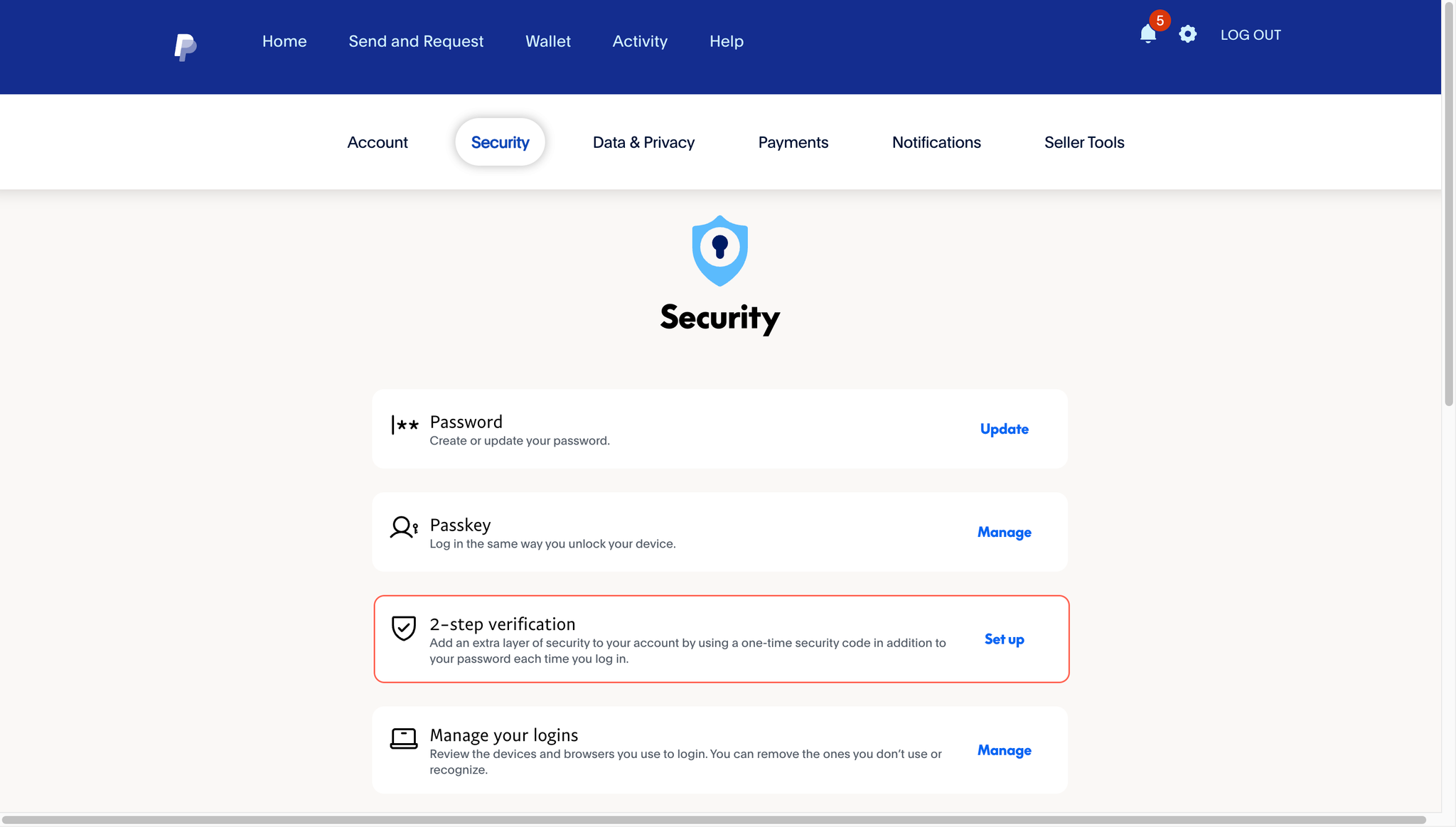
- Select Use an authenticator app.
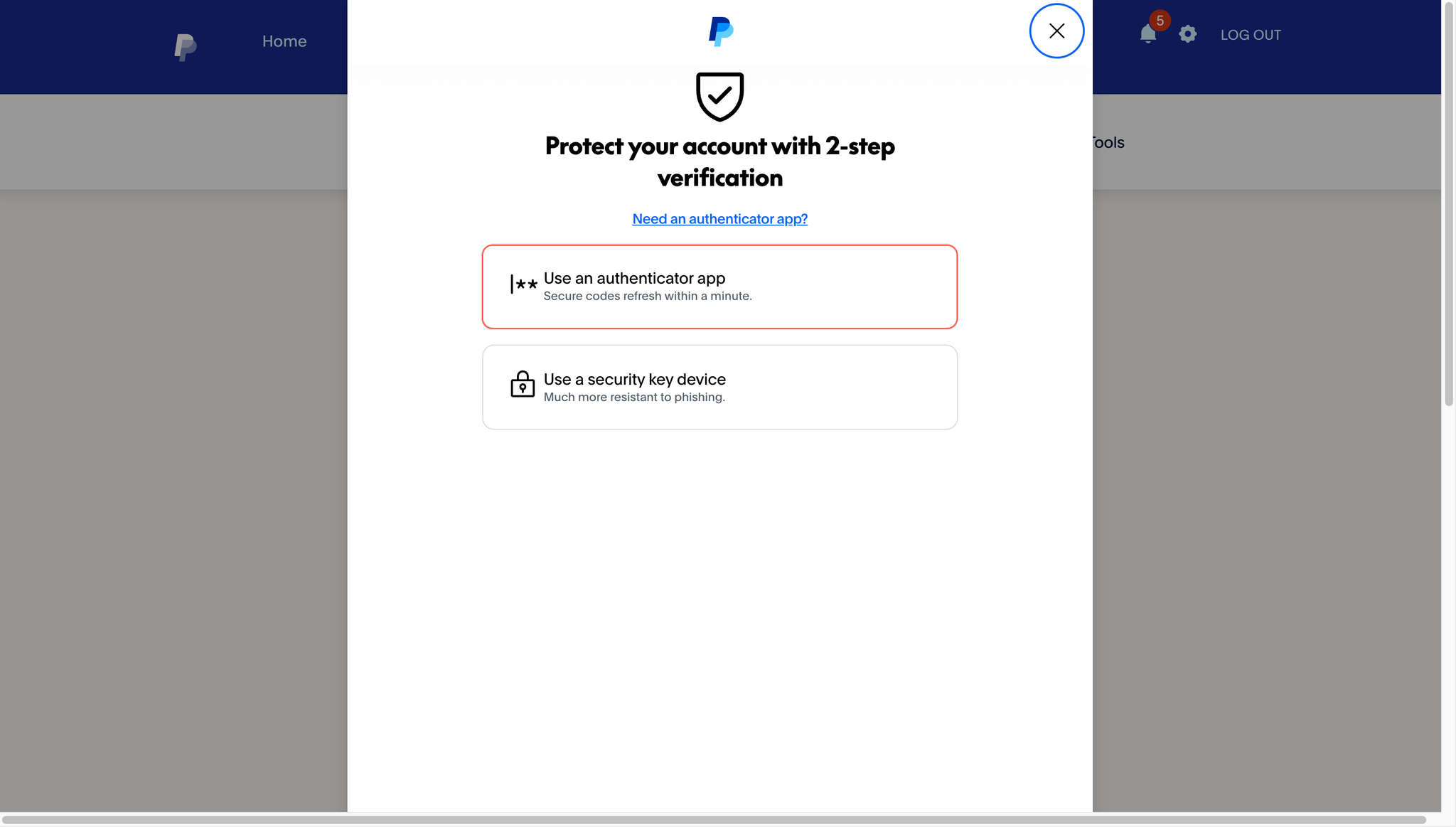
- If the QR code is not recognized or cannot be used, copy the TOTP key.
💡
On some websites, the TOTP key can’t be copied directly. In this case, follow the steps described here: What should I do if the TOTP key can't be copied?
- Open heylogin.app and select your login entry. Click Add TOTP secret.
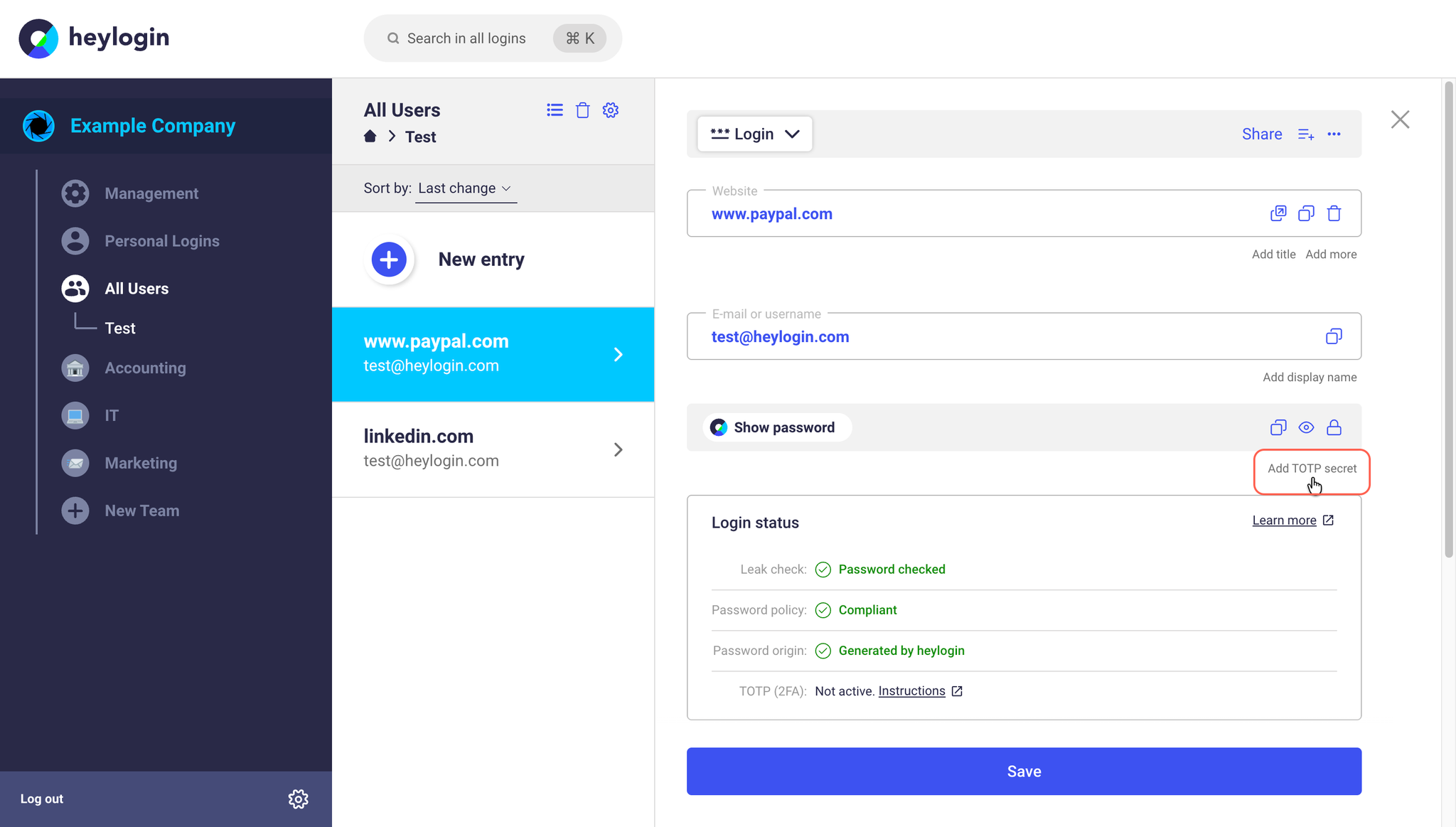
- Paste the previously copied TOTP key into the text field. Click Save 1 change.
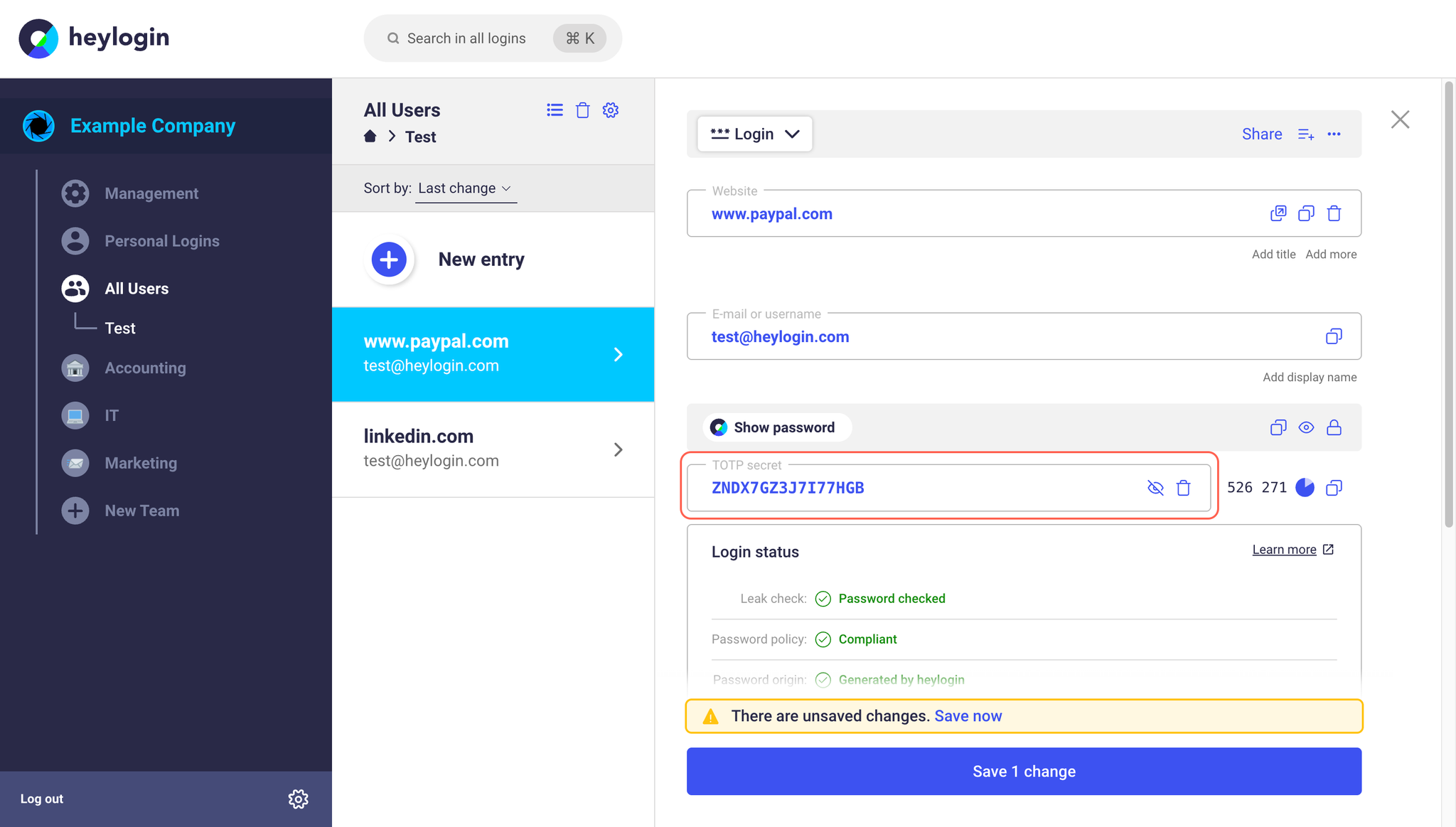
- Copy the generated TOTP code to verify the setup on paypal.com.
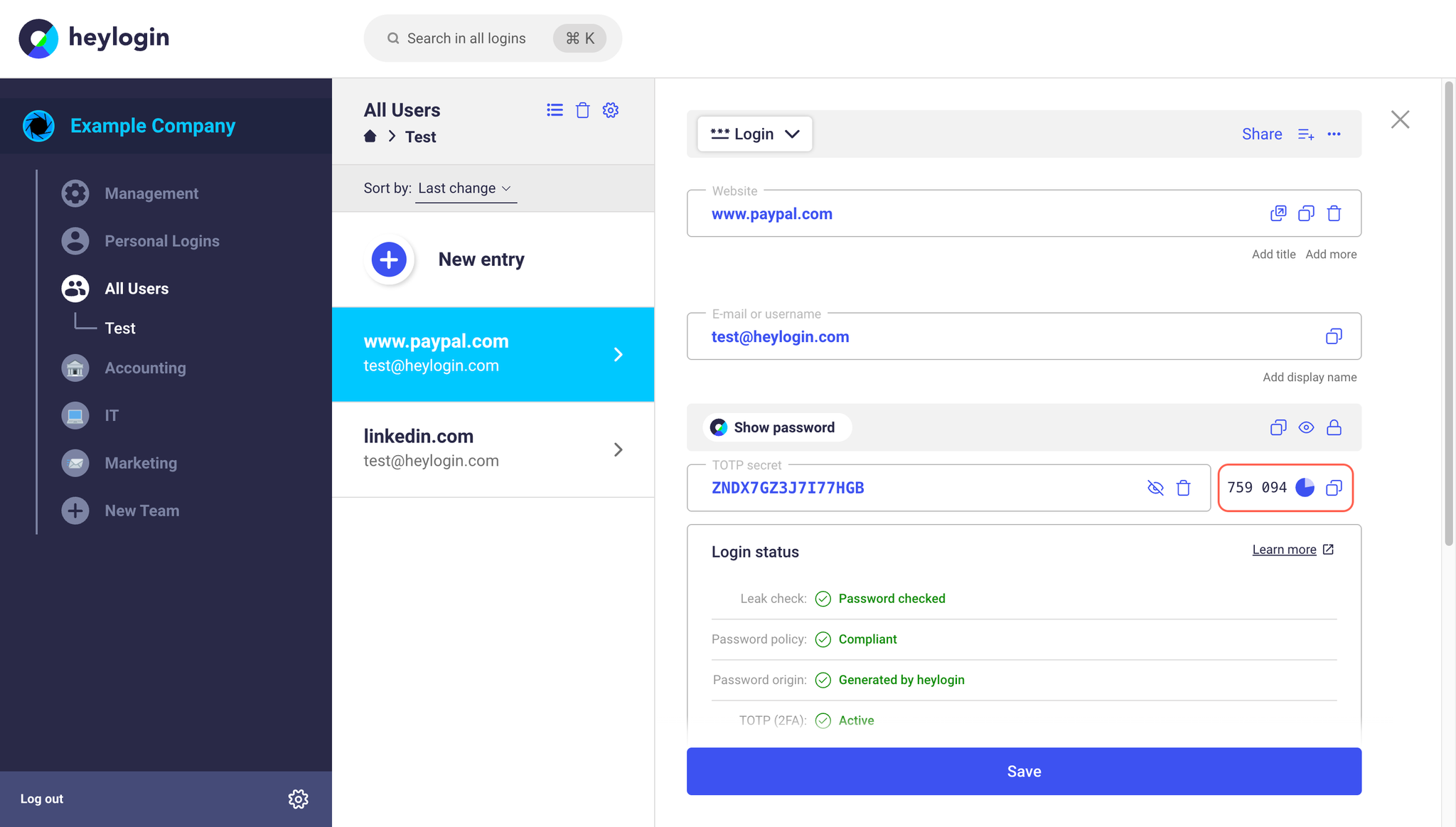
- Paste the previously copied TOTP code into the text field. Confirm with Confirm.
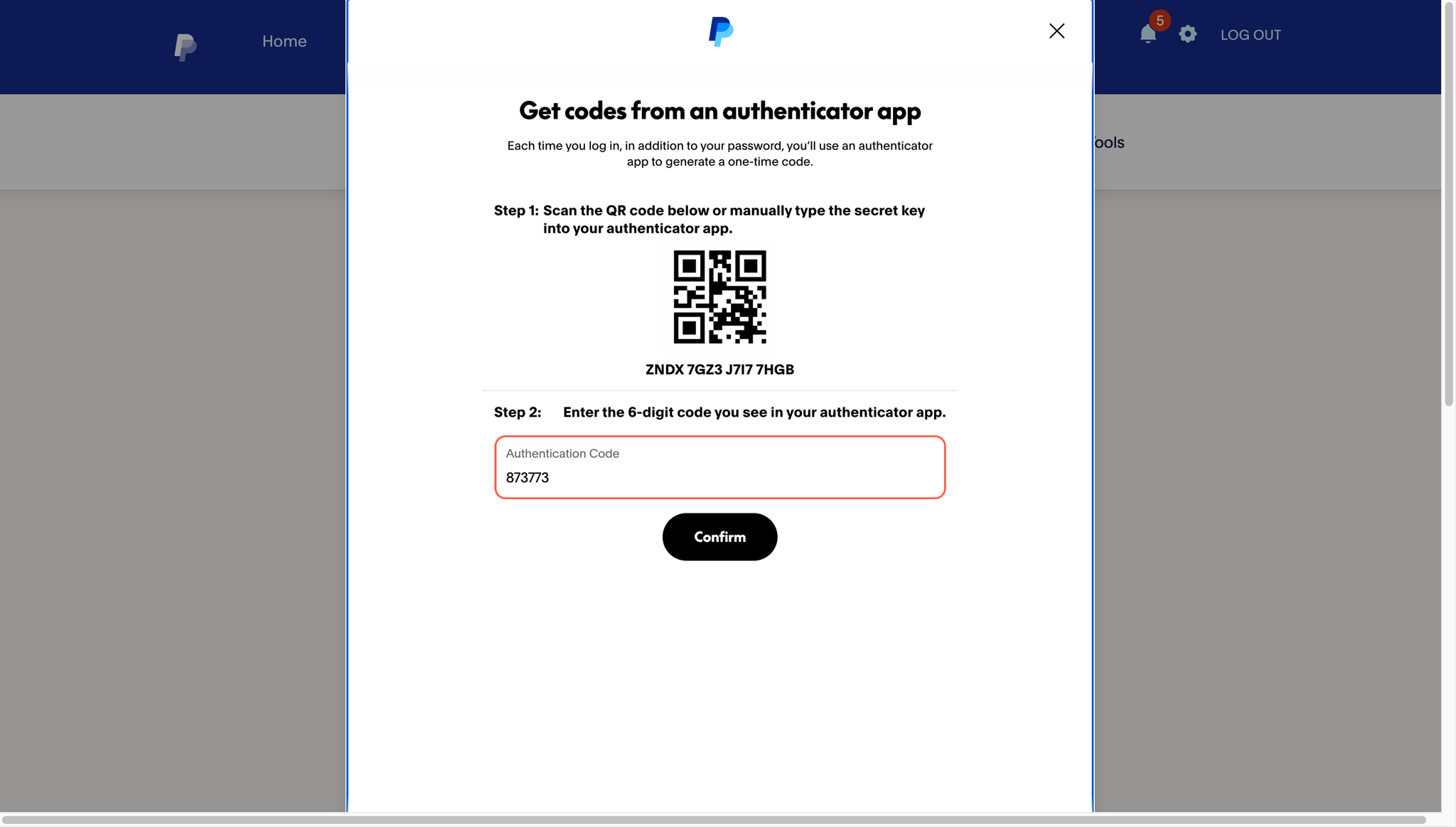
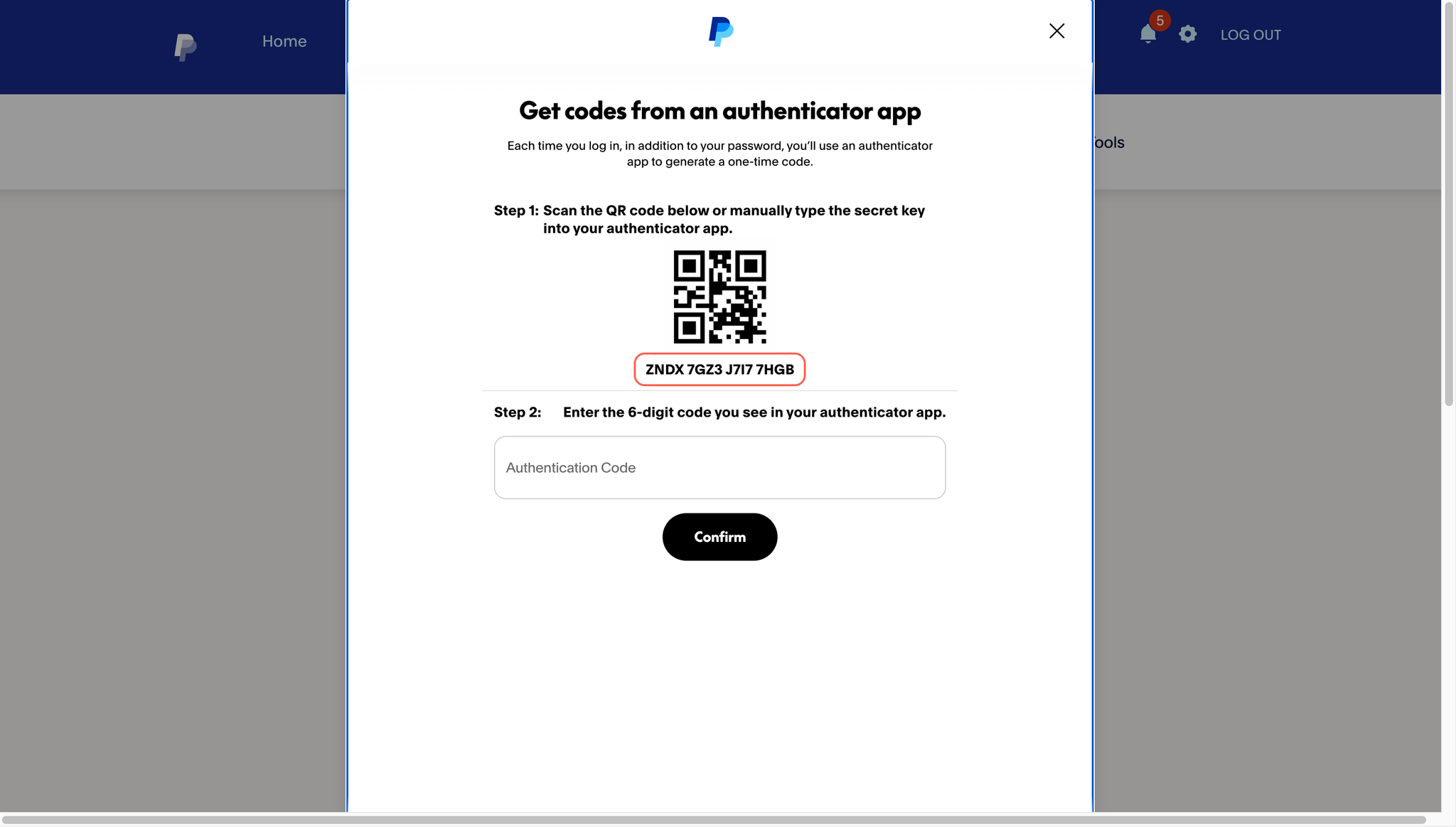
- The 2-factor authentication (TOTP) has been set up.
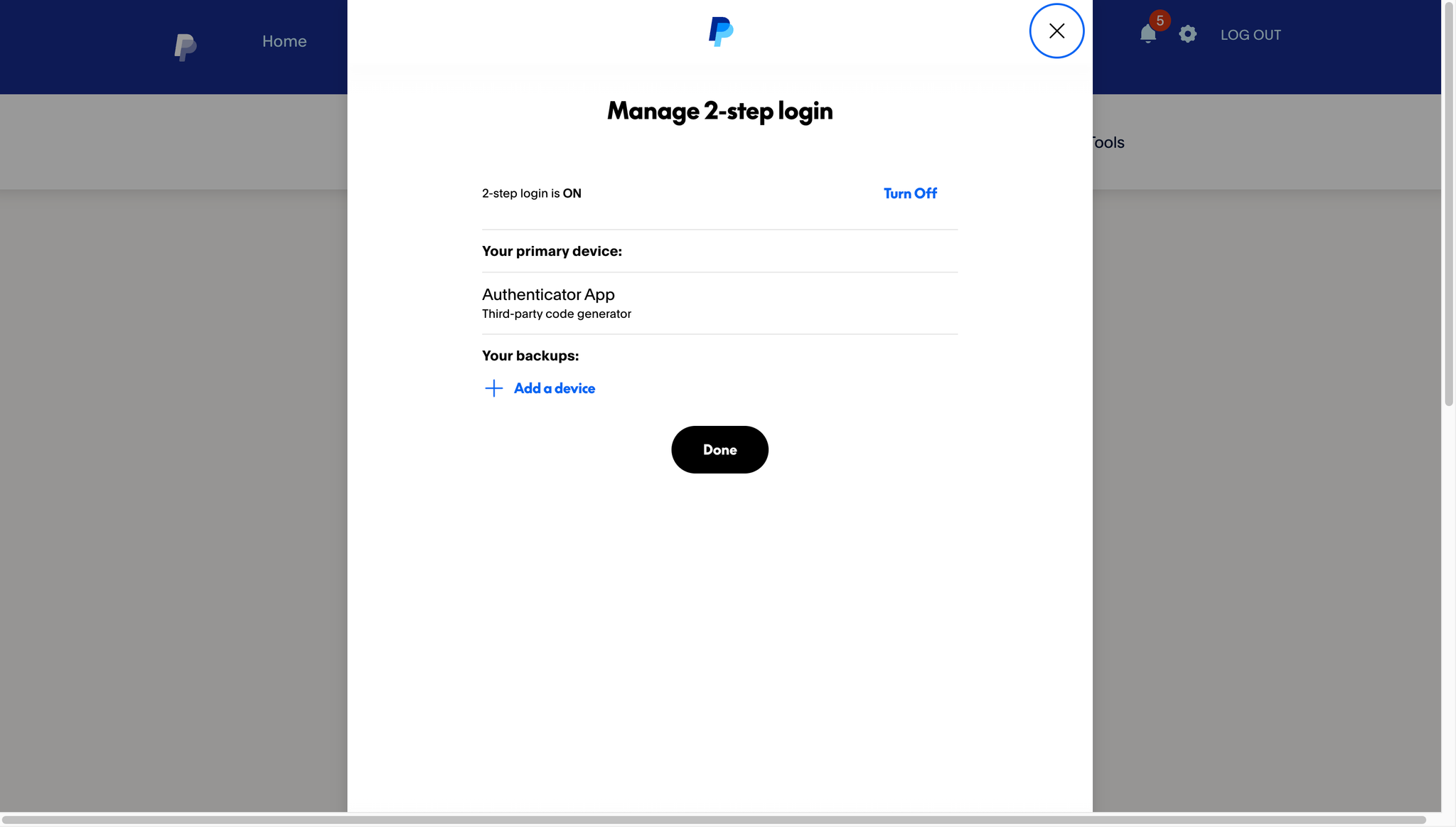
Login with TOTP
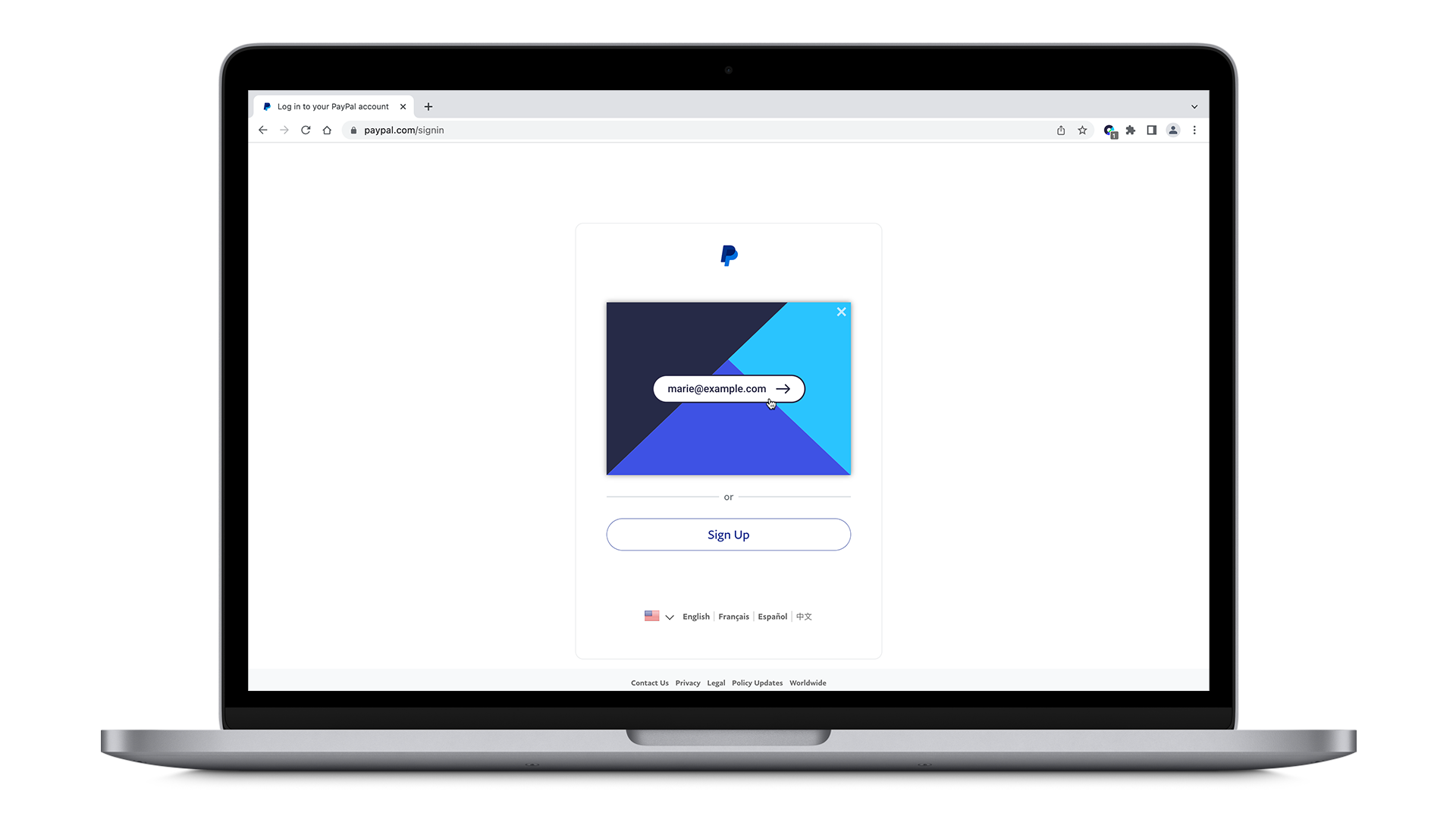
As soon as you log in with heylogin on a website where you have activated TOTP, the TOTP code is automatically filled in after the password.
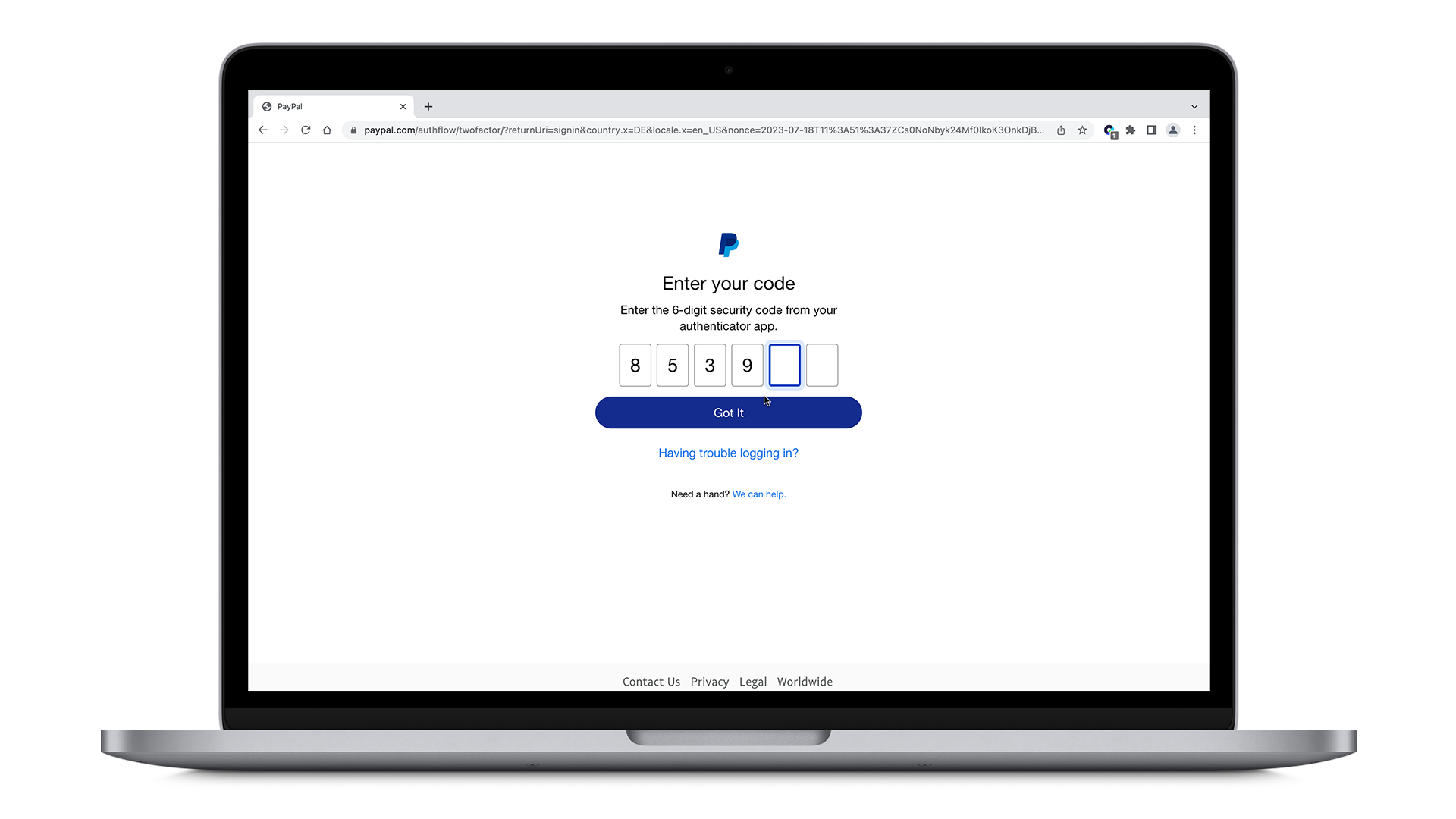
Depending on the website you may need to click on the overlay again to fill it in.
💡
On some websites the automatic entry is not possible. In this case you can access the TOTP code as described under Alternative ways to retrieve the TOTP code.
Alternative ways to access the TOTP code
If this does not work, there are several different ways to fill in the TOTP code, for example by copying the TOTP code from the browser extension.
Instructions for specific websites
FAQ & Troubleshooting
Why is it safe to use heylogin instead of another authenticator app?
It is important to understand that heylogin is already 2-factor secure by default. Normally, the 6-digit code is generated inside an authenticator app, such as Google Authenticator, on the phone which then needs to be entered manually into the browser. In case of heylogin, there is already an end-to-end encrypted connection between the smartphone app and the browser. Thus, based on our threat model, we can generate the TOTP code using heylogin to enter it automatically. Please consult our security whitepaper for more details.
Can TOTP parameters such as the number of digits or the validity period be customized?
Yes. TOTP codes with parameters can be set by entering a TOTP secret as an
otpauth: URI with the corresponding parameters in the TOTP secret field. This also happens automatically when a corresponding QR code is scanned.Example:
otpauth://totp/big?secret=ABCDEFGHIJKLMNOPQ&period=20&digits=8Here, the
period=20 parameter changes the validity period to 20 seconds (default: 30 seconds), and digits=8 sets the number of digits to 8 (default: 6).When such a URI is entered in the TOTP secret field, the parameters are stored and used. A corresponding note also appears on the TOTP field.
Why am I getting a warning that the system time is not correct?
For TOTP codes to work, the system time must not deviate from the correct time. For this reason, heylogin displays a warning if it differs by more than 30 seconds.
If this error is displayed, the system time should be checked and set to the correct time. Modern operating systems set the time correctly automatically, so this should only be necessary in rare cases.
💡
heylogin recommends synchronizing the system time with the internet.
Are email, SMS or push notifications supported for 2FA?
heylogin doesn’t support two-factor authentication via email or SMS, but instead uses TOTP, as commonly used by other authenticator apps.
The difference is that TOTP works independently of a separate channel and can be used directly within the login process. Methods such as email, SMS or push notifications (e.g. from banks or services like PayPal) are tied to external apps or services.
Since these methods take place outside of heylogin, they can’t be integrated. The second factor must therefore still be confirmed directly through the respective service.
What should I do if the TOTP key can’t be copied?
On some websites the TOTP key is not displayed directly or can’t be copied. In these cases, the key must be extracted from the displayed QR code.
Depending on your device, you have different options:
iPhone: Scan the QR code directly with the heylogin app. The TOTP key will be automatically detected and added.
Android: Scan the QR code using a QR code reader. The included TOTP key can then be extracted and manually added to heylogin.