
🏛️
The Managed Organizations feature is only available to authorized heylogin partners or requires an agreement within the Enterprise plan. Please contact our sales team at sales@heylogin.com or use our partner form:
Partner program
Join the heylogin Partner Program and offer passwordless security to your clients. Grow your business with seamless logins and exclusive partner benefits!
https://www.heylogin.com/en/partner#anker-form
With managed organizations, you can manage subsidiary or customer organizations. You have administrative access to all managed organizations through your own organization by assigning delegated admins.
Once the feature is activated for your organization, the menu item “Managed organizations” will appear on the left side in heylogin.app in your browser on your PC or Mac.
💡
For simplicity, the term “customer organization” is used throughout this guide. This also includes subsidiaries or any organization that is managed under another organization.
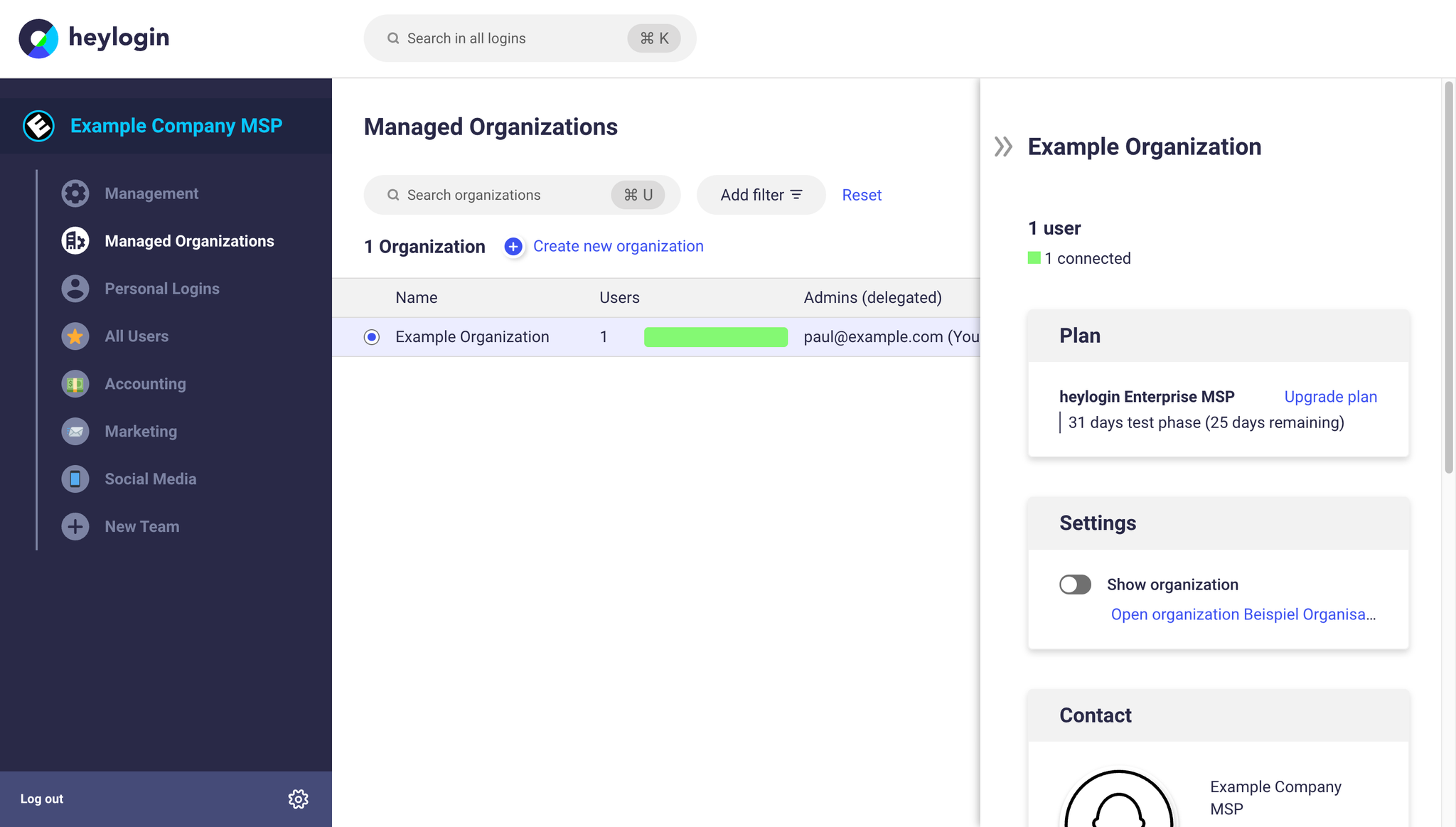
Delegated admins
A delegated admin acts like a regular organization admin within the managed organization and has the same permissions. No additional license is required for delegated admins.
Feature overview
Create a managed organization
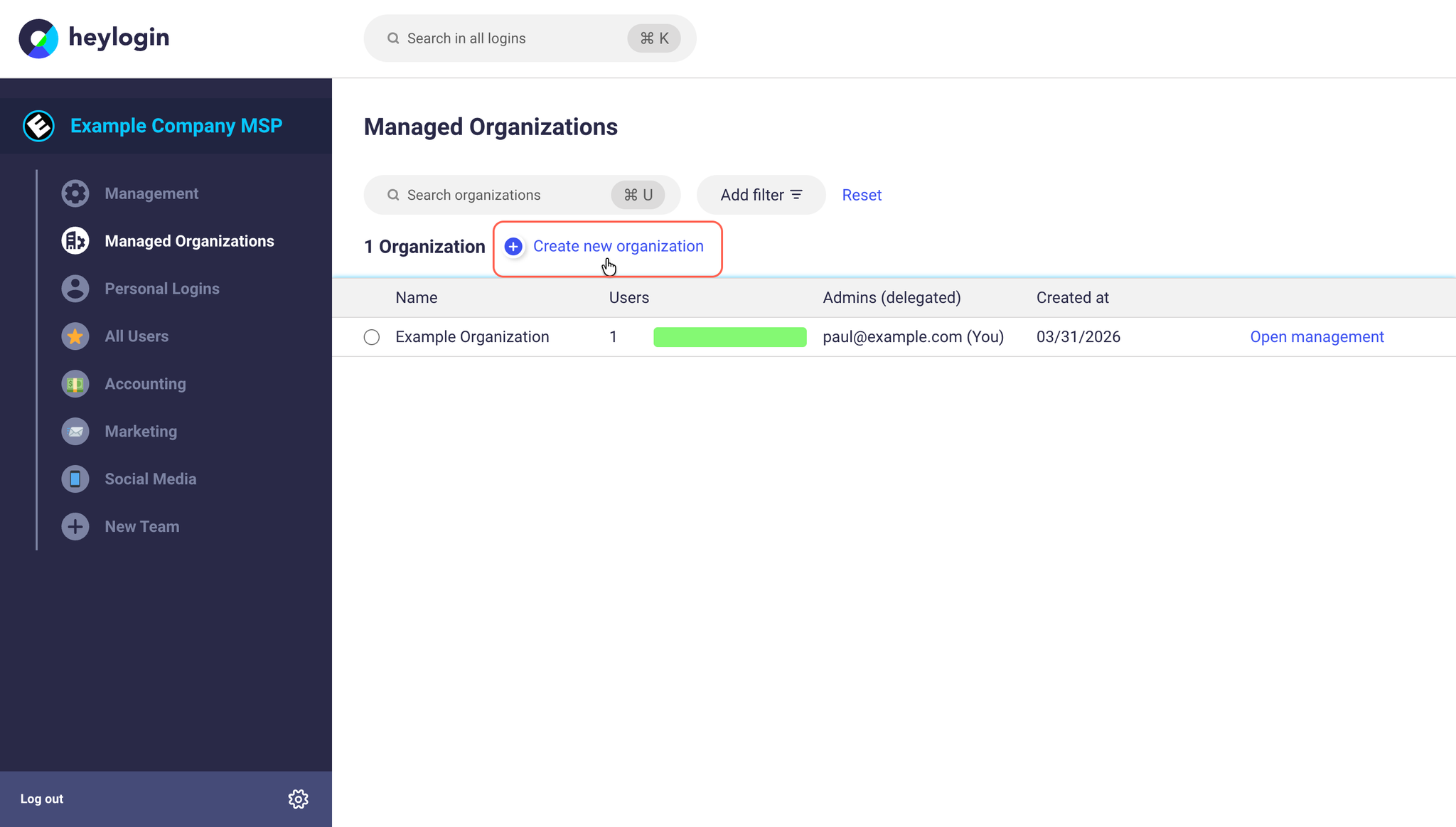
Any user in the organization with access to the Managed organizations interface can create a new managed organization.
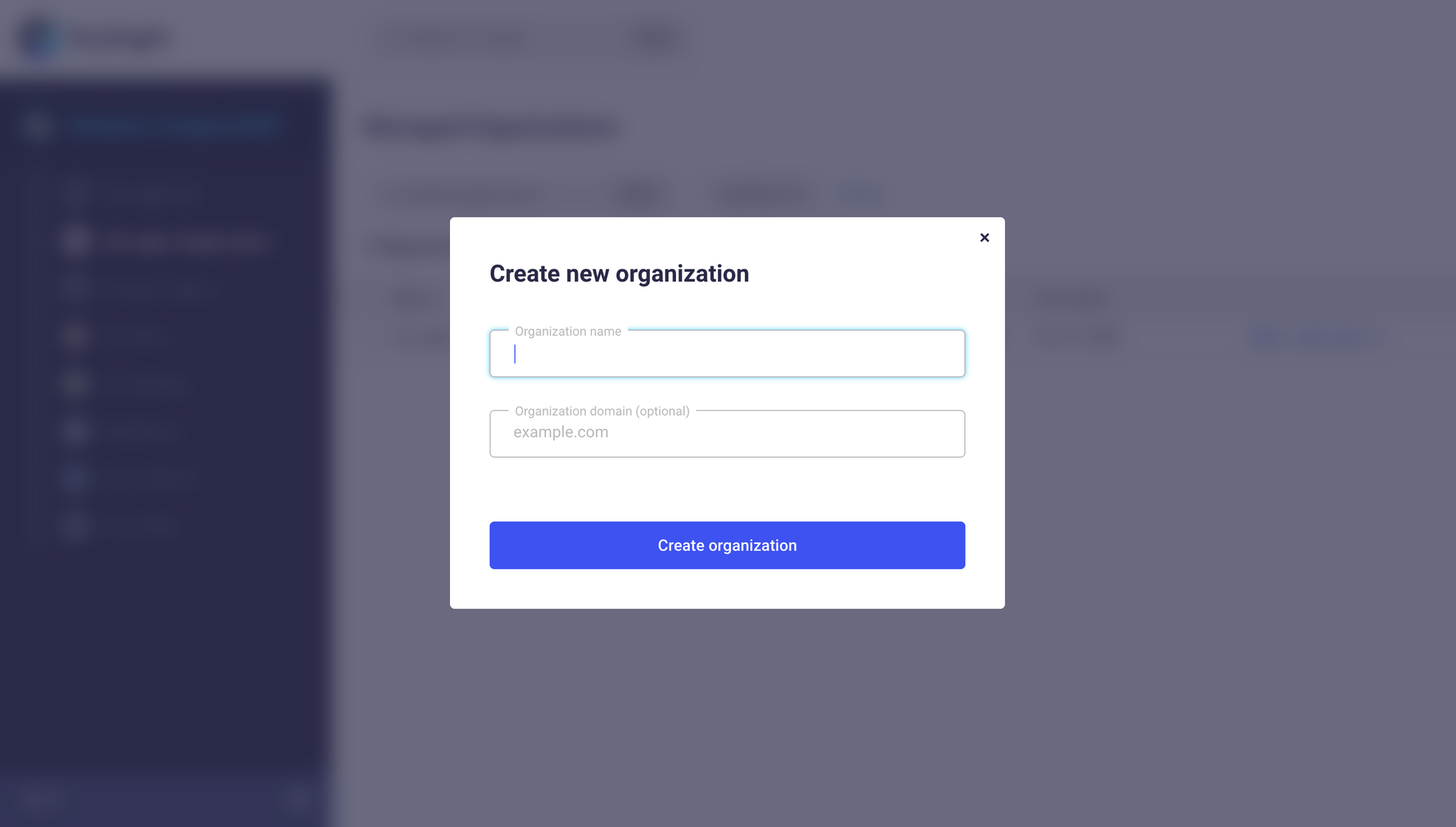
Click Create new organization and enter a appropriate name. You will automatically be added as a delegated admin.
Add and remove delegated admins
To add or remove delegated admins, you must either be an admin in your organization or a delegated admin of the managed organization.
In both cases, first click on the row of the managed organization.
To add a delegated admin, search for the user’s email in the box on the right under Add admin (delegated) and click Add.
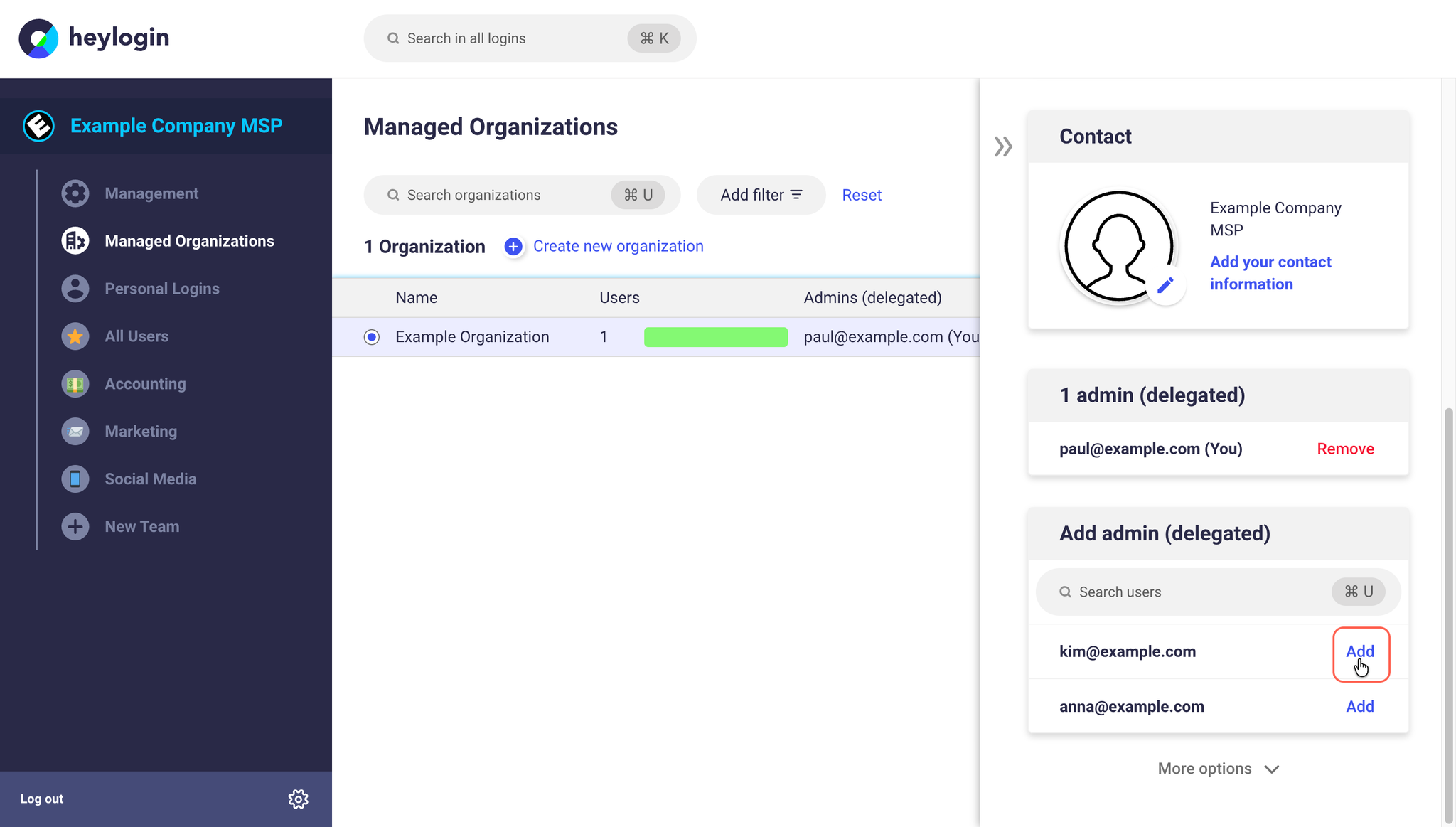
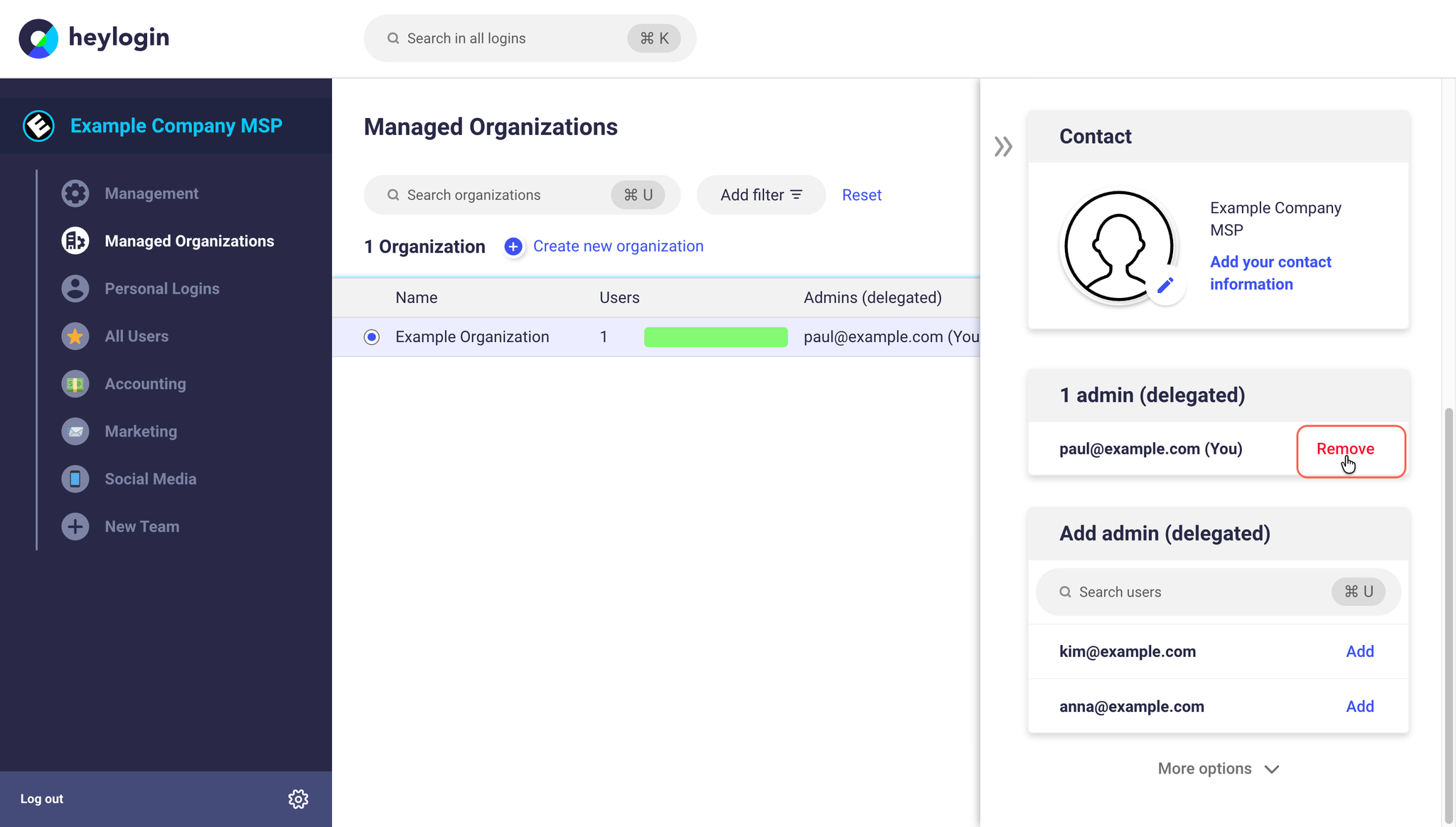
To remove a delegated admin, click Remove next to the respective email address in the Admin (delegated) section.
💡
If administrative access exists, at least one delegated admin must always remain assigned. It is not possible to remove all delegated admins at once.
Add a contact person
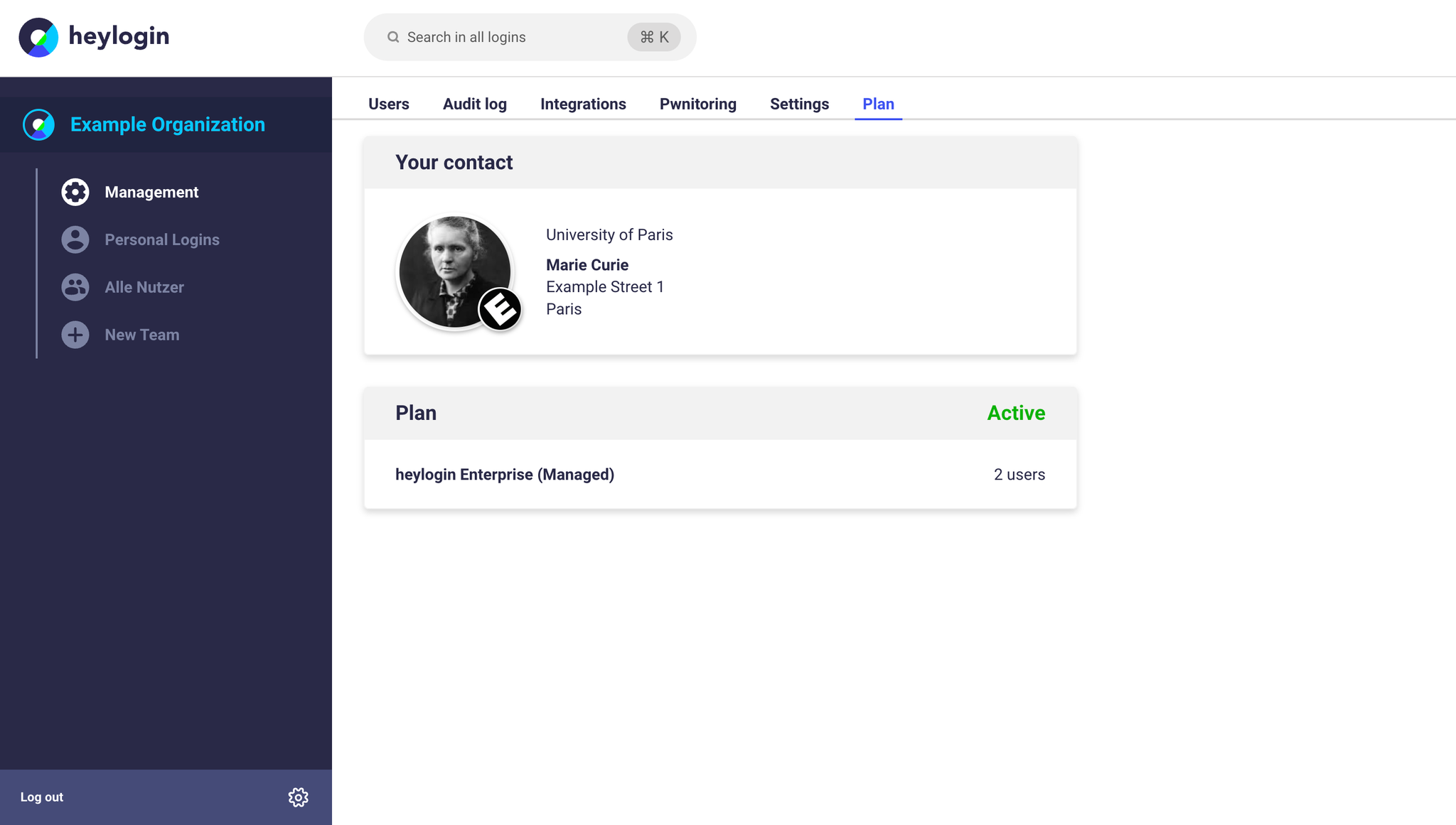
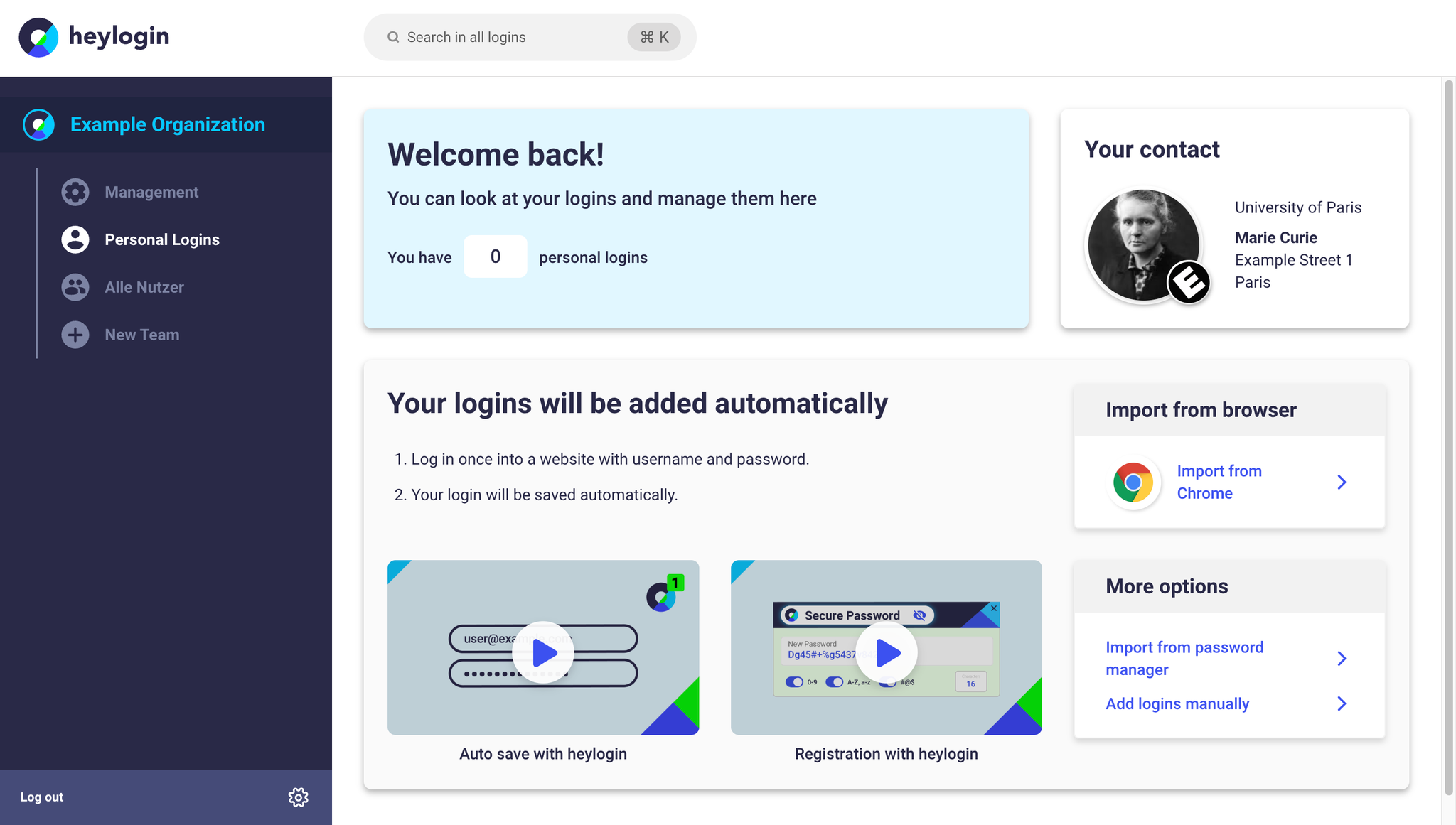
A delegated admin of the managed organization can add a contact person. This will be shown to the end customer in various places in the browser on heylogin.app. For example in “Settings” and “Plan” in the management area, as well as in “Contact support” and on the first page when heylogin.app is opened.
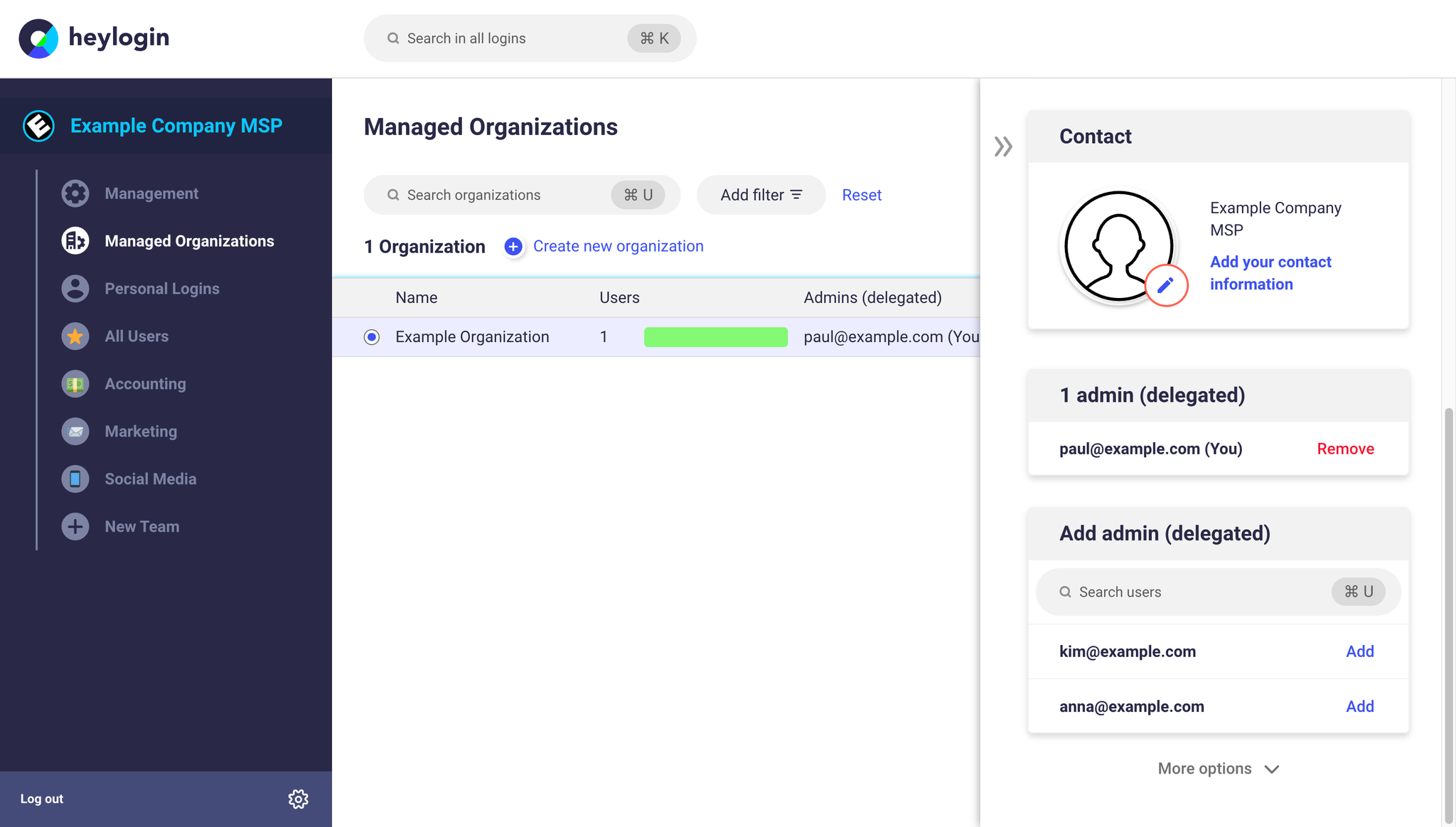
First click on the table row of the managed organization.
Click on Add your contact information and enter your contact details (e.g. email address and phone number) in the form.
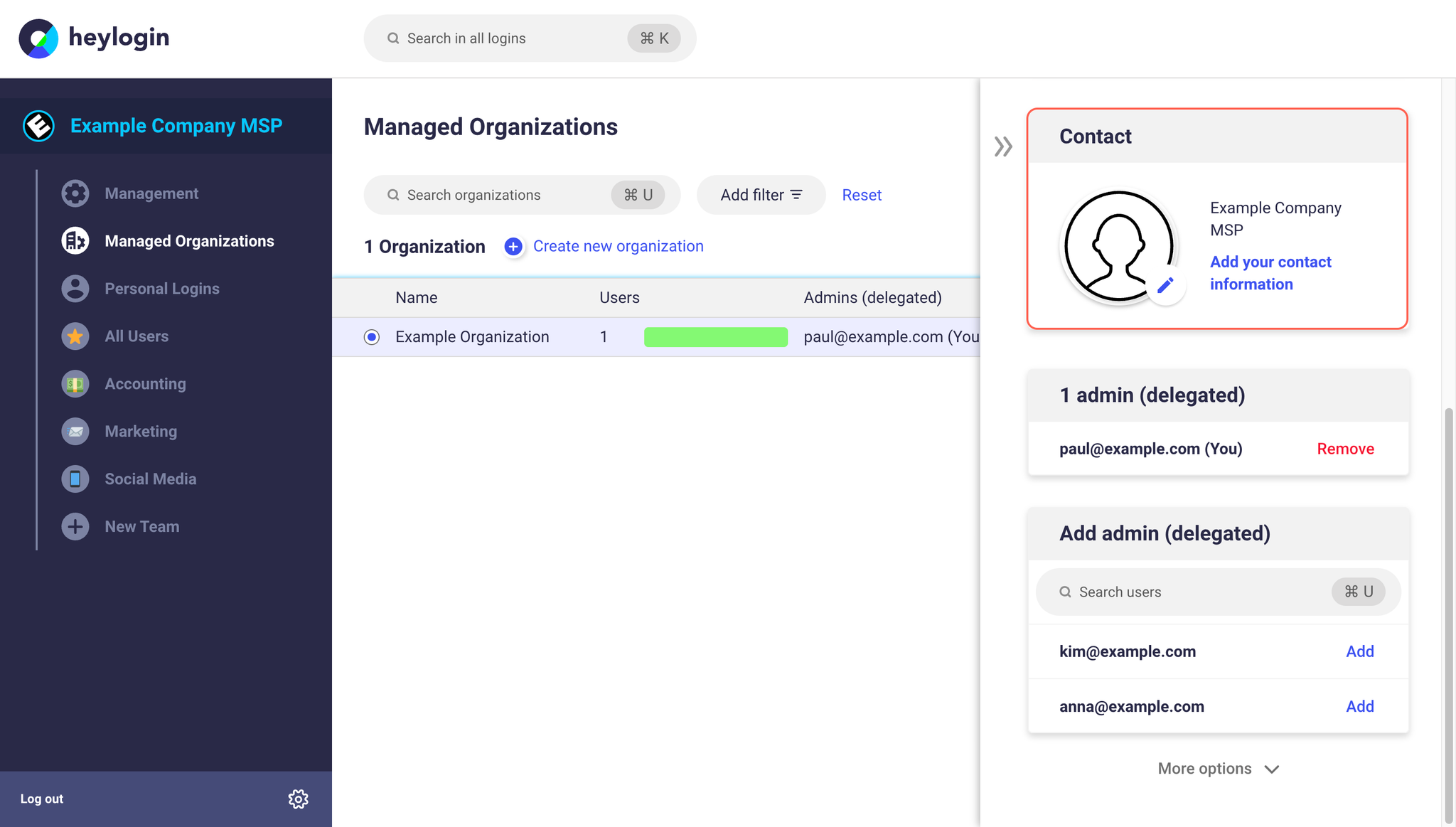
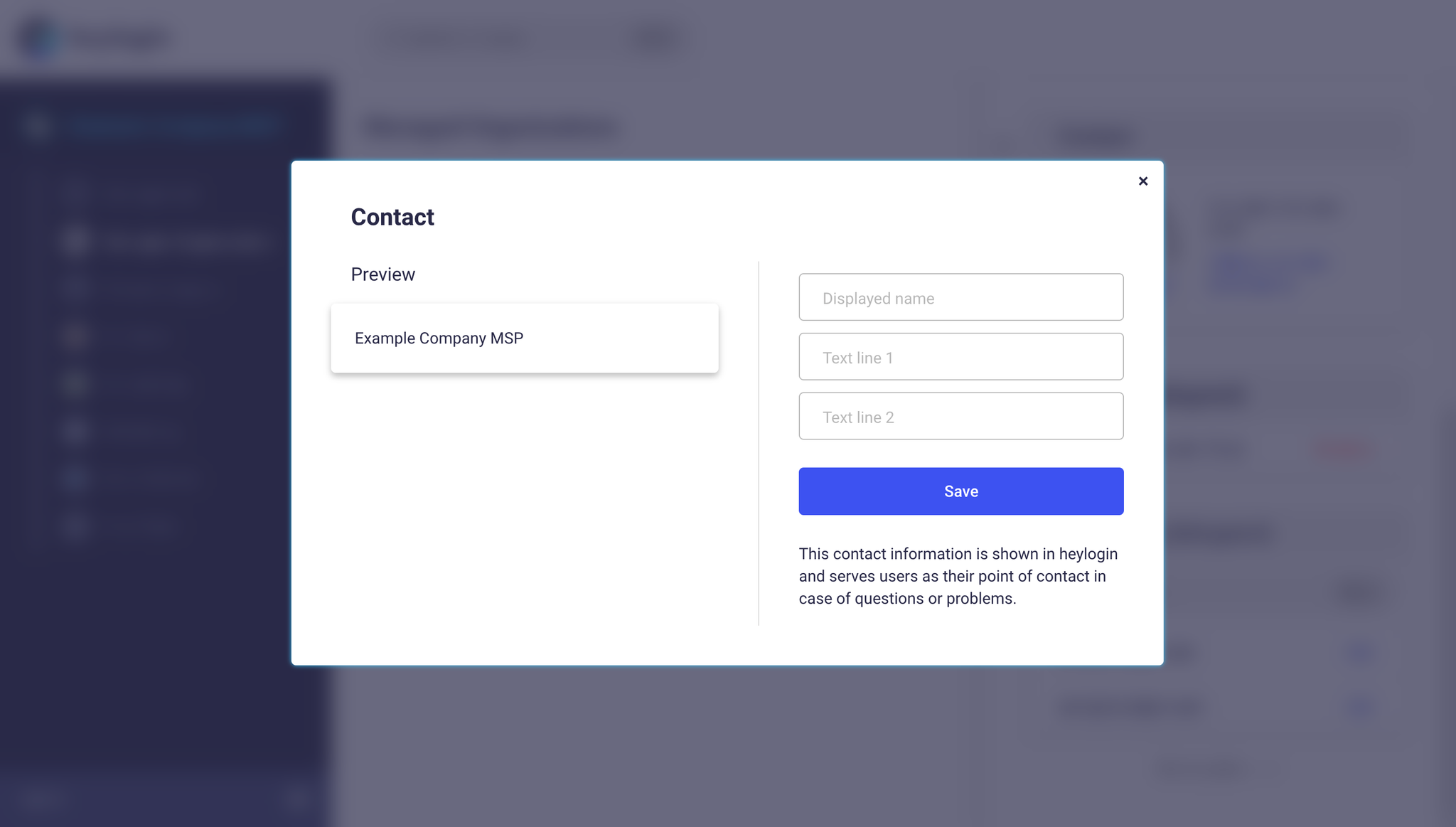
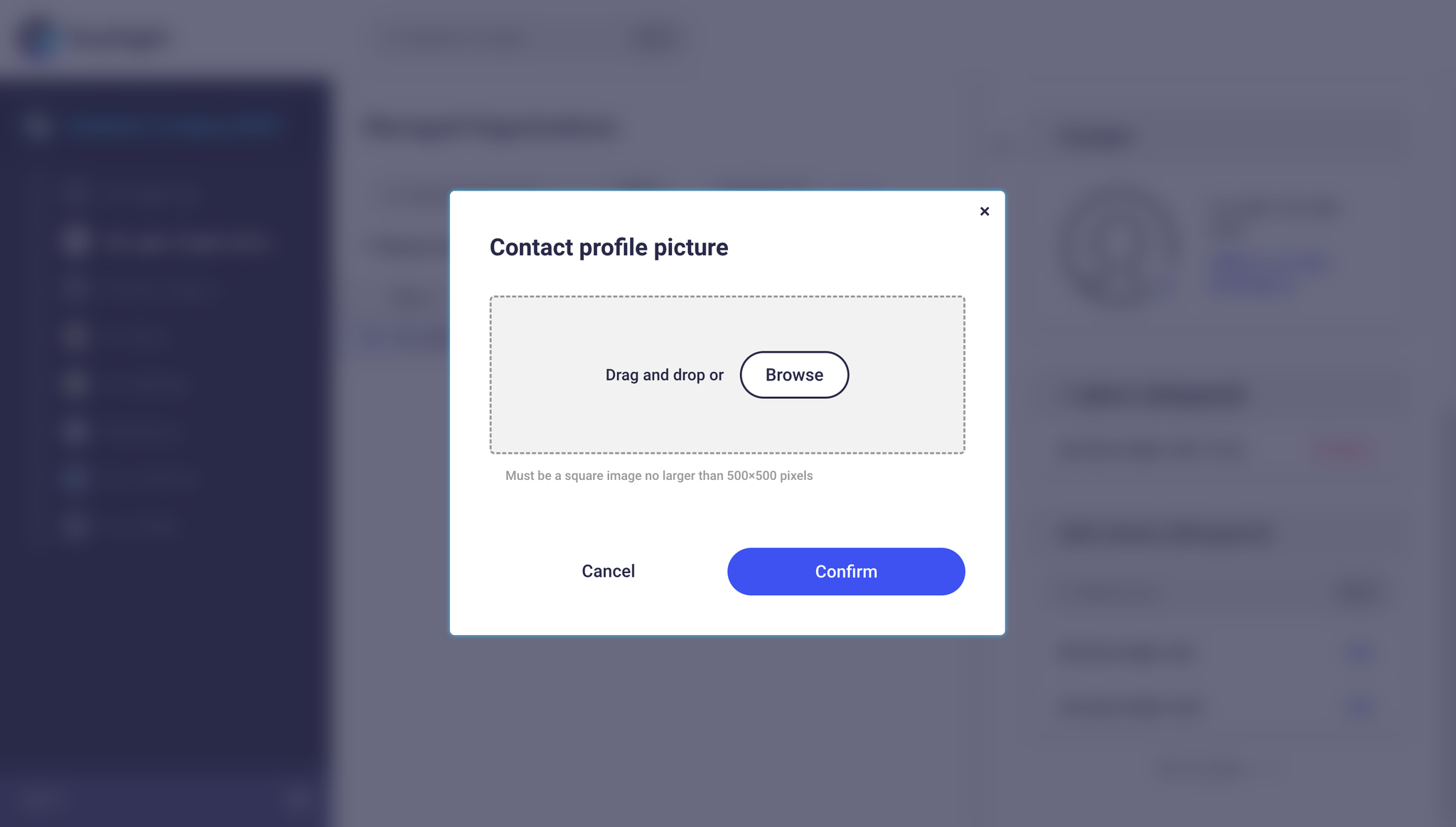
A photo can be added by clicking on the pencil icon next to the outline of a person. Then select an image file.
💡
Requirements for the image file:
- Square
- Maximum 500x500px
- Common image formats e.g. .jpg, .png, .bmp, etc.
Access managed organization
To access a managed organization, you must be a delegated admin in this managed organization. If you do not yet have access, please contact the administrator of your organization.
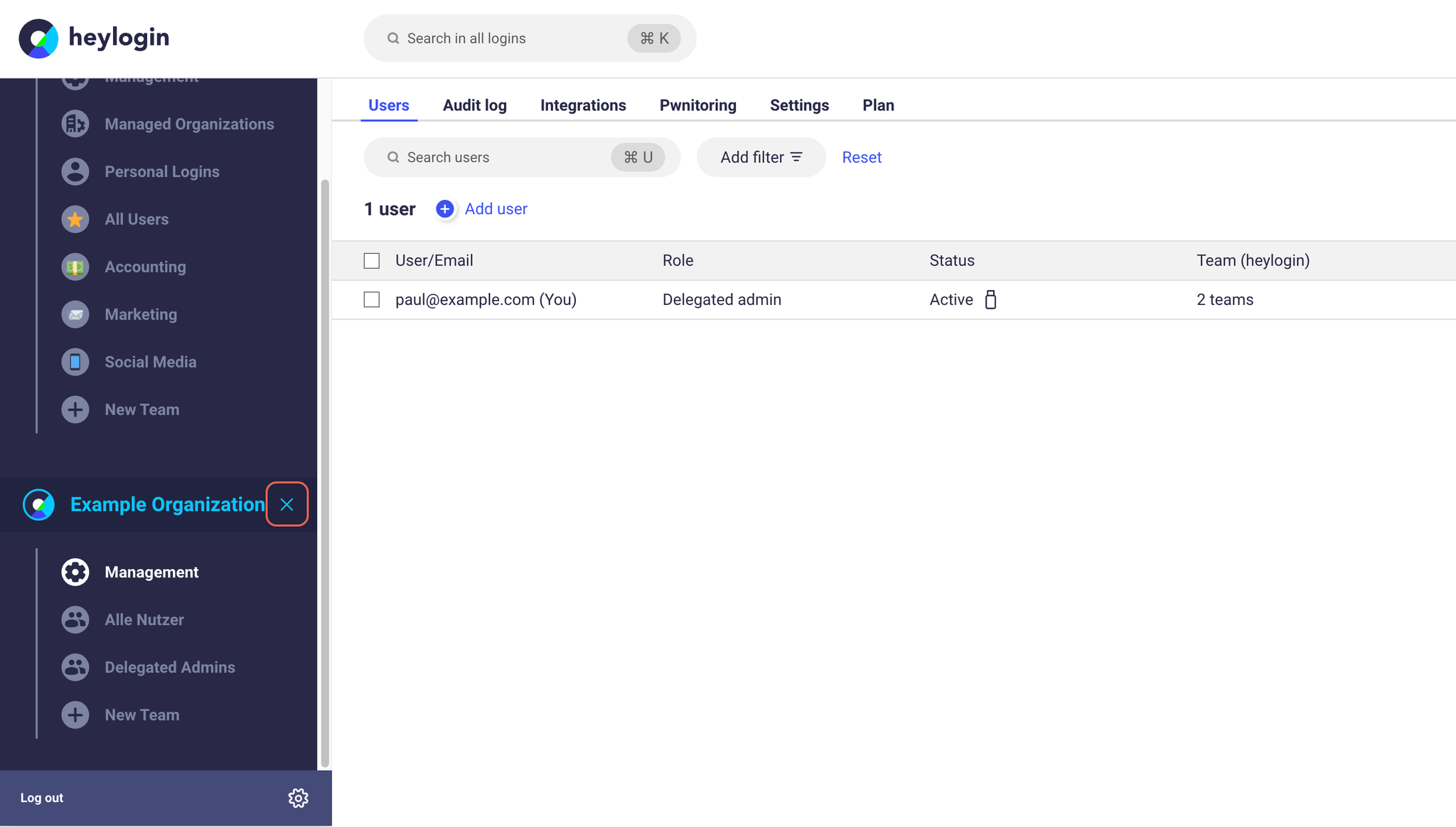
Click on Open management in the table row of the desired organization. The selected organization now appears on the left in the menu below your organization and the organization management opens as usual. (Managed organizations ).
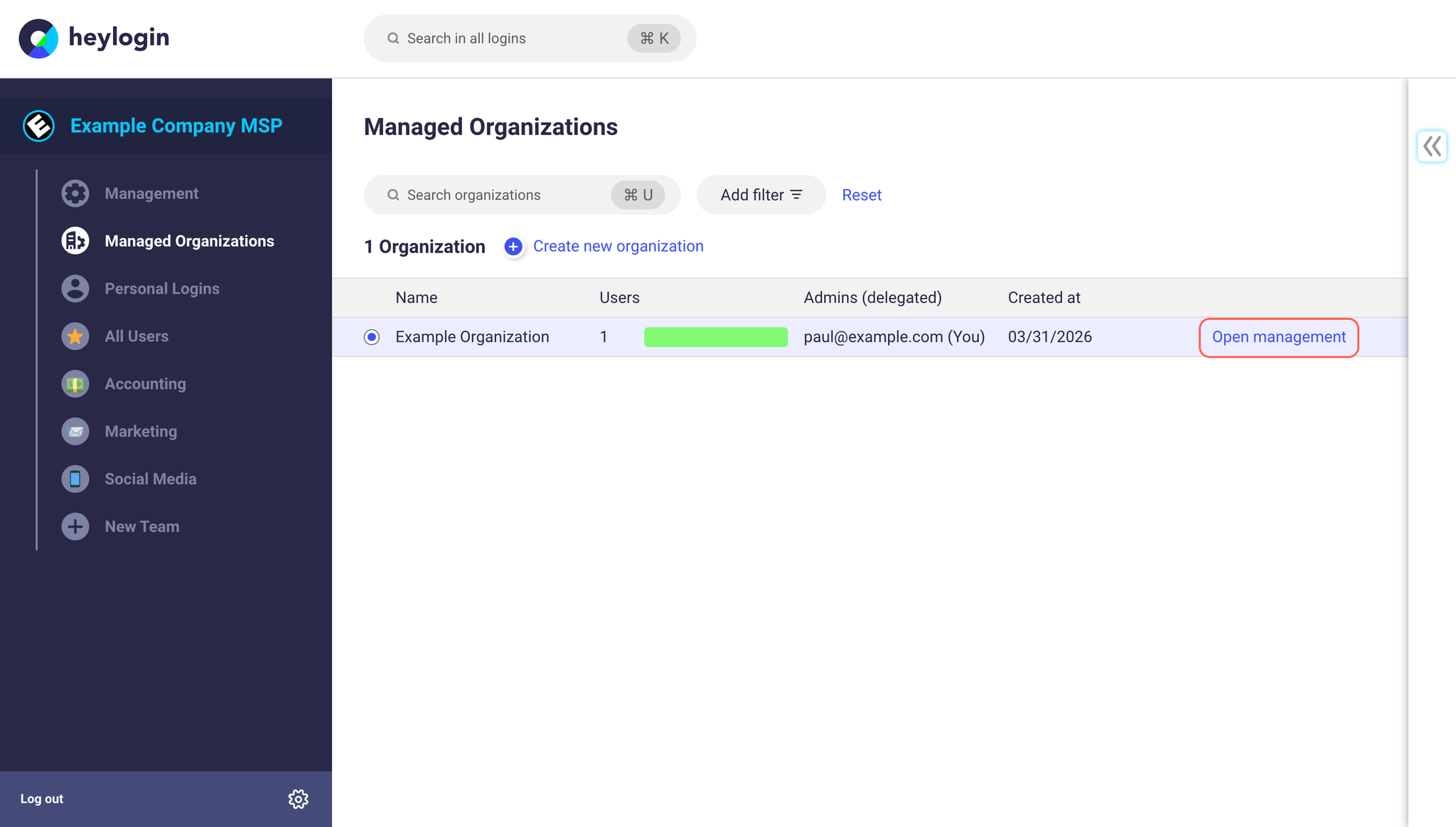
By clicking on the cross next to the organization name in the menu, you can deactivate the managed organization on your device again.
Activate license of the managed organization
Each created managed organization is initially in a 30-day trial phase. After this trial phase, heylogin is heavily restricted and cannot be used normally.
Extend trial phase
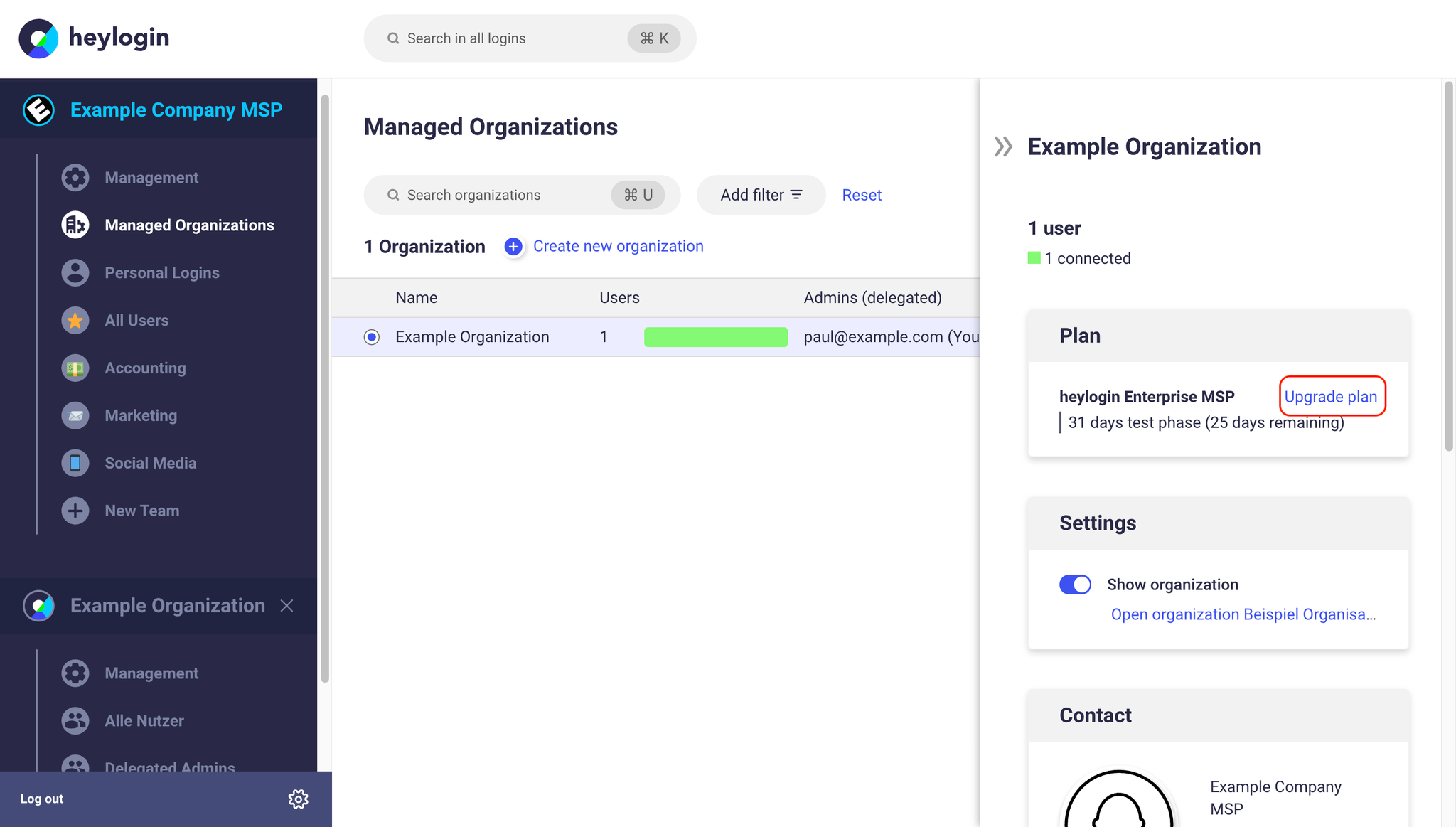
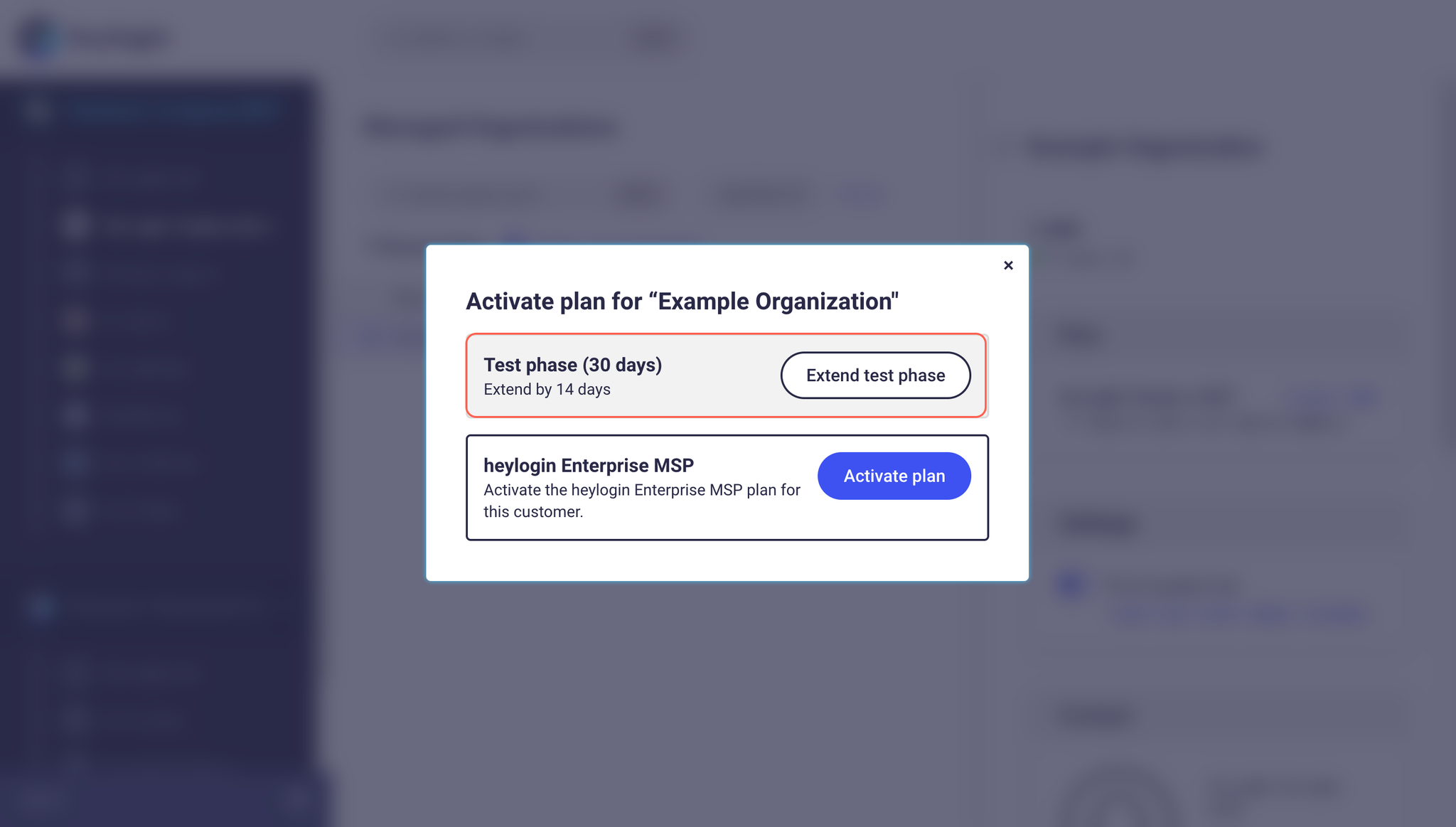
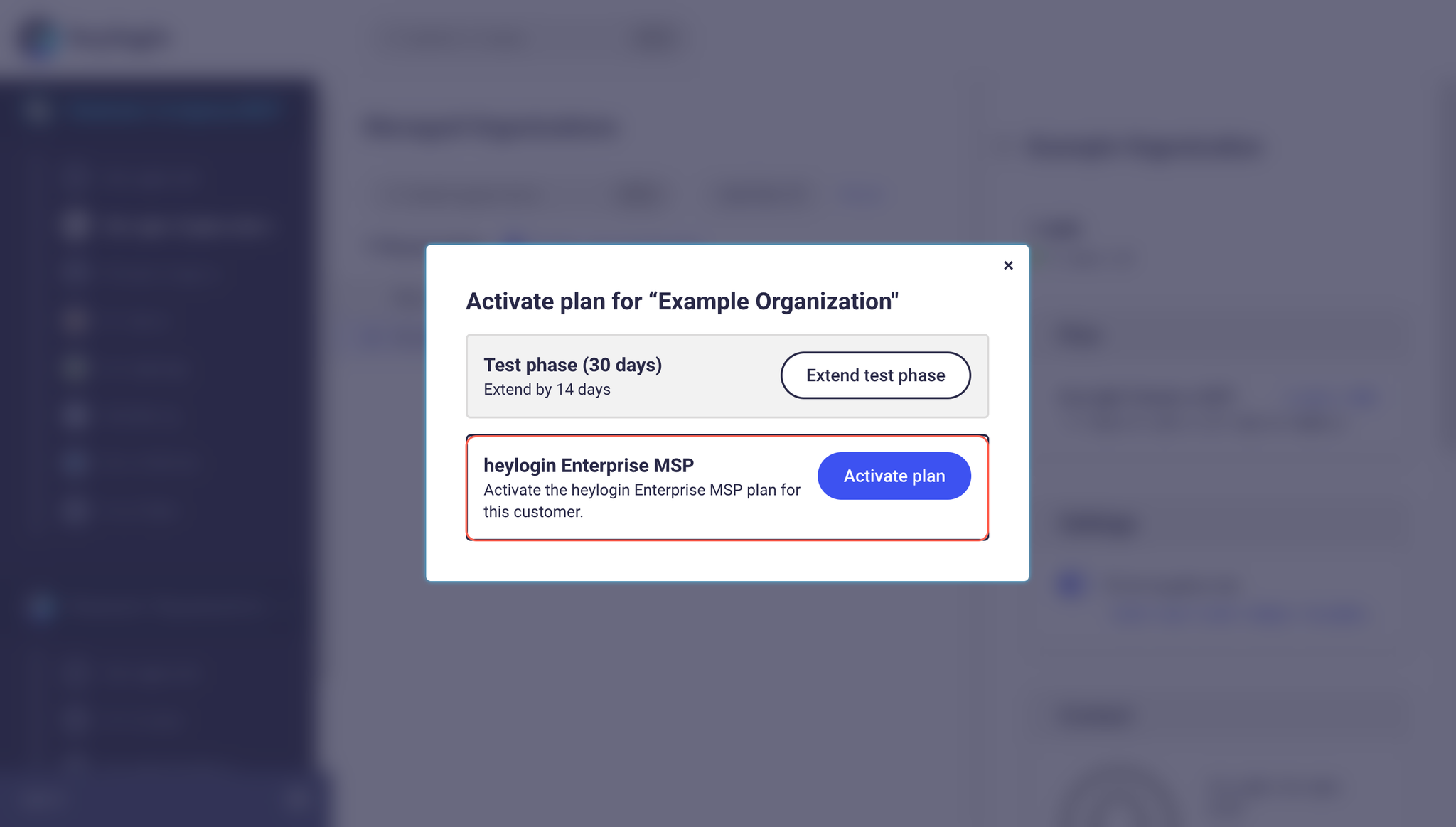
The trial phase can be extended once by 14 days by clicking on the managed organization and requesting the extension in the dialog under Plan.
Activate license (billable event)
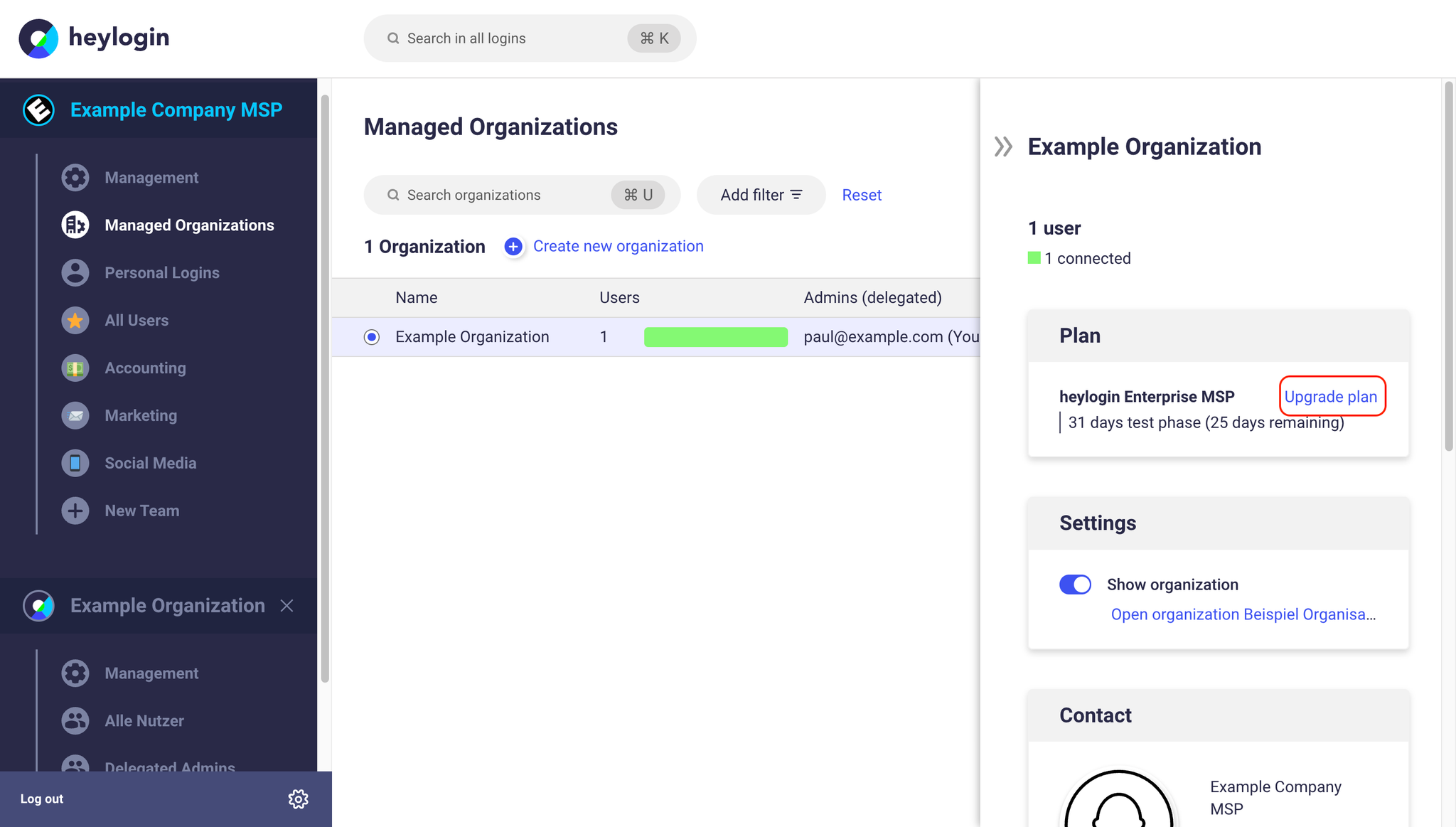
The plan can also be activated in the same dialog. This activation is a binding order and triggers automatic billing according to the existing conditions. The contract term of the customer starts immediately. Any remaining trial period is not taken into account and expires.
❗
The entered license quantity is the planned minimum purchase quantity. This will be charged during invoicing and cannot be reduced before the end of the term. For billing terms and the start of the contract period, please refer to our terms of use.
All users (connected, invited, not connected) count towards the billable license quantity.
FAQ and everyday scenarios
Who is my contact person?
Support for our partners or resellers is largely handled by our distributors. The respective contact persons will be communicated to you. These contact persons are your first point of contact for questions and problems of any kind. They are also trained in heylogin support cases.
In some special cases, heylogin supports partners directly or supports customers who receive managed organizations as a special agreement in the Enterprise plan directly.
If you are unsure who your contact person is, please contact our support.
How can I connect an already created customer organization afterwards?
Sometimes the end customer has created an organization independently but now wants it to be managed via a partner.
An independent organization can be connected in the following way:
Requirement: Add a user of the partner
💡
If the partner does not yet have admin permissions in the customer organization, the admin of the customer must add a user of the partner.
- As admin of the customer organization: Open heylogin.app in your browser on your PC or Mac, click Management under your organization and switch to Users.
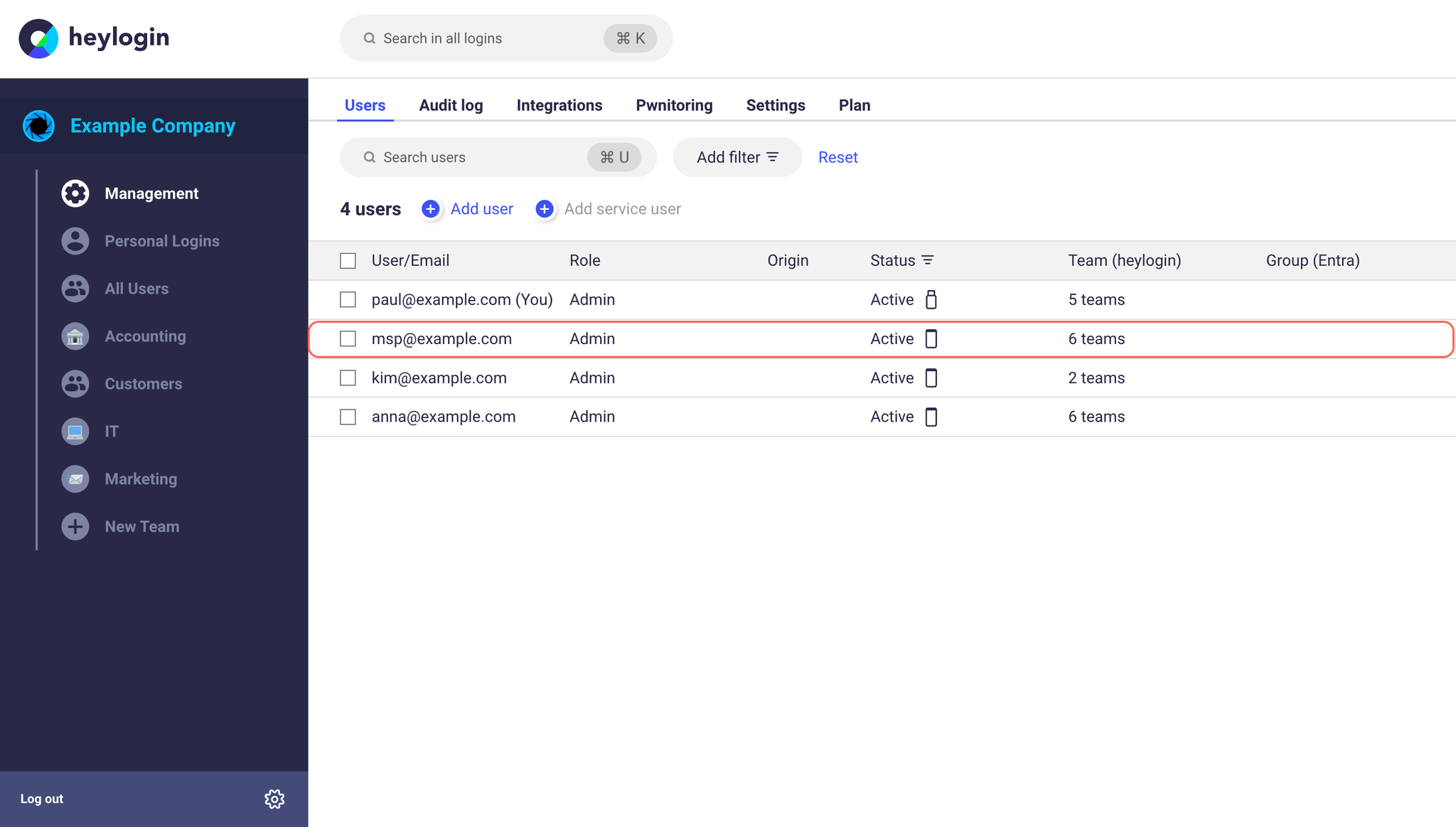
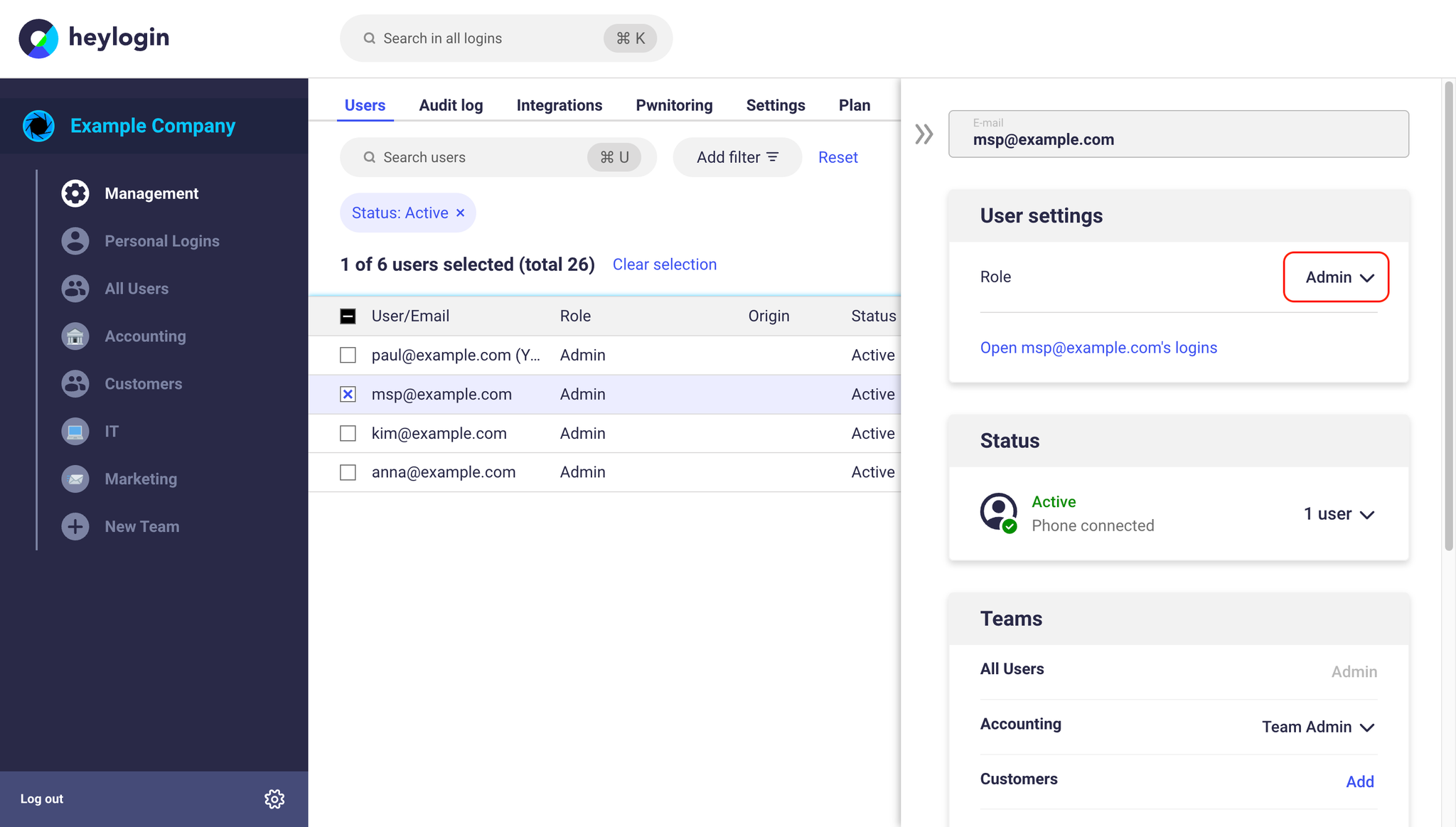
- Add an account of the partner or the parent company of your organization and assign them as an additional admin. This is required to establish the connection.
Connect the customer organization
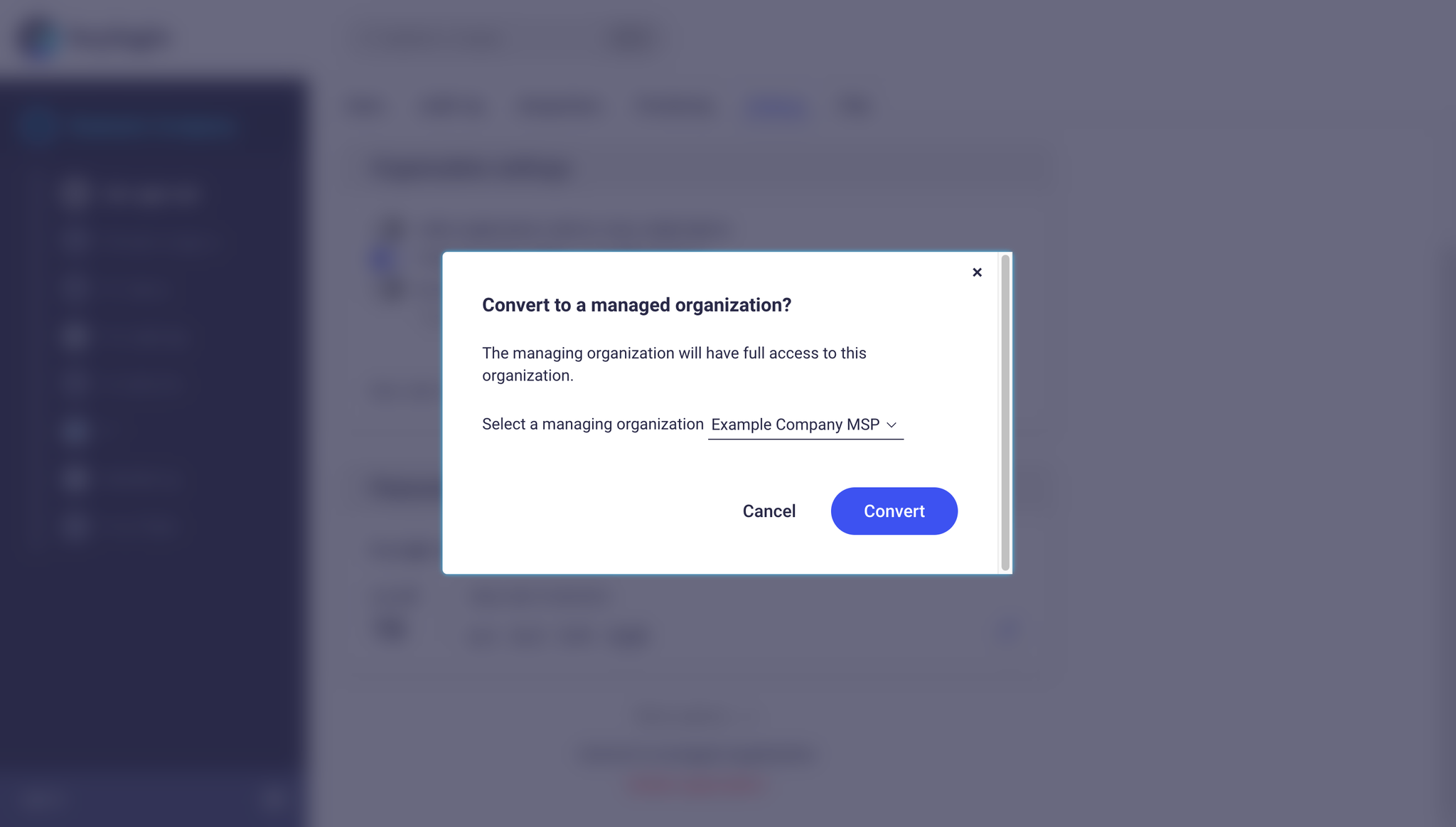
- As a partner user who is admin in the customer organization: Open heylogin.app in your browser on your PC or Mac, click Management under your organization and switch to Settings. Scroll down, open More options and click Convert to managed organization.
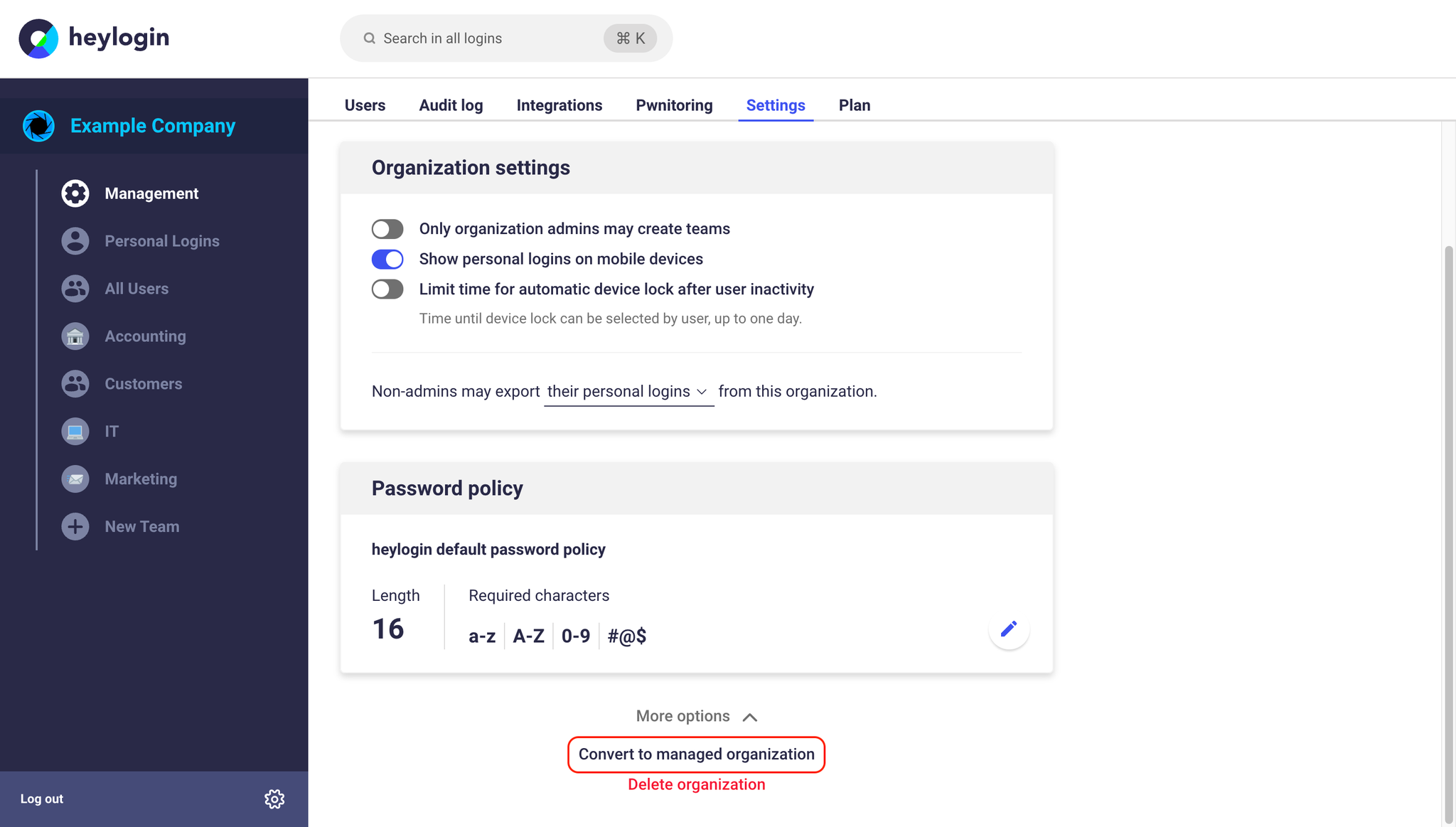
- Confirm the conversion to a managed organization by clicking Convert.
How can the partners administrative access be removed?
Some customers do not want to allow administrative access by the partner beyond the initial setup of the organization, or decide later that this access should be removed.
The following explains how the administrative access can be revoked.
The procurement of heylogin via this partner remains unaffected.
- Ensure that in the customer organization at least one remaining user is assigned admin permissions. heylogin always recommends defining two admins.
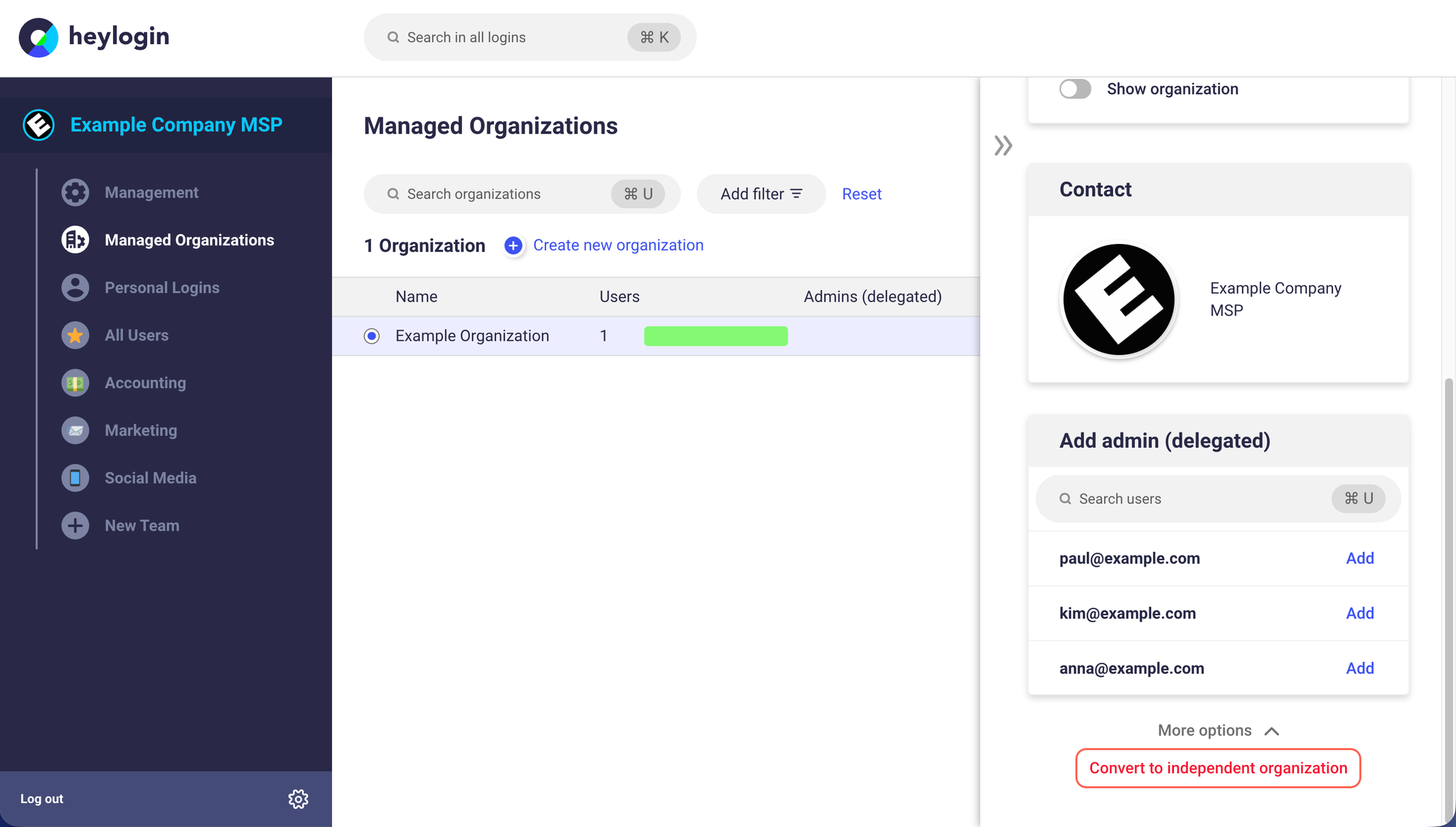
- As a delegated admin of the customer, open heylogin.app in your browser on your PC or Mac. Click on Managed organizations and select the desired customer.
- Remove all delegated admins from the organization, including yourself.
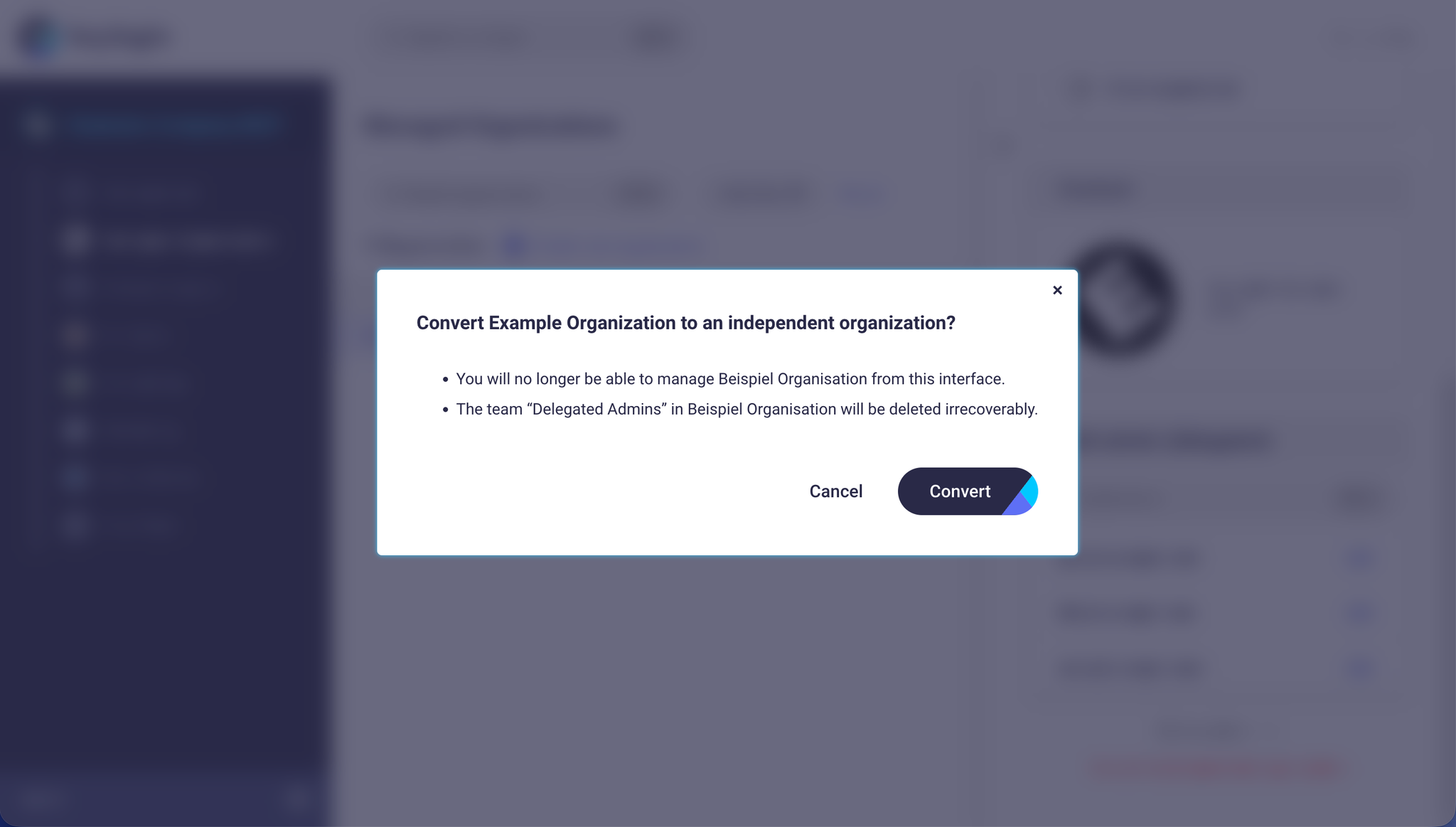
- Scroll all the way down in the right section, then click on Convert to independent organization and confirm the process.
A customer wants to switch from heylogin Business (self-service) to a partner. What do I need to do?
💡
This guide applies exclusively to heylogin Business customers who manage their subscription via self-service.
heylogin Business customers who do not obtain heylogin via self-service should contact our support at support@heylogin.com or their desired partner.
To switch to a partner as a Business customer, proceed as follows:
- Please cancel your subscription as described here. After cancellation, your heylogin will continue to function until the end of the term. If your cancellation and the end of the term are very close together, please contact our support at support@heylogin.com.
- Afterwards, please contact support together with your selected partner, or as a partner include your customer in copy, via support@heylogin.com.
❗
It must be clear in the message to our support that both the partner and the customer agree to this change. Ideally, both parties confirm this with a message.
- Our support will then reset the license within our service hours and provide you with an appropriate time frame to connect the organizations.
- Please then follow the instructions for connecting the organizations.
A customer wants to switch from one partner to another partner. What do I need to do?
💡
This guide applies exclusively to customer organizations that are already a managed organization.
heylogin values a good partnership between us and our partners. Therefore, we prefer mutually agreed partner changes.
- Ensure that at least one user with admin permissions remains in the customer organization. Follow the instructions for removing the partner’s administrative access.
- Send us a message at support@heylogin.com clearly stating that all parties agree to the change (customer, current partner, and new partner). If an agreement is not possible, for example because the current partner is not reachable, please still contact our support and we will try to find a solution together.
- Our support will then reset the license within our service hours and provide you with an appropriate time frame to connect the organizations.
- Please then follow the instructions for connecting the organizations.
A customer does not pay invoices. Can I deactivate heylogin for the customer?
Please send a message to support@heylogin.com including proof of the payment request to the customer. We will then try to find a joint solution.