
Autotype lets you fill login credentials directly into applications on Windows, even those that don't run in a browser. With a simple keyboard shortcut, heylogin can type your login into any application window.
Requirements
- Windows 10 or later
- heylogin browser extension installed in Chrome, Edge, or Firefox
- heylogin Autotype helper installed (see setup below)
Setup
- Install the Autotype helper application. After installation, it will be automatically detected and used by Chrome, Edge, or Firefox.
- Visit the Autotype settings to verify installation.
Basic Usage
- Focus the username or password field you want to fill in
- Press the heylogin Autotype shortcut: Ctrl+Alt+H
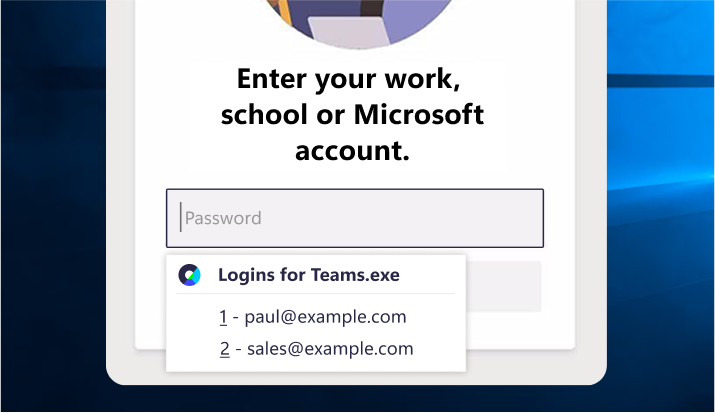
- A menu appears showing your logins for the application
- See below for details on login matching
- Select the login entry you want to use
- Hint: Use the number keys (1-9) to quickly select an entry
- heylogin types the credentials into the application
Login matching
Logins are matched by program name, usually ending in
.exe. For example, MS Teams is teams.exe, and SAP is typically saplogon.exe. The program name can be found easily by opening the heylogin Autotype menu while the app is in the foreground.To match a login with an application, enter this program name in a “Website or app” field, then save the login. This is the same place that is also used for websites in heylogin, and websites and apps can be freely mixed.
Per-Machine Installation
By default, the MSI installs heylogin Autotype per-user. It is also possible to install heylogin Autotype per-machine by setting the ALLUSERS parameter to
ALLUSERS=1 during installation.msiexec.exe /i heylogin-autotype.msi ALLUSERS=1
This installation requires a privileged user.
Troubleshooting
Protected Applications
Some applications run with elevated privileges (administrator mode), or use special security features that prevent autotype from working. This is a Windows security limitation.
If this is detected for a window, the selected entry will be copied to the clipboard, so you can paste it into the field with Ctrl+V.
Applications that may not work include:
- Applications running as Administrator - Programs started with "Run as administrator"
- Windows system dialogs - User Account Control (UAC) prompts, security dialogs
- Some enterprise applications - Software with additional security hardening
- Remote desktop windows - Some RDP and virtual desktop clients
Policy Restrictions
There are policies that can restrict communication between heylogin autotype and the browser extension in Chrome or Edge:
- If NativeMessagingUserLevelHosts is set to
false, heylogin autotype only works if installed per-machine (see above).
- If NativeMessagingBlocklist is set to
*, NativeMessagingAllowlist must include:app.heylogin.autotype2