
🏦
Custom Roles is only available in the heylogin Enterprise Plan. Please contact our sales team at sales@heylogin.com.
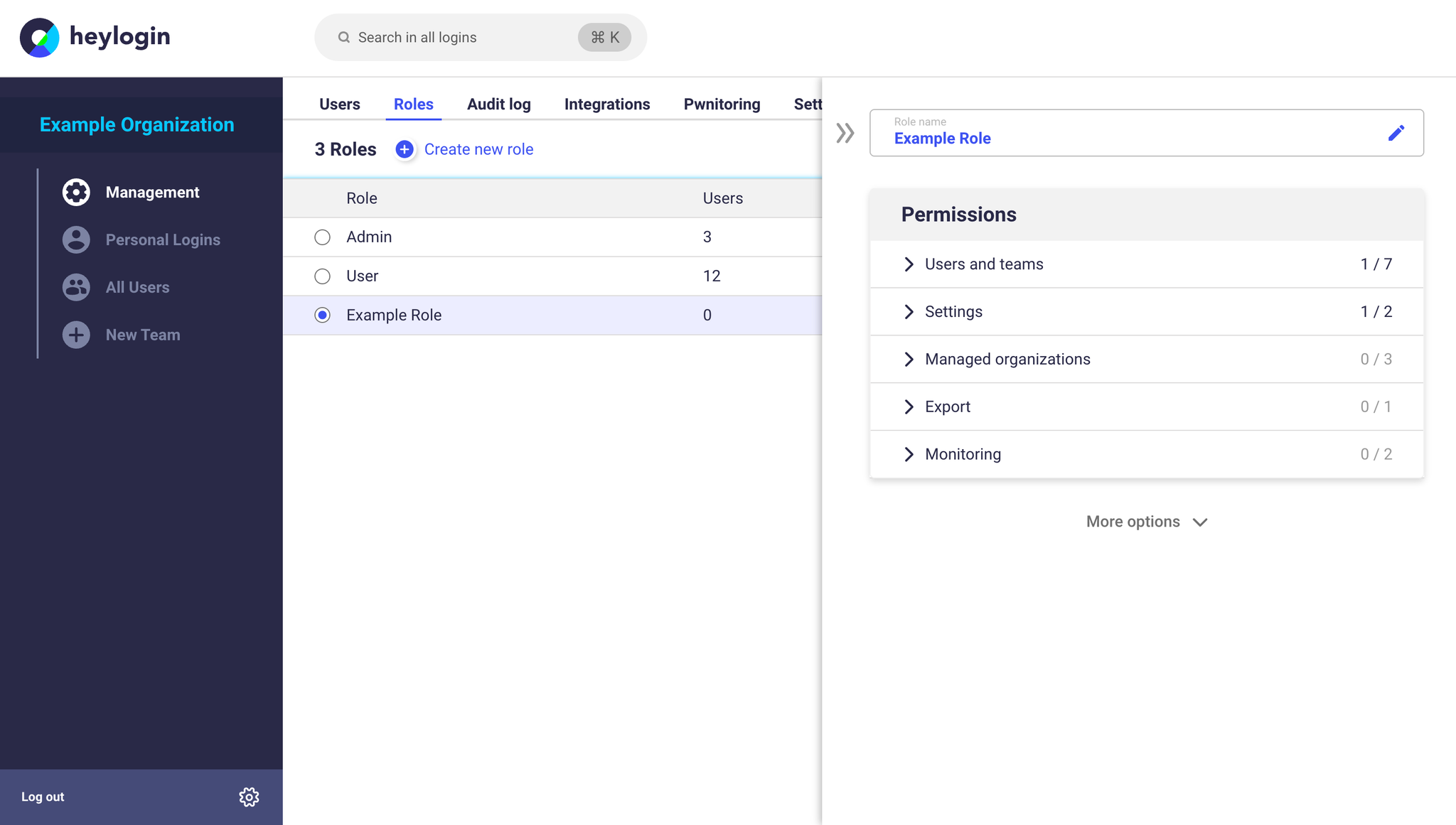
With roles, you can manage which permissions users have within your organization in heylogin. You define roles with the desired permissions once and then assign them to any number of users.
💡
Roles can only be managed by organization admins.
Create a new role
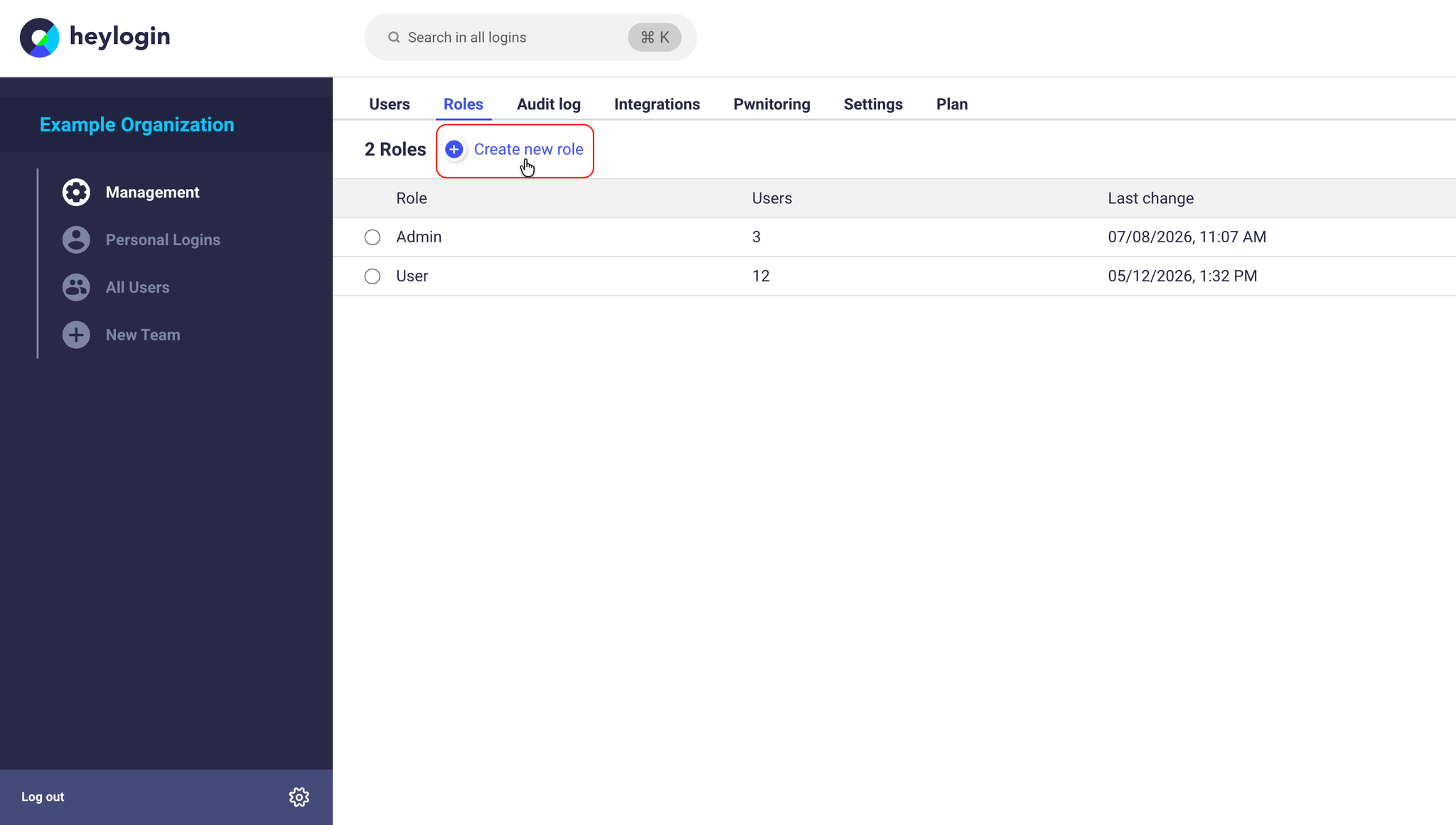
- Open heylogin.app in your browser on your PC or Mac and go to the Management section. Click the Roles tab.
- Click Create new role.
- Assign a name for the role (e.g. Service Desk or Accounting).
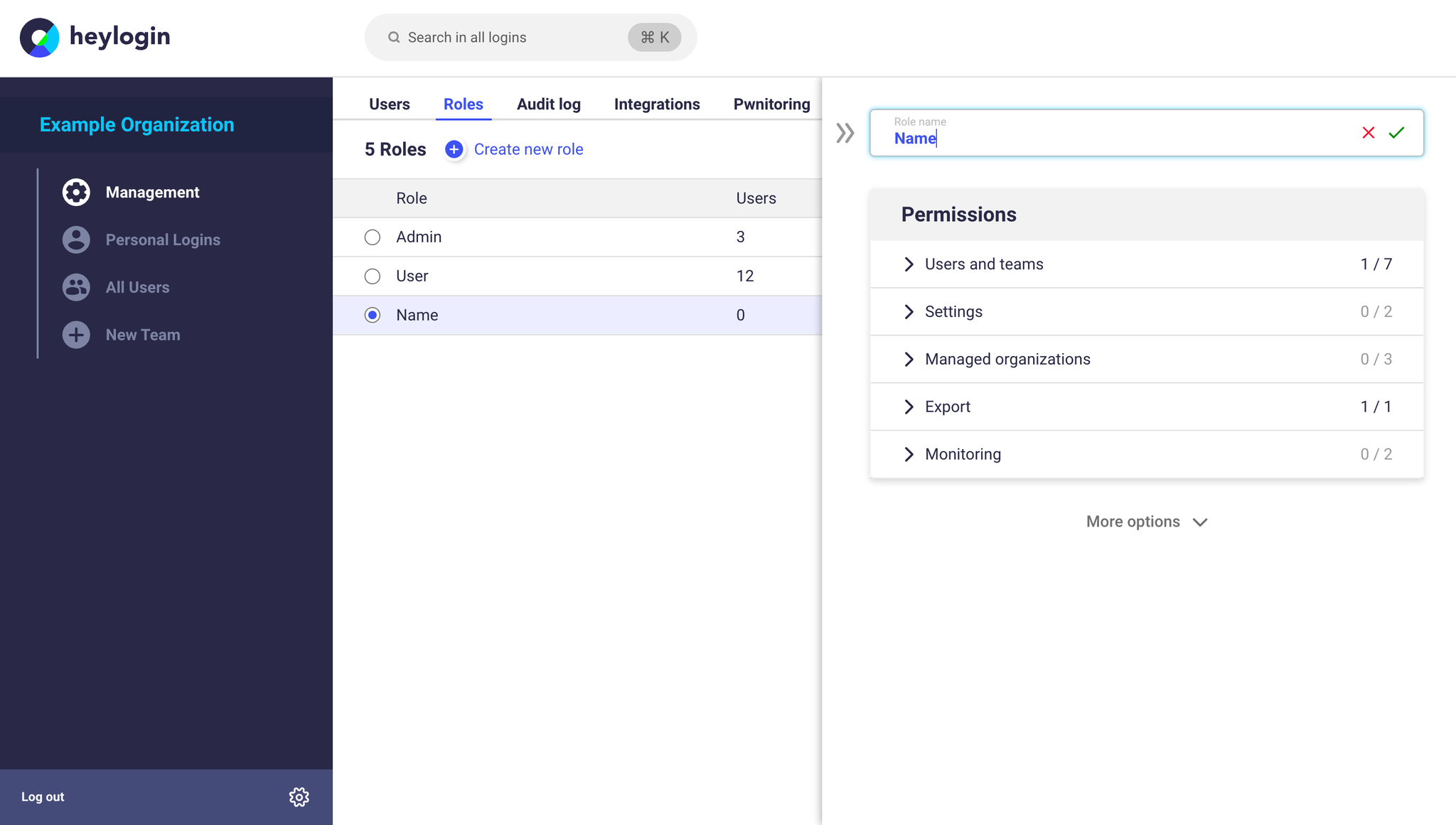
- Enable the desired permissions in the individual categories. An overview of the available permissions can be found here.
- The role is saved automatically and is then available to be assigned to users.
Assign a role
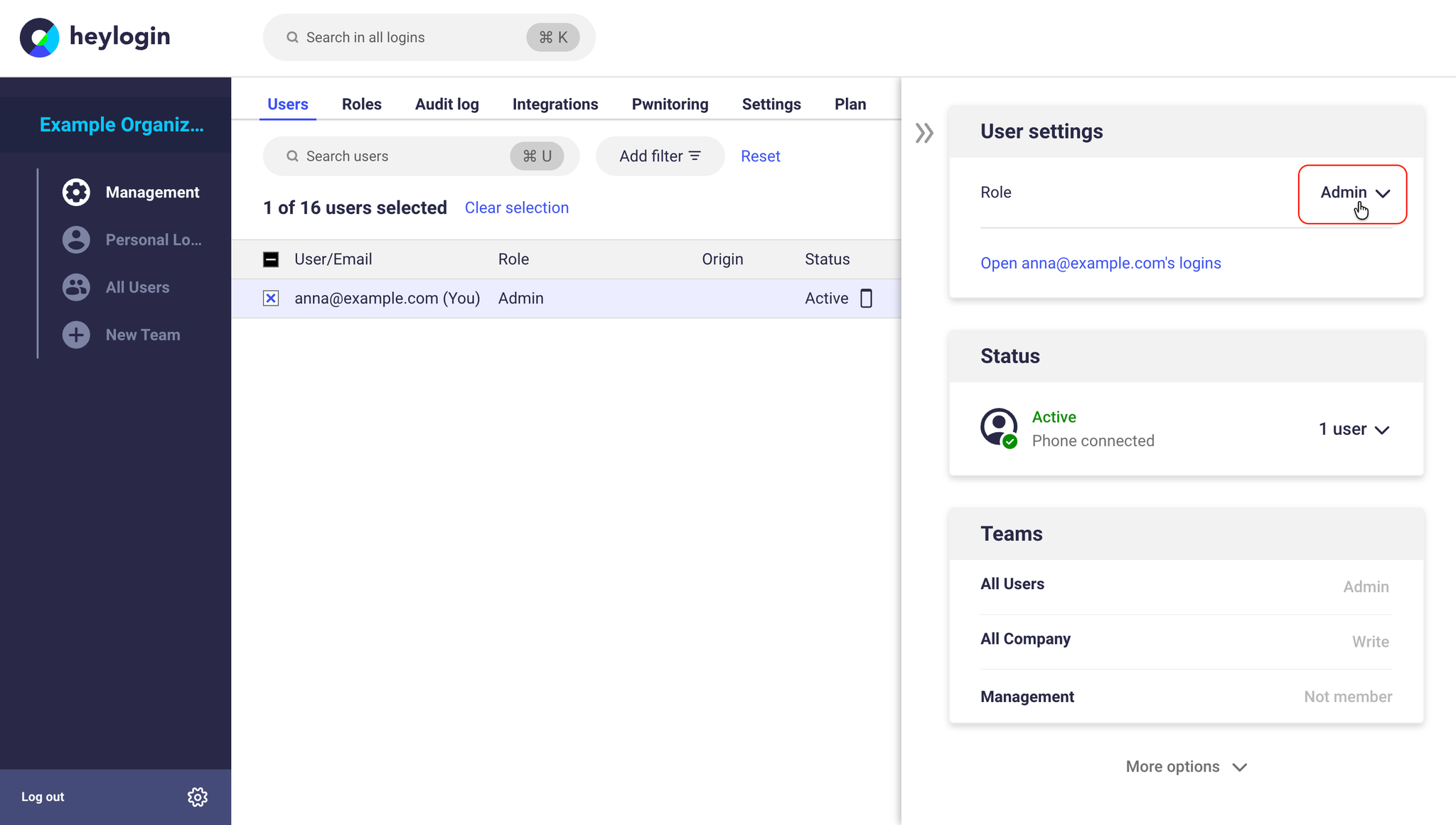
Once a role has been created, you can assign it to your users via the Users tab in the Management section.
💡
To assign a role to several users at once, select the relevant users in the user list via the checkboxes and then choose the desired role.
Edit or delete a role
Existing roles can be adjusted at any time. To do so, select the relevant role in the overview and enable or disable the desired permissions. The changes take effect immediately for all users assigned to this role.
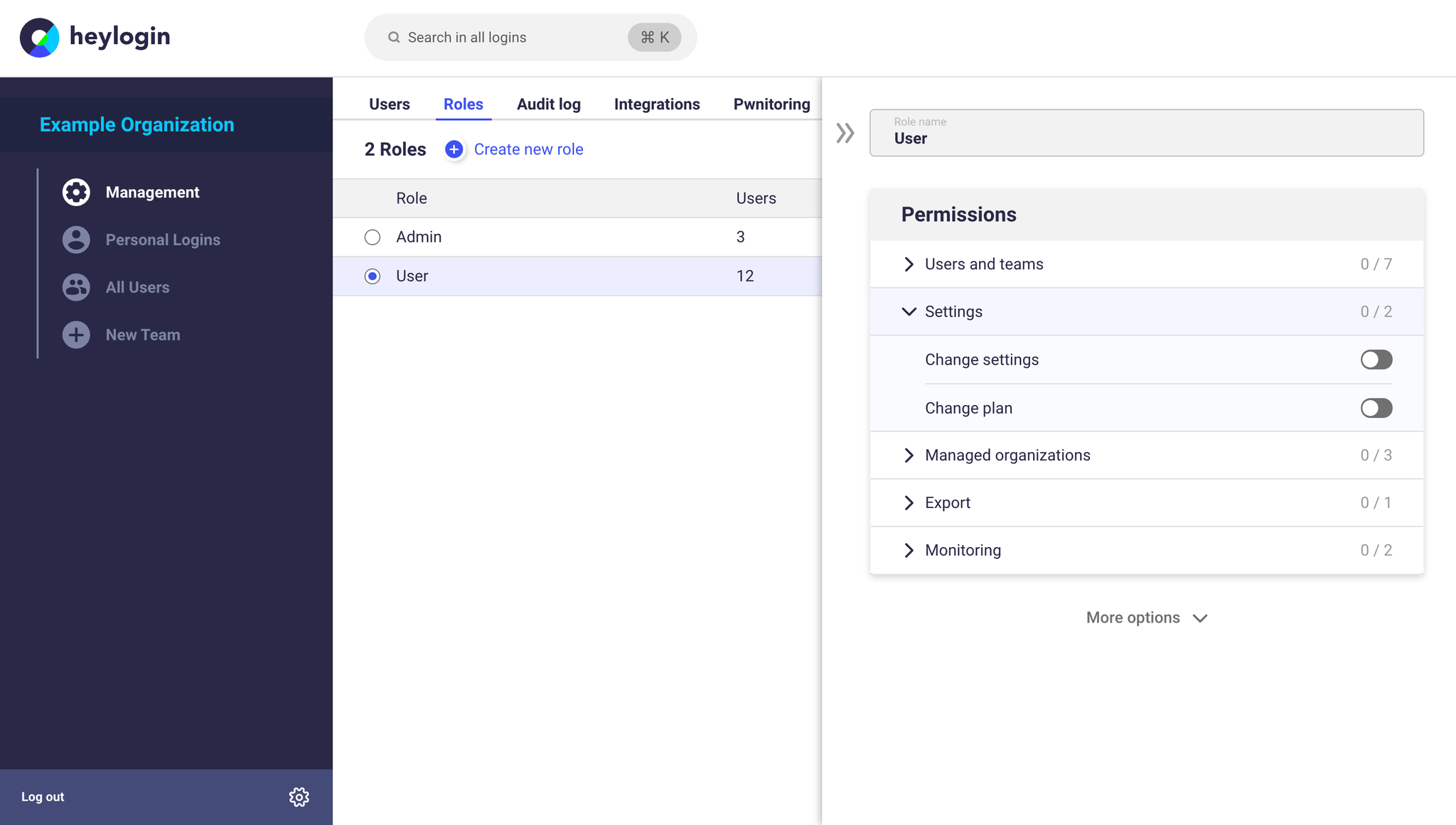
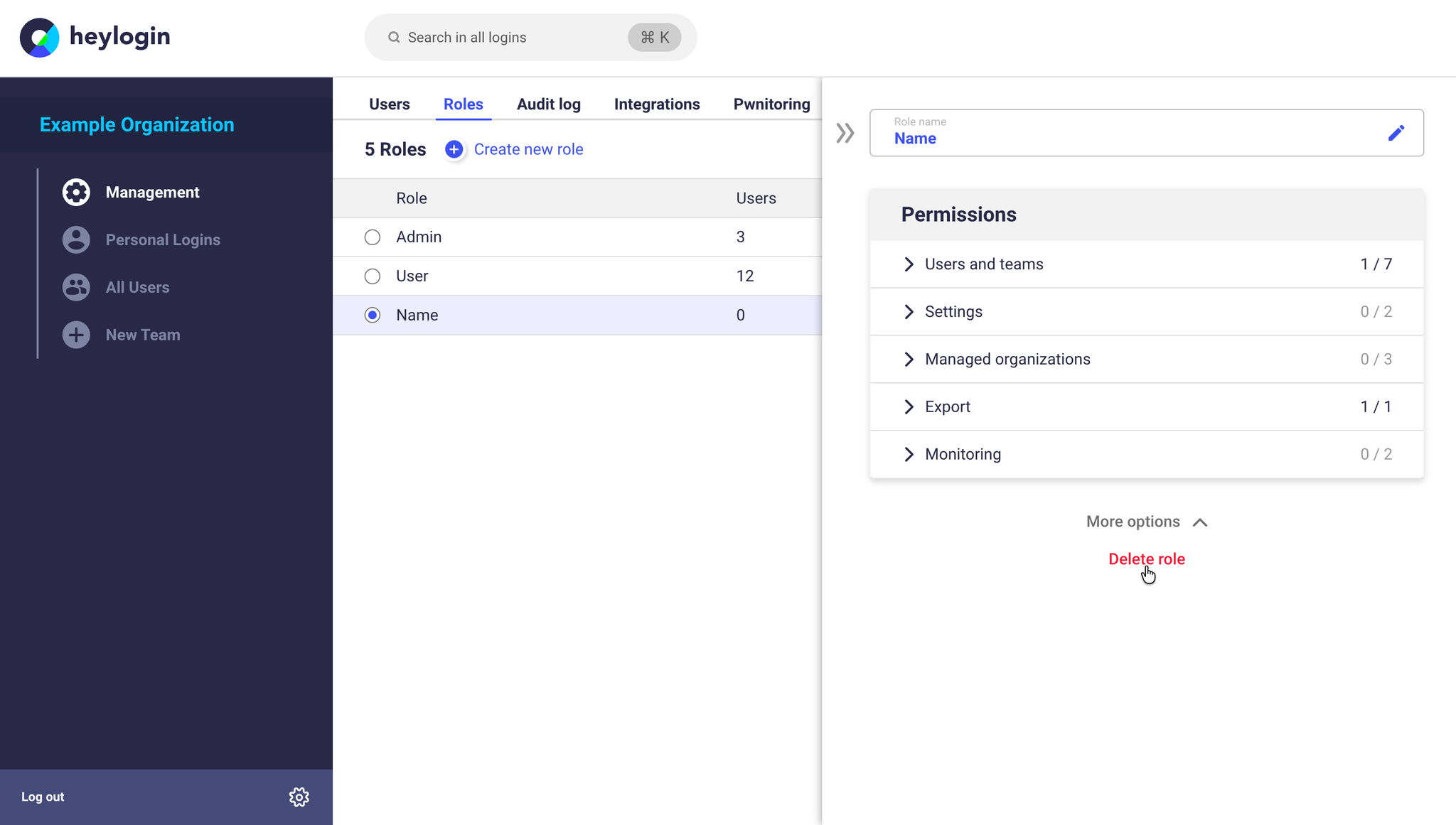
To delete a role, click More options below the permissions and select Delete role.
💡
Roles that currently have users assigned to them cannot be deleted. Assign the affected users a different role first before deleting the role.
Permissions overview
Permissions are divided into several categories that can be enabled or disabled individually.
Users and Teams
Permissions related to the management of users and teams:
- View user list View an overview of all users in the organization
- Manage users Manage users, roles, integrations, and managed organizations
- Connect users Add and invite new users to the organization
- Grant self team access Grant yourself access to teams
- Grant others team access Grant other users access to teams
- List personal logins of other users View personal logins of other users in the overview – the passwords themselves remain hidden
- Create teams Create new teams within the organization
Settings
Permissions for managing the organization's settings:
- Change settings Adjust general settings of the organization (e.g. the organization name, logo or the password policy)
- Change plan Manage the organization's subscription and plan
Managed Organizations
Permissions in the context of managed organizations (e.g. for Managed Service Providers):
- Create managed organizations Create new managed organizations
- View all managed organizations View organizations in which the user is not a delegated admin
- Manage all managed organizations Add delegated admins in all managed organizations
Export
Permissions for exporting data:
- Export logins Export all logins of the organization (including passwords and related information) as a CSV file
Monitoring
Permissions for security and activity monitoring of the organization:
- View audit log Access the Audit Log of the organization
- View Pwnitoring Access the results of heylogin Pwnitoring