
Using the context menu (right-click on input fields), you can quickly and conveniently insert your saved login details from heylogin.app into a login form. This method is especially useful when automatic filling is not available or when multiple login credentials are saved for the same website and you want to deliberately select a specific entry.
Insert Login Credentials via Context Menu
- Open the website you want to log in to and navigate to the login area.
- Right-click on an input field in the login form (e.g. username, email address or password).
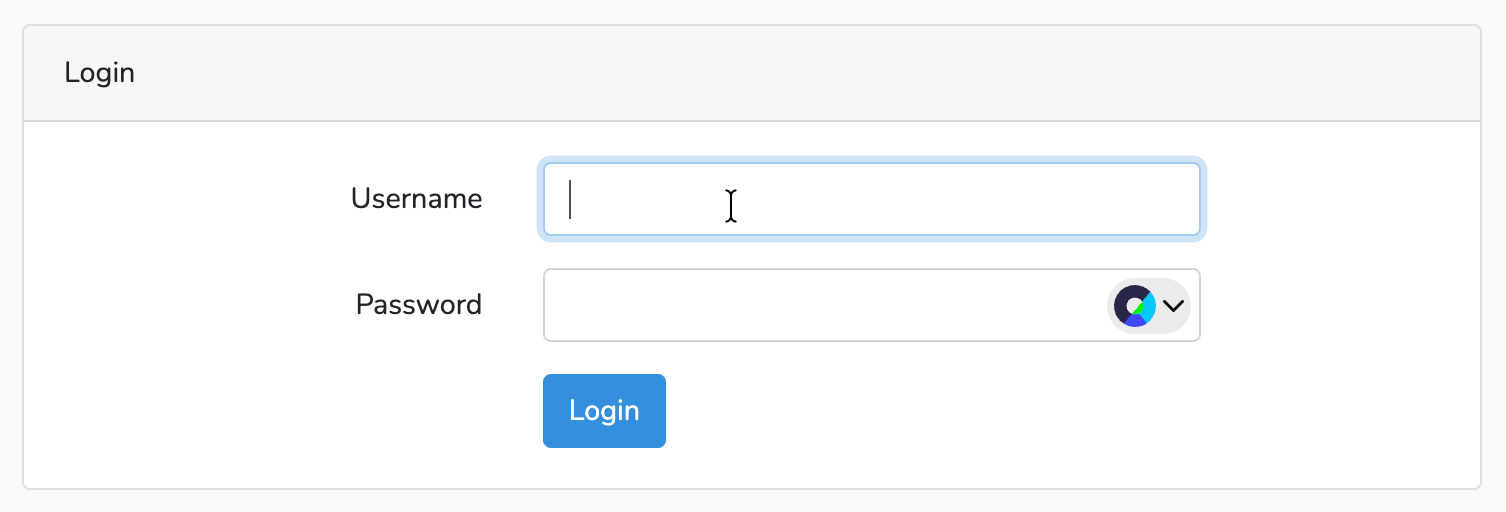
- In the context menu that appears, hover over the entry „heylogin - Password Manager“.
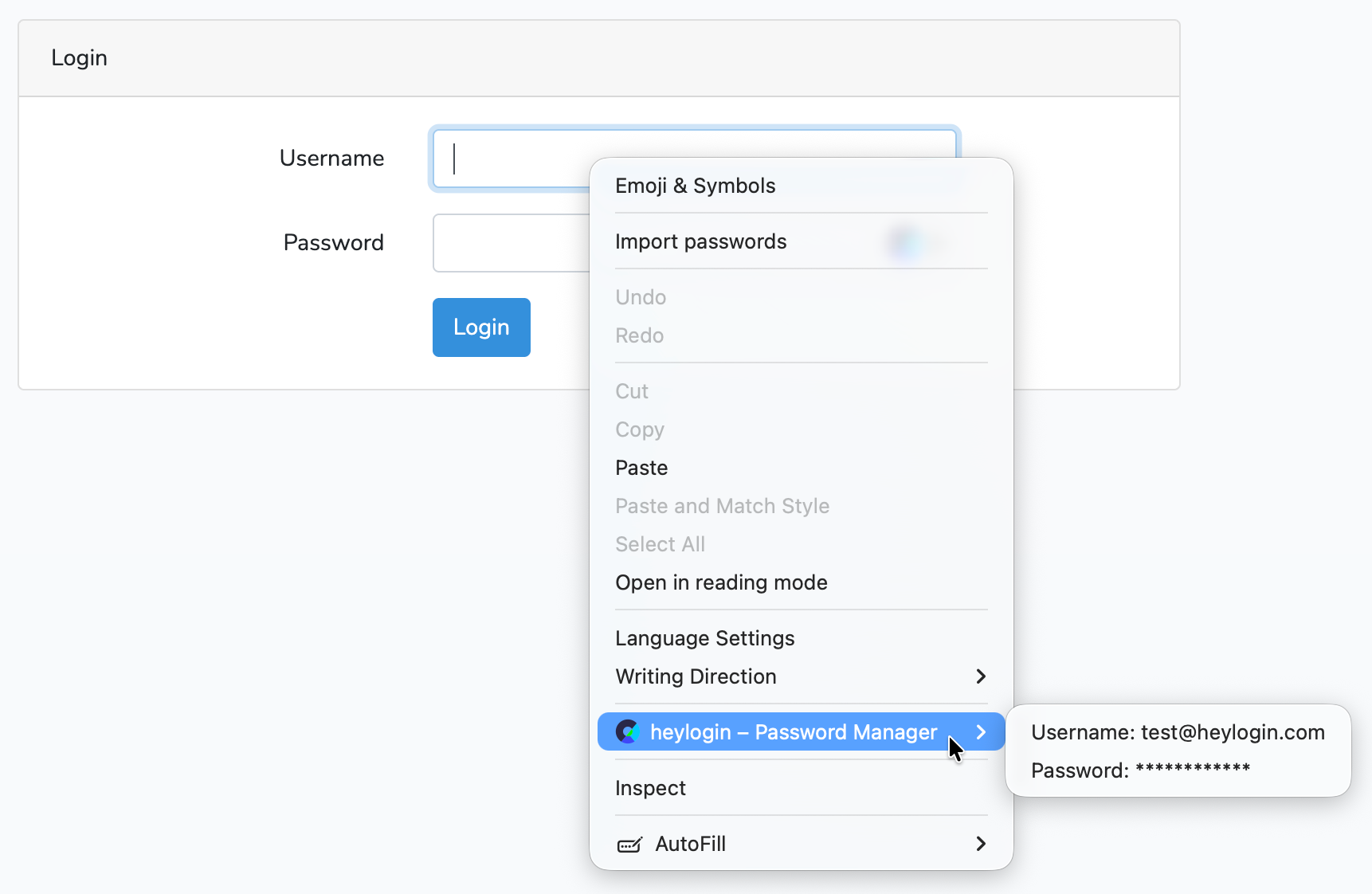
- A list of your saved login details for this website will be displayed. Select the entry you want to use.
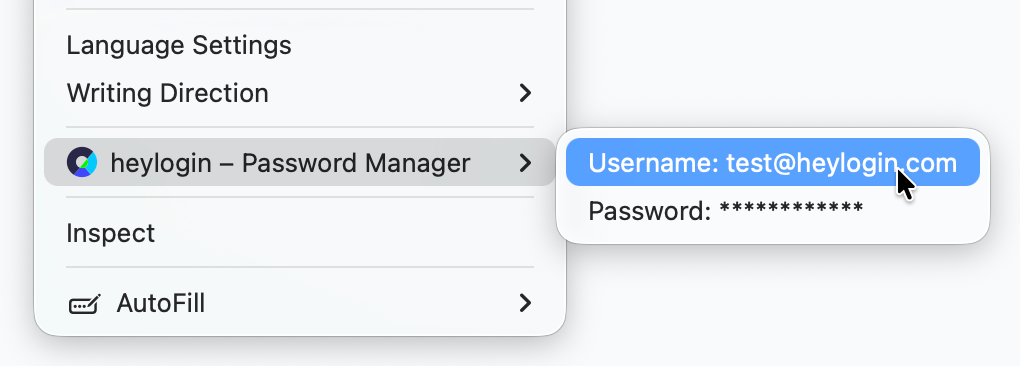
- heylogin automatically inserts the selected record into the corresponding fields - whether it’s a username, email address, password, TOTP code, or a custom field. For information on creating a custom field, see also Custom fields.