We recommend to set up AutoFill for logging into apps on iPhone or Android samrtphones.
On iPhones, you can set up 1-click login for Safari afterwards, which provides the full heylogin experience - as our browser extension on PC/Mac.
iPhone: Activate AutoFill
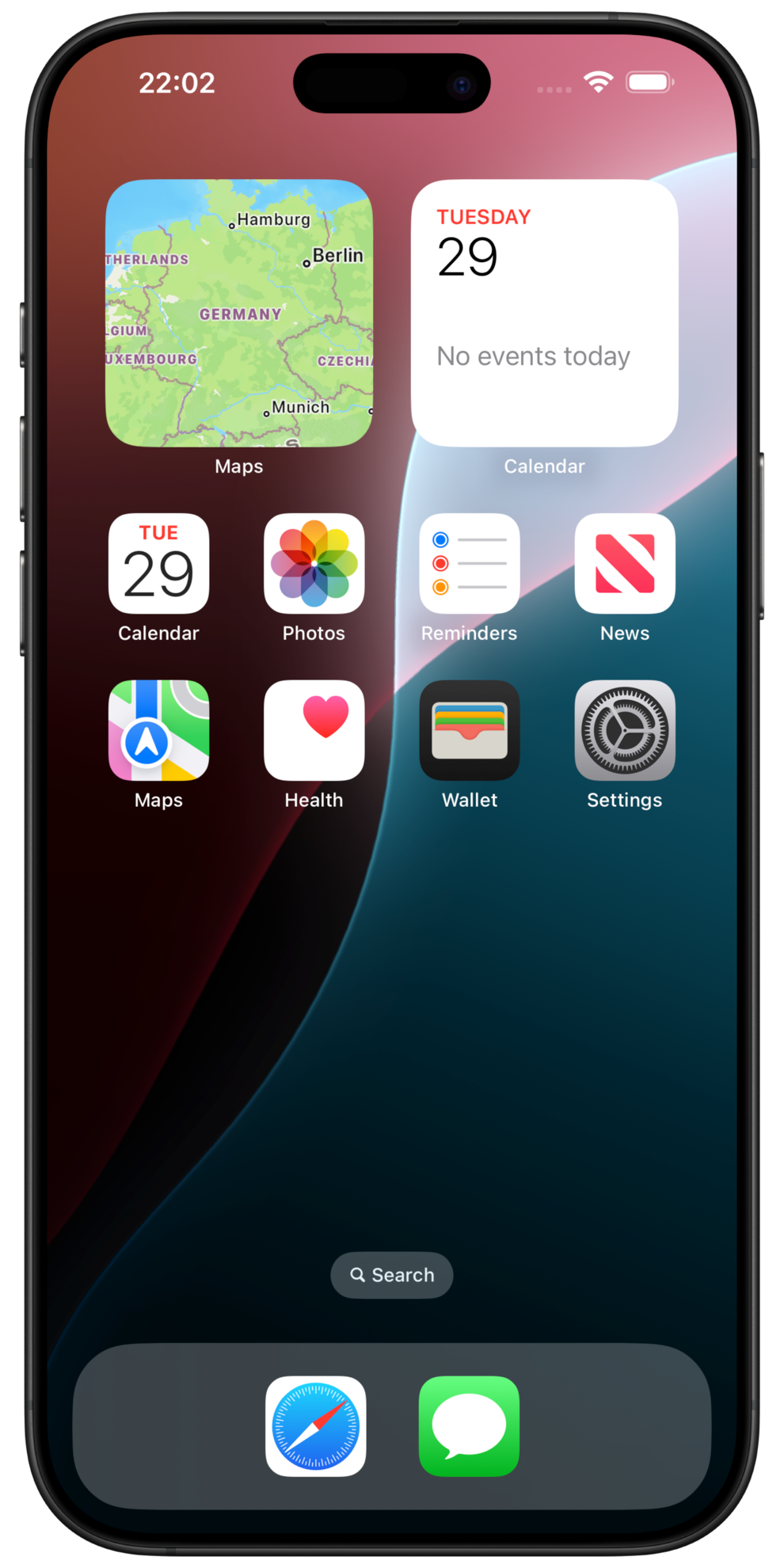
On your iPhone, open Settings.
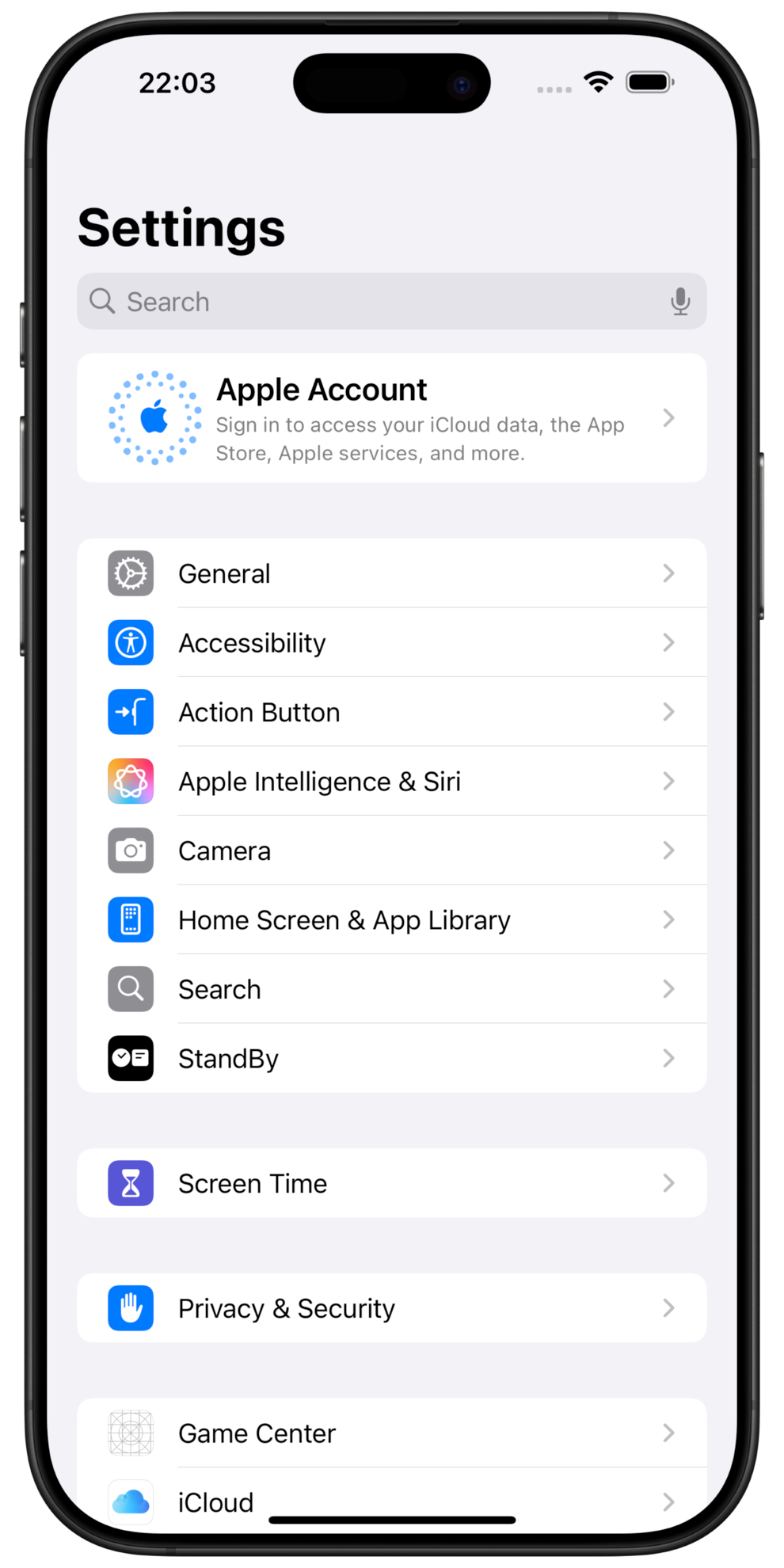
In the Settings, tap General
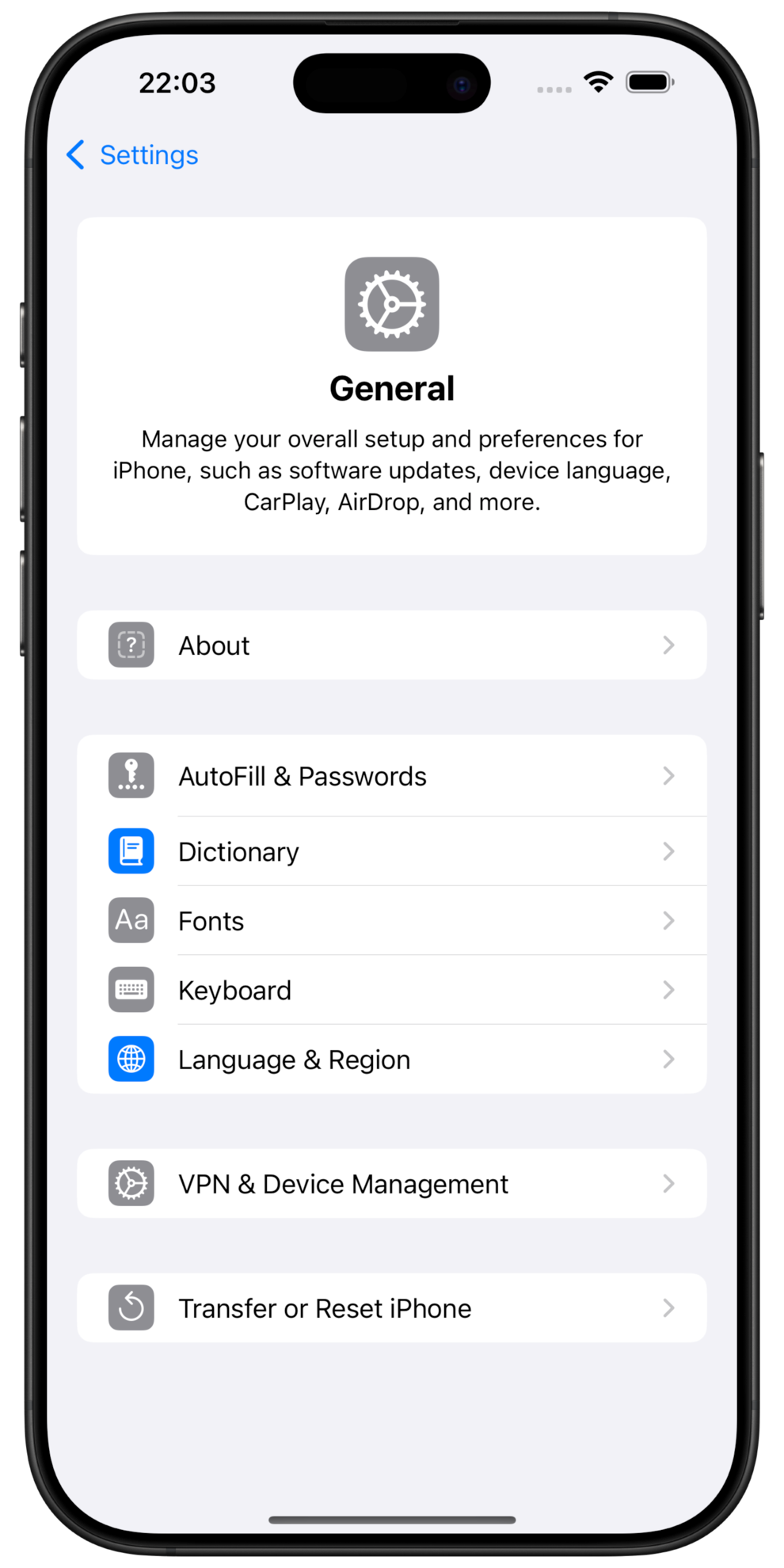
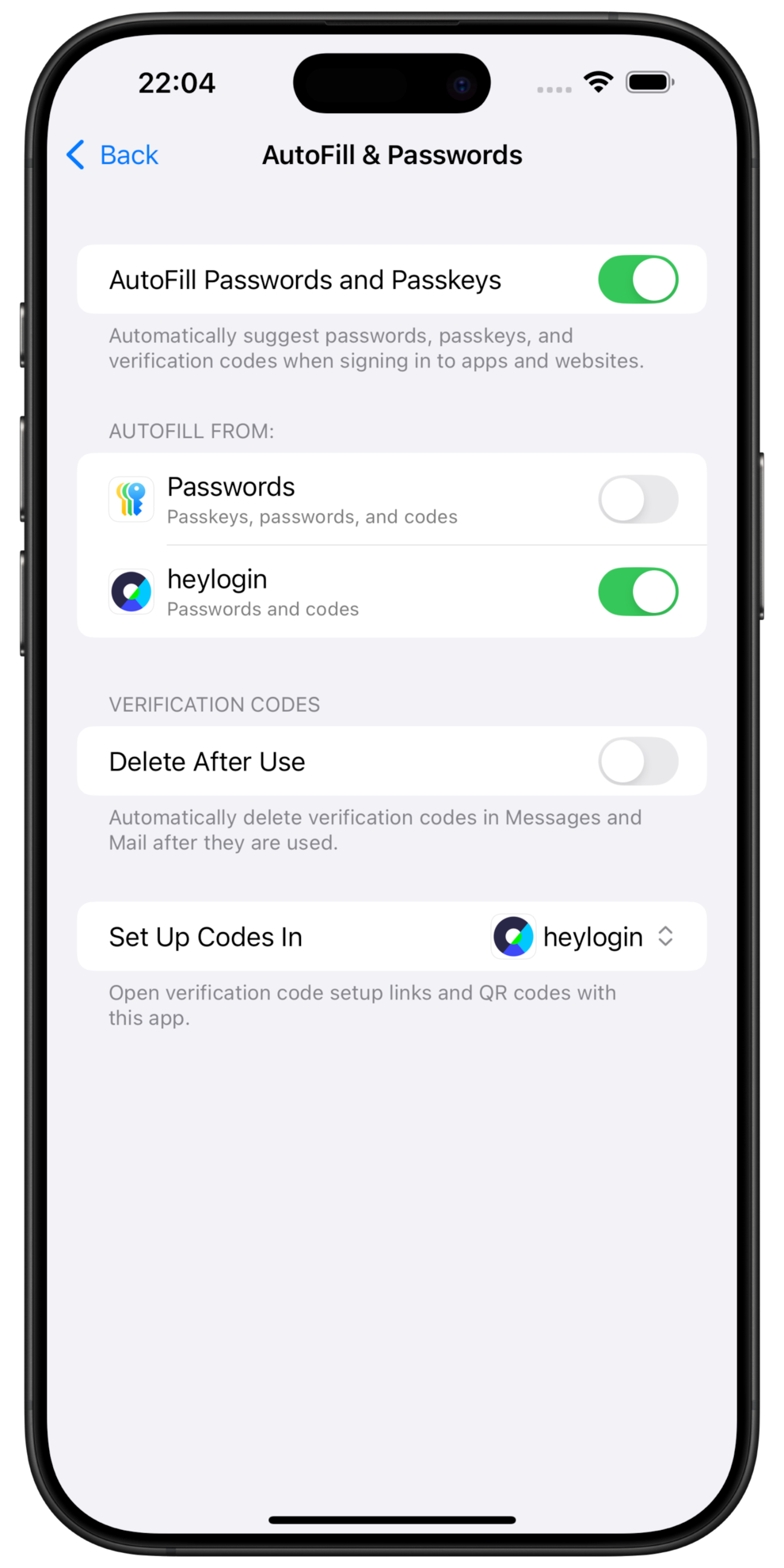
Tap AutoFill and Passwords
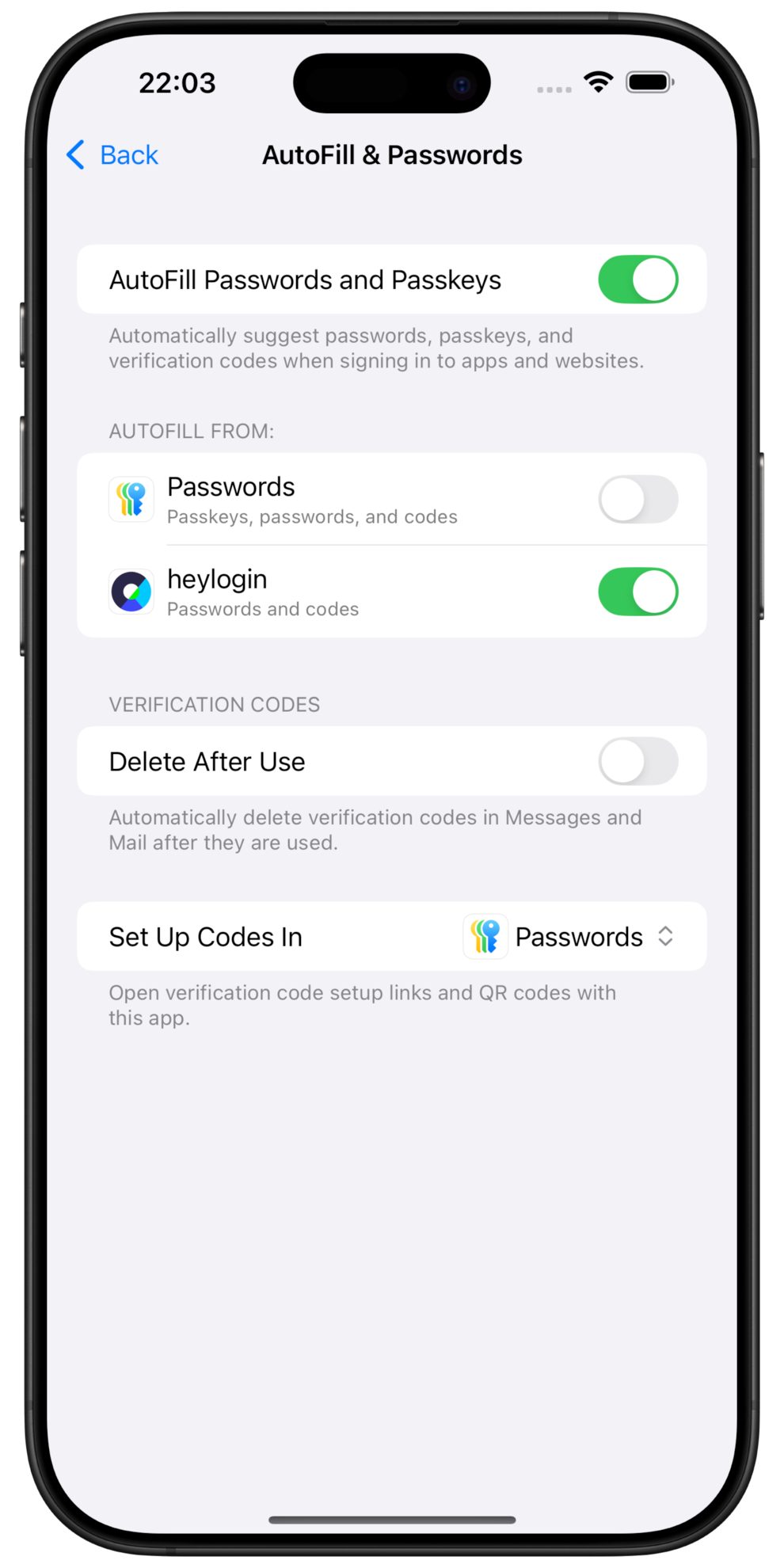
Enable AutoFill Passwords and Passkeys. In autofill from, disable Passwords and enable heylogin.
Select heylogin for Set Up Codes In.
Congratulations, you can now use heylogin to log into apps.
iPhone: Set up 1-click login in Safari
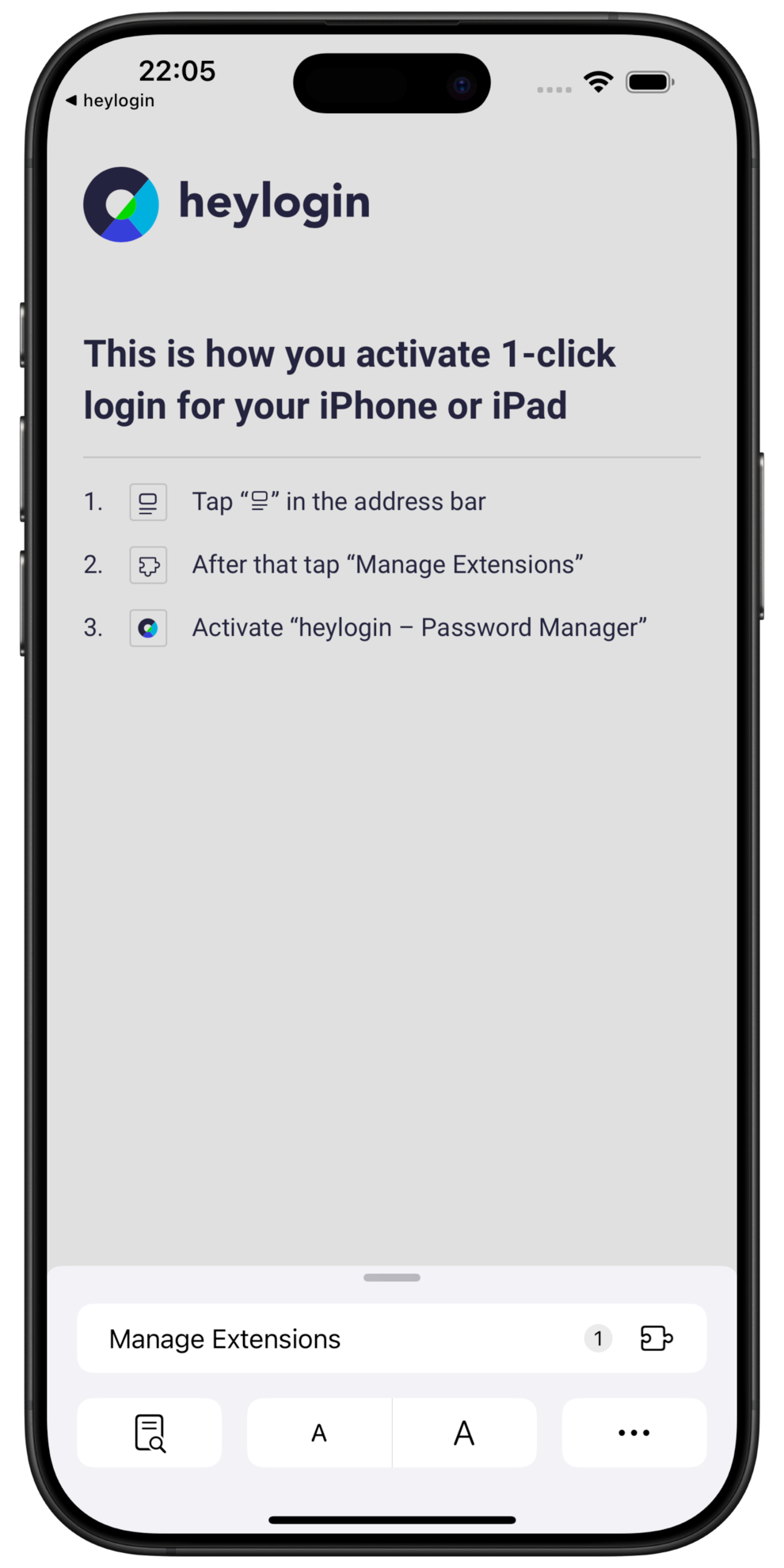
Follow this video or the instructions below
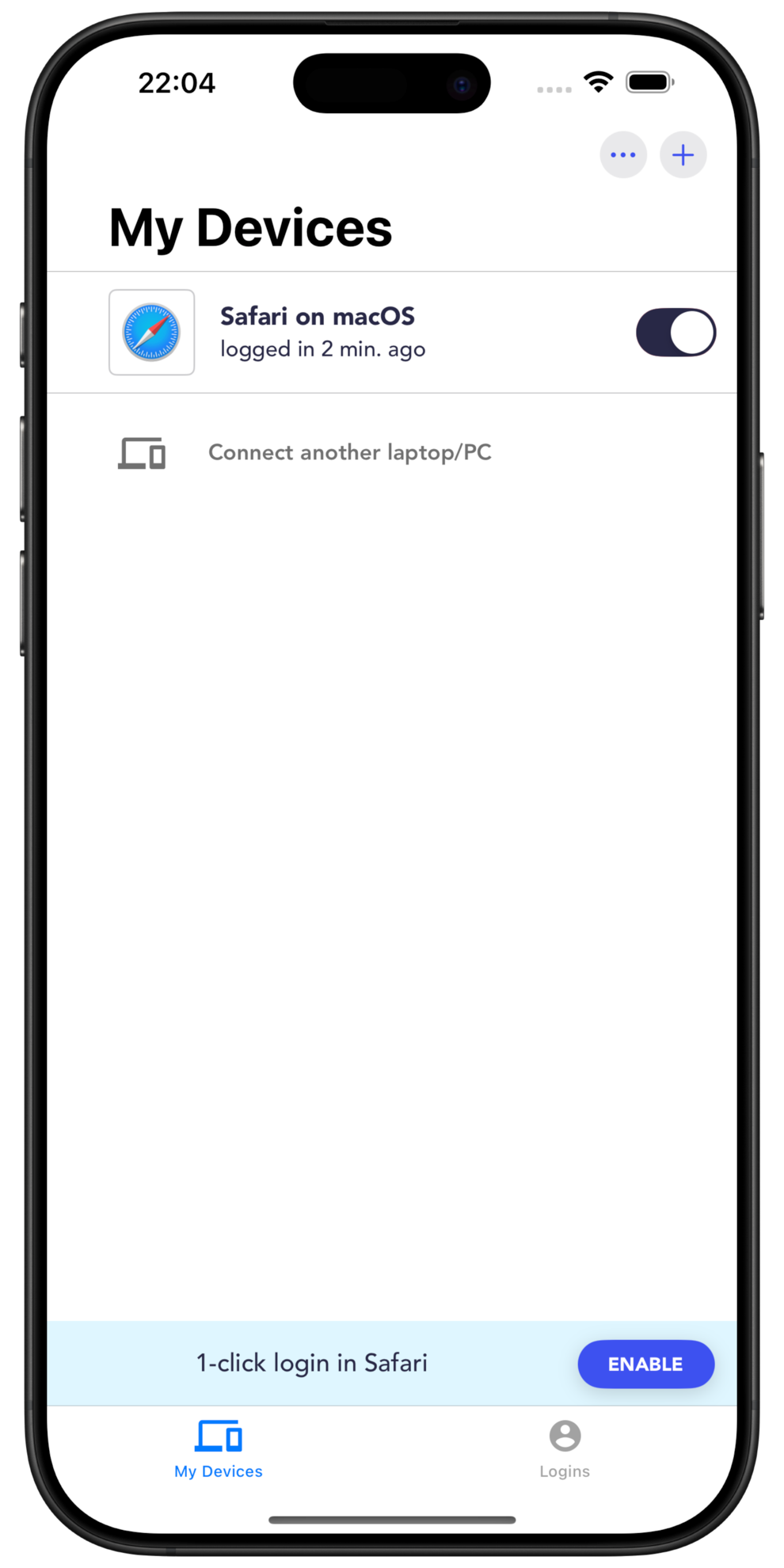
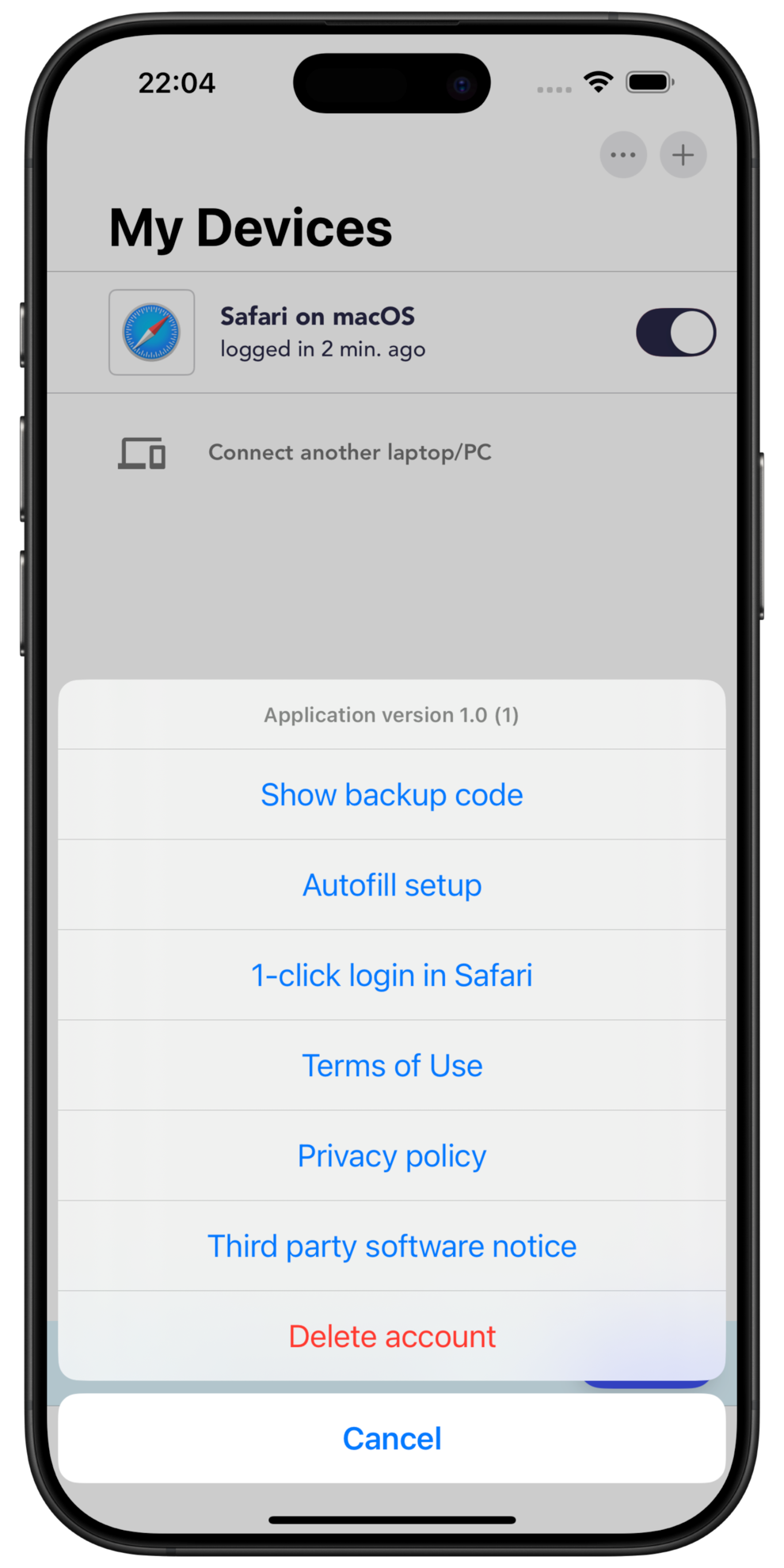
Open heylogin on your iPhone and tap the “…” icon in the upper right corner
Tap 1-click login in Safari. You’ll be redirected to Safari.
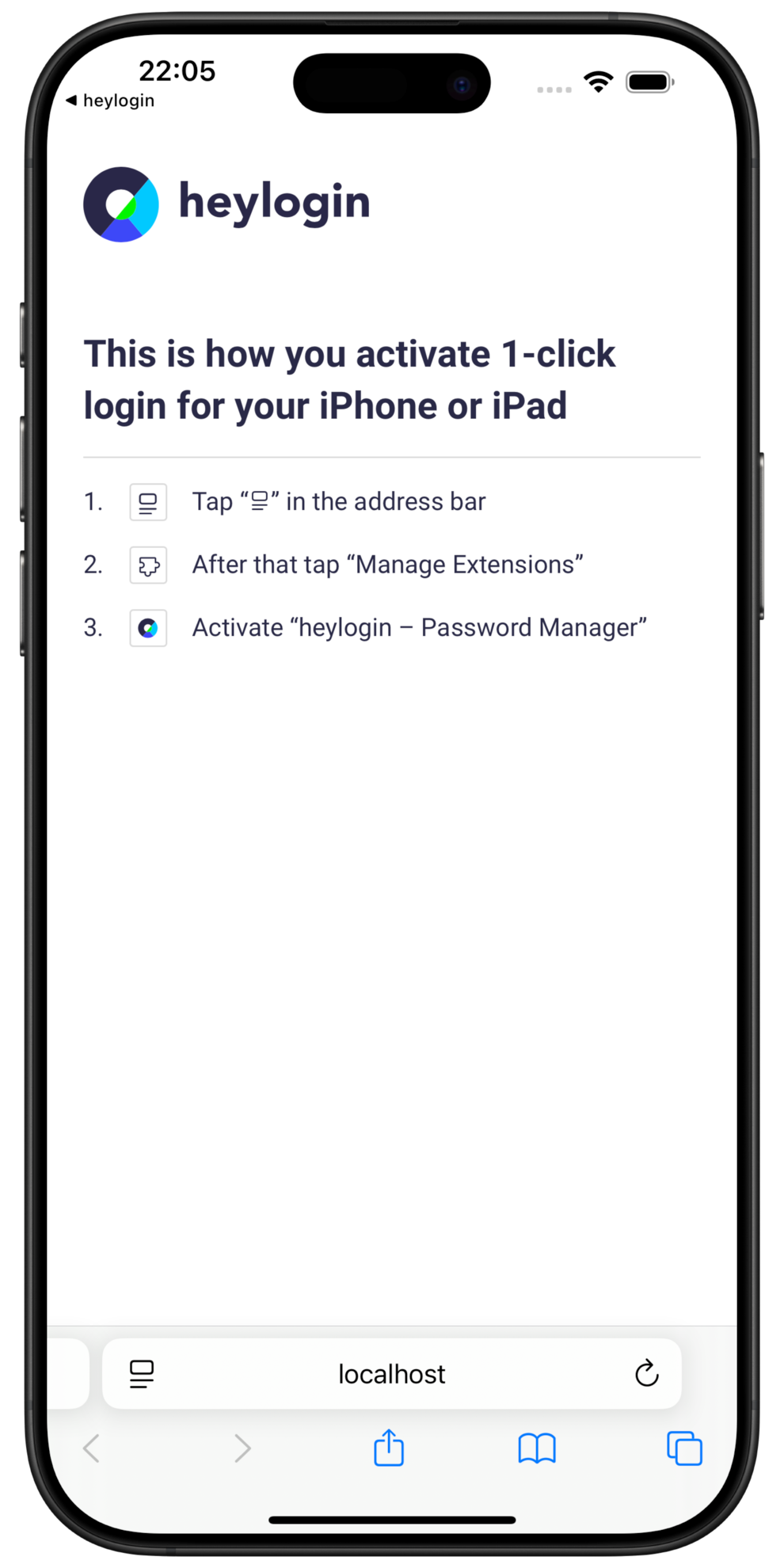
When Safari has opened, tap the settings icon on the left of the address bar
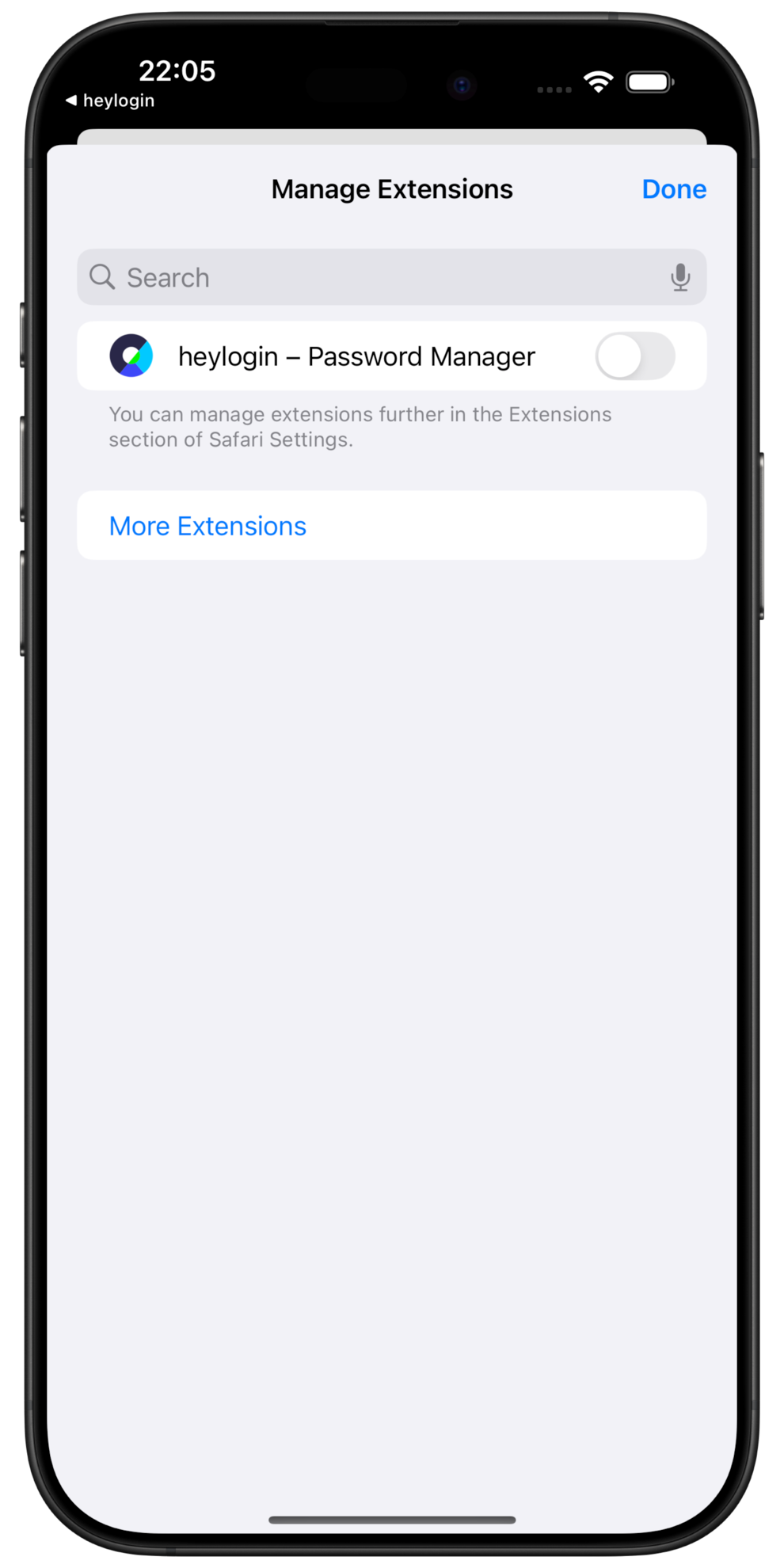
Then tap Manage Extensions.
Activate heylogin – Password Manager.
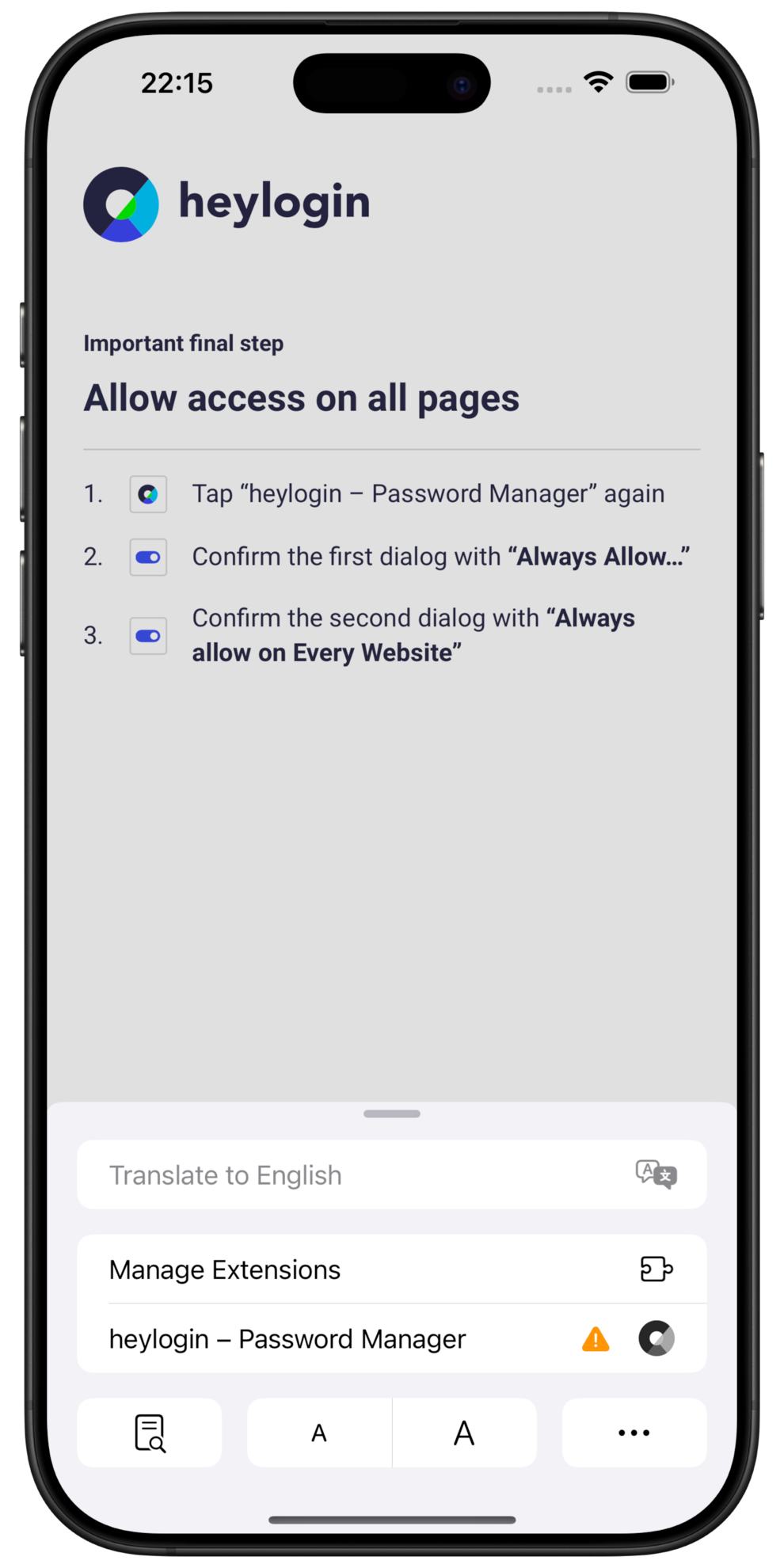
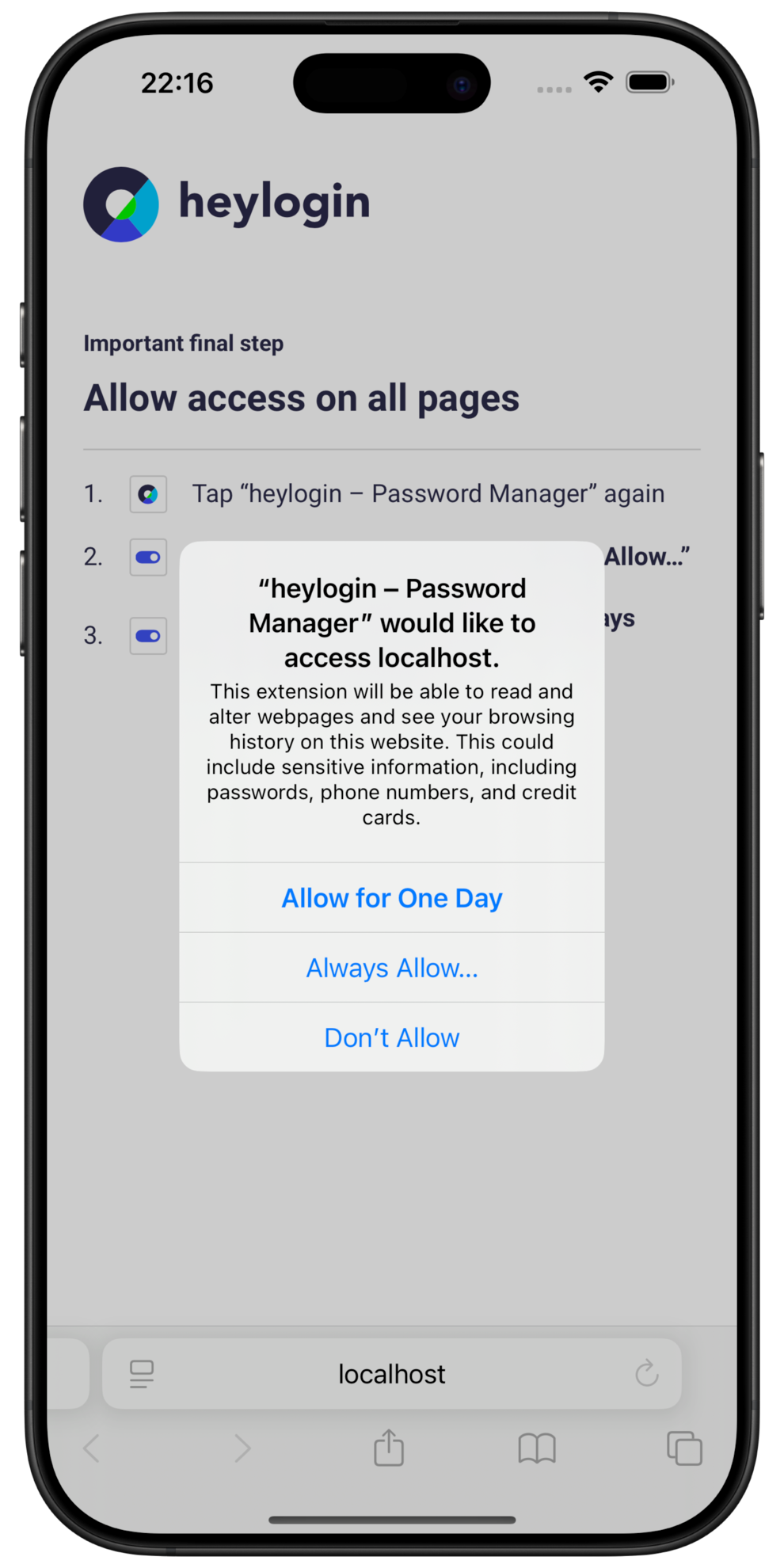
Tap heylogin – Password Manager again.
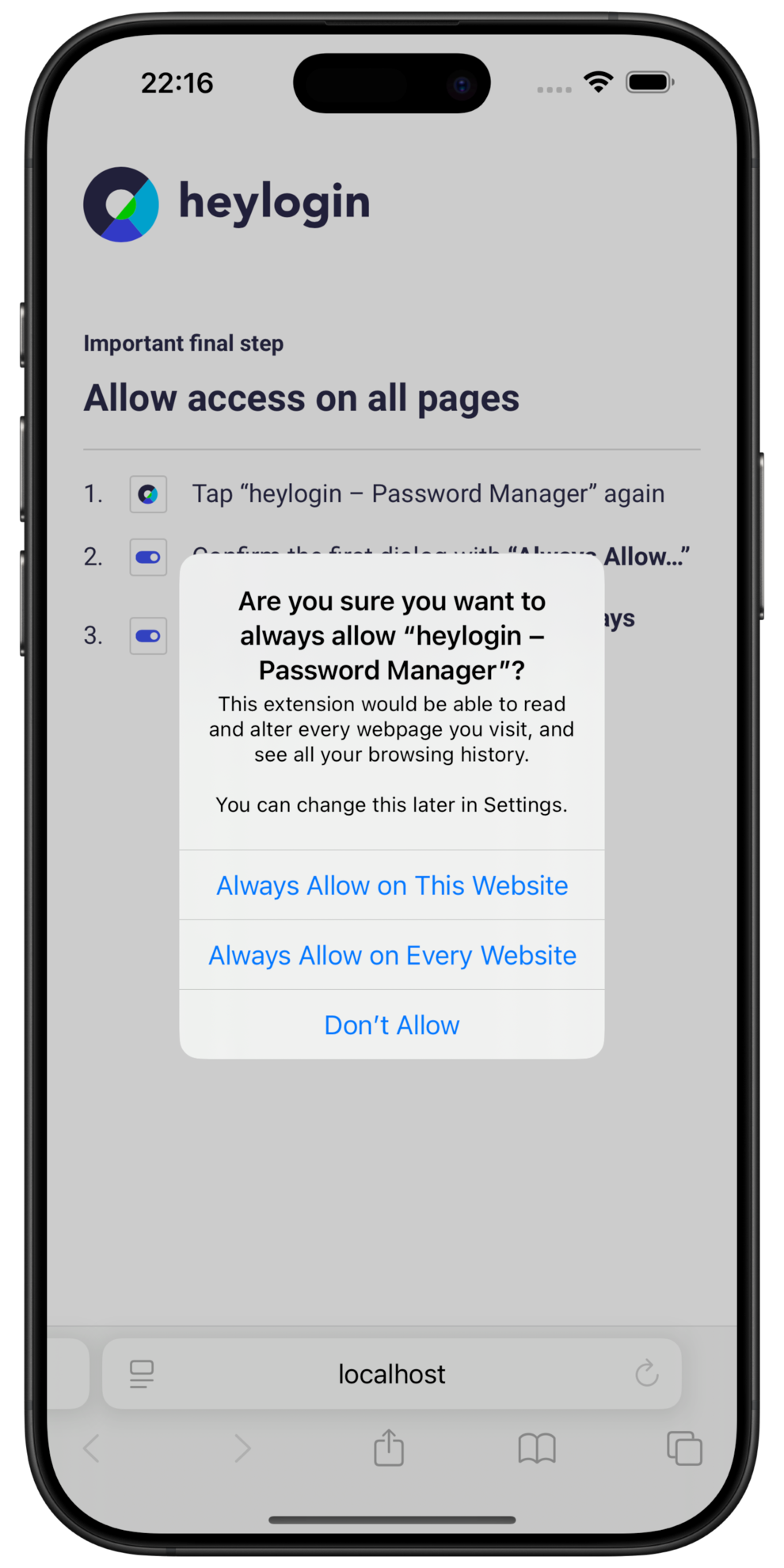
Confirm the first dialog with Always Allow… .
Confirm the second dialog with Always Allow on Every Website.
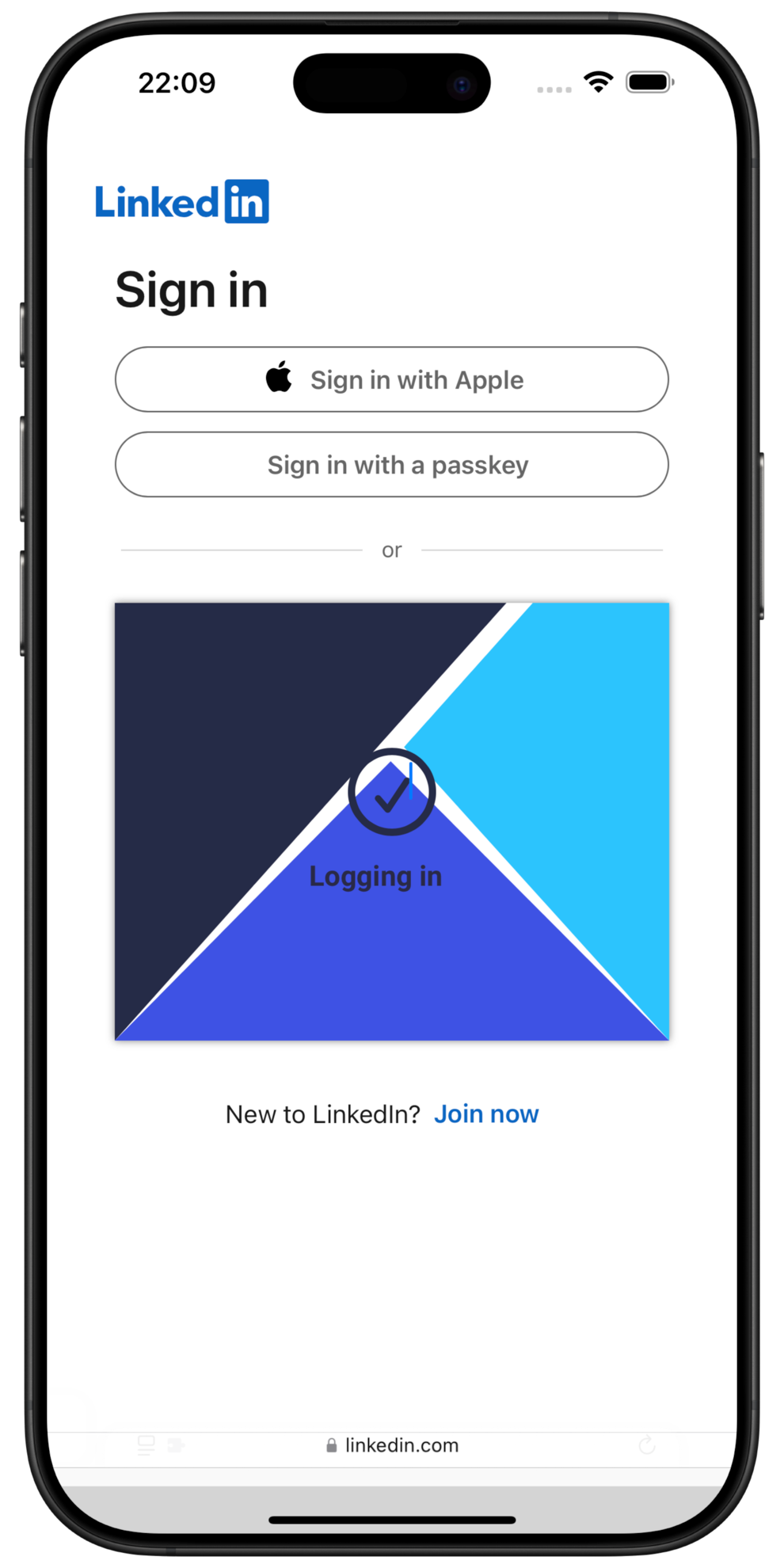
Go to the website of your choice and log in using only 1 click.
Android: Activate Autofill
We recommend to set up Autofill on Android, to be able to log into apps and websites. Autofill is supported by most apps as well as Chrome and Firefox on Android.
⚠️
Samsung Browser currently does not properly support Autofill.
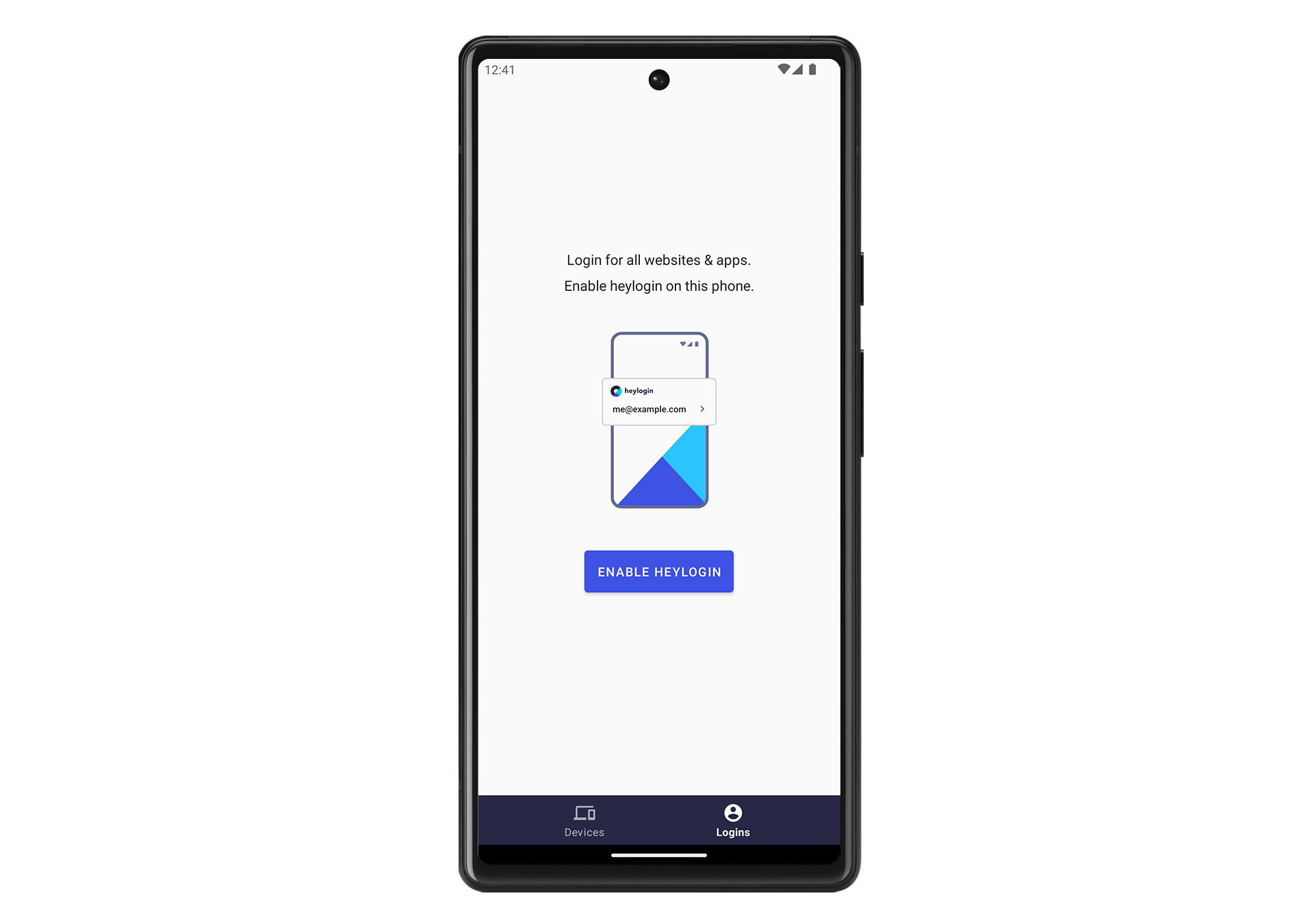
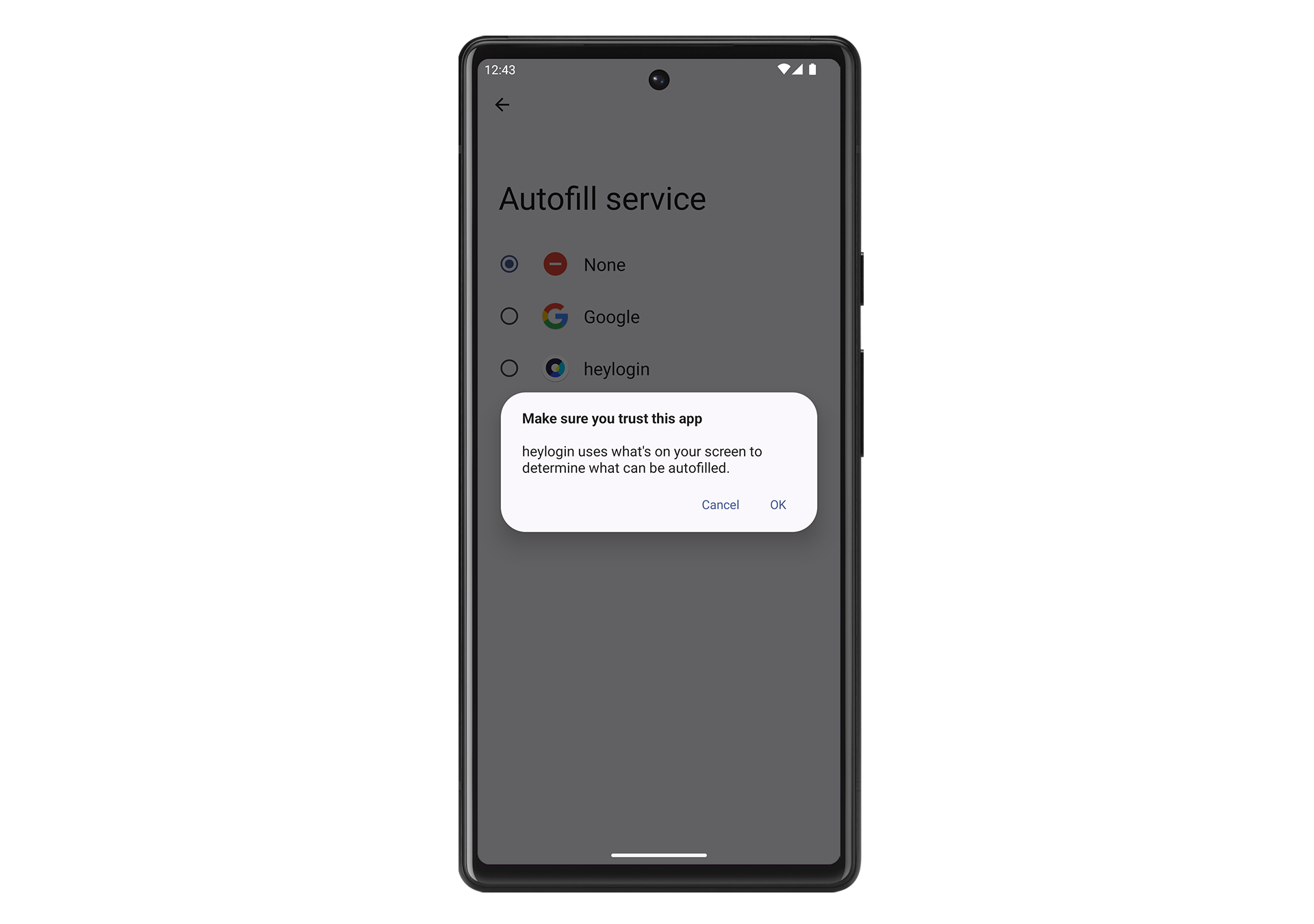
Open your heylogin app and tap on Logins. Then tap on ENABLE HEYLOGIN.
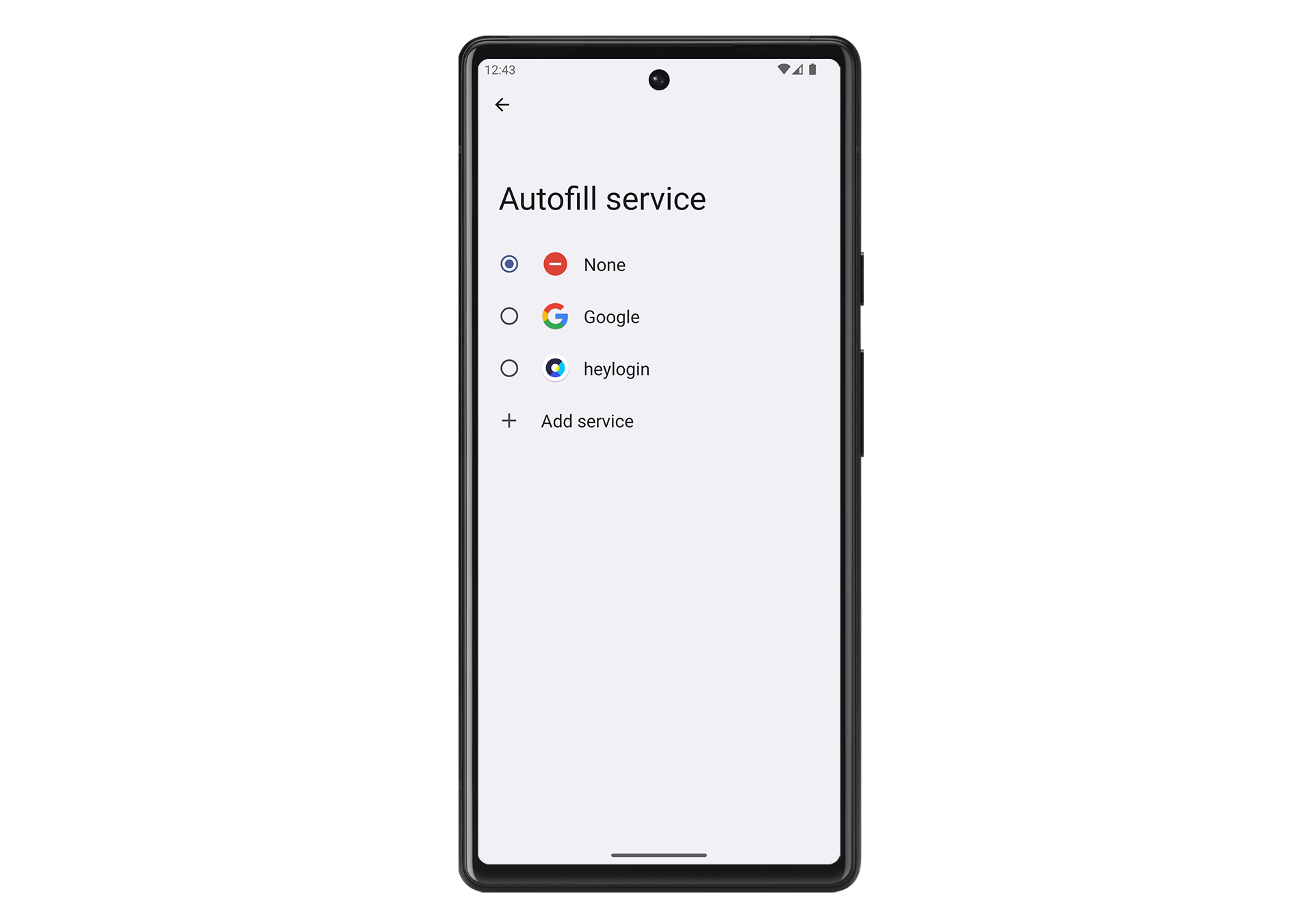
You are forwarded to Android’s settings menu to select heylogin as the default Autofill service.